EasyManua.ls Logo

Lexmark CX417 Series - User Manual

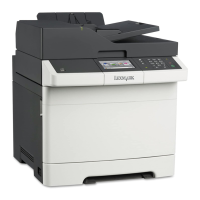
Lexmark CX417 Series
336 pages
Print Icon
To Next Page IconTo Next Page
Loading...
CX410 Series and CX417
User's Guide
March 2017 www.lexmark.com
Machine type(s):
7527
Model(s):
415, 436

Table of Contents

Questions and Answers

  • E
    Erin RobertsSep 9, 2025
    How to replace imaging kit on Lexmark All in One Printer?
    • T
      Tommy WilliamsSep 9, 2025
      If your Lexmark All in One Printer displays 'Replace [type] imaging kit, 0 estimated pages remain [84.xy]', replace the indicated imaging kit to clear the message and continue printing.
  • R
    Robert HansenAug 25, 2025
    What to do if scanner job is not successful on Lexmark All in One Printer?
    • K
      ktuckerAug 25, 2025
      To address the 'Scanner job was not successful' message on your Lexmark All in One Printer, try the following: * Check the cable connections to ensure the Ethernet or USB cable is securely connected to both the computer and the printer. * Verify that the file name you're using isn't already in use. * Make sure the document or photo you're trying to scan isn't open in another application. * Check if either the 'Append time stamp' or the 'Overwrite existing file' check box is selected.
  • P
    Paul SchultzAug 25, 2025
    What does maintenance kit low mean on Lexmark All in One Printer?
    • L
      lmasonAug 26, 2025
      If your Lexmark All in One Printer indicates 'Maintenance kit low [80.xy]', you may need to order a maintenance kit. If necessary, select 'Continue' to clear the message and continue printing.
  • A
    ambermurphySep 22, 2025
    How to insert tray in Lexmark All in One Printer?
    • B
      brownsergioSep 22, 2025
      If your Lexmark All in One Printer displays 'Insert Tray [x]', insert the indicated tray into the printer.
  • P
    Phillip CoxSep 9, 2025
    How to load manual feeder with specific paper type and size on Lexmark All in One Printer?
    • H
      Holly ArroyoSep 9, 2025
      If your Lexmark All in One Printer displays 'Load Manual Feeder with [paper type] [paper size]', load the feeder with the correct size and type of paper. Depending on your printer model, touch 'Prompt each page, paper loaded' or press to confirm. You can also cancel the current job.
  • C
    Catherine AguilarSep 14, 2025
    What to do if insufficient memory to support resource save feature on Lexmark All in One Printer?
    • D
      dennisyangSep 14, 2025
      If your Lexmark All in One Printer displays 'Insufficient memory to support Resource Save feature [35]', install additional printer memory or select 'Continue' on the printer control panel to disable Resource Save, clear the message, and continue printing.
  • E
    erobertsSep 3, 2025
    How to load custom type paper on Lexmark All in One Printer?
    • S
      Sharon JohnsonSep 4, 2025
      If your Lexmark All in One Printer displays the message 'Load [paper source] with [custom type name]', load the tray or feeder with the correct size and type of paper. Alternatively, to use the tray with the correct paper size or type, select 'Finished loading paper' on the printer control panel. You can also cancel the current job.
  • G
    gary78Sep 4, 2025
    What to do if Lexmark All in One Printer memory is full?
    • R
      Robert AdkinsSep 4, 2025
      If your Lexmark All in One Printer shows 'Memory full [38]', select 'Cancel job' on the printer control panel to clear the message. You can also install additional printer memory.
  • E
    Eric MolinaSep 23, 2025
    Why scanned image quality is poor on Lexmark All in One Printer?
    • S
      Shannon MartinezSep 23, 2025
      Check if an error message appears on the display. Check the quality of the original document. Clean the scanner glass and the ADF glass using a clean, lint-free cloth. Check the placement of the document or photo. Send a print job, and then check for print quality problems.
  • A
    Andrea BellAug 29, 2025
    What does maintenance kit very low mean on Lexmark All in One Printer?
    • M
      Mr. Scott RobertsonAug 29, 2025
      If your Lexmark All in One Printer displays 'Maintenance kit very low [80.xy]', you may need to replace the maintenance kit soon. If necessary, select 'Continue' on the printer control panel to clear the message and continue printing.

Summary

Safety information

Conventions

Defines terms and symbols used in the guide for clarity and safety.

Understanding the printer control panel

Using the printer control panel

Explains the function of each button and display element on the printer's control panel.

Setting up and using the home screen applications

Additional printer setup

Loading paper and specialty media

Printing

Copying

Making copies

Explains how to make quick copies using either the ADF or the scanner glass.

E-mailing

Setting up the printer to e-mail

Details the steps to configure the printer for sending e-mail alerts and scanned documents.

Faxing

Setting up the printer to fax

Provides initial setup instructions and notes for configuring the fax function.

Scanning

Securing the printer

Maintaining the printer

Managing the printer

Clearing jams

Troubleshooting

Understanding the printer messages

Explains how to interpret and resolve common printer messages and error codes.

Lexmark CX417 Series Specifications

General IconGeneral
Print Resolution1200 x 1200 dpi
Maximum Paper Size8.5 x 14 inches
Duplex PrintingYes
Copy Resolution600 x 600 dpi
Fax Resolution300 x 300 dpi
FunctionalityPrint, Copy, Scan, Fax
ConnectivityEthernet, USB, Wi-Fi
Operating System CompatibilityWindows, macOS, Linux
Scanner TypeFlatbed, ADF
Mobile PrintingYes

Related product manuals