10
4
Setting up a print job
Once your printer is set up and your drivers are installed, you are ready to print. Do you want to print a
letter, add a Do Not Copy watermark to a presentation, adjust the print darkness setting? Just choose
the printer setting in your printer driver and print your job.
Printing from a Windows environment
For example, let’s say you have plain paper loaded in tray 1, but you want to print a letter on letterhead
paper and an envelope.
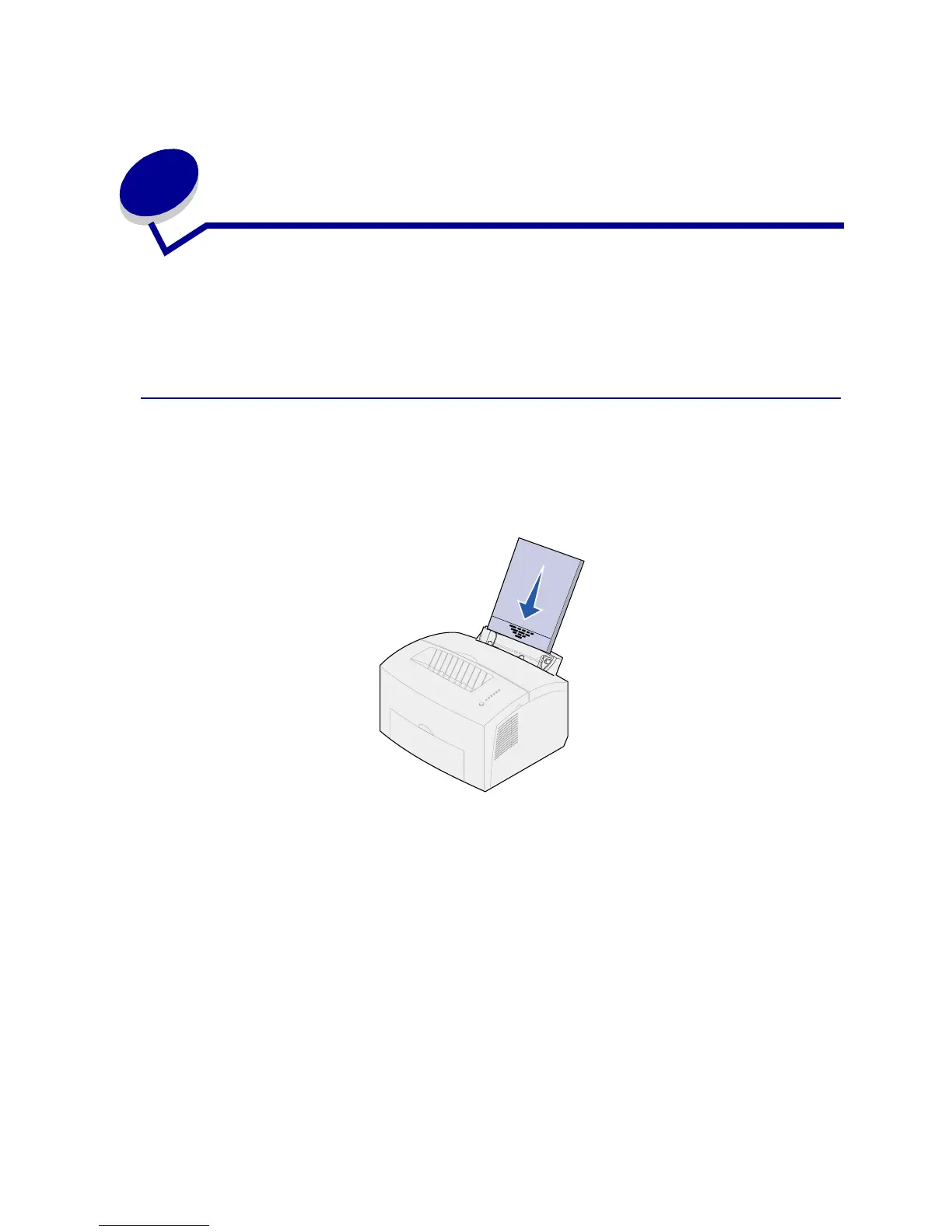
1 Load letterhead with the top of the page pointing down facing you in tray 1.
2 From your software application, open the file you want to print.
3 From the File menu, select Print (or Printer) Setup to open your printer driver.
4 Verify the correct printer is selected in the dialog box.
5 In the Print Setup dialog box, click Properties, Options, or Setup (depending on the
application) to change the paper setting to Letterhead, and then click OK.
6 Click OK or Print to send the job to print.



 To Next Page