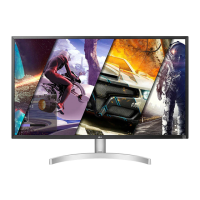
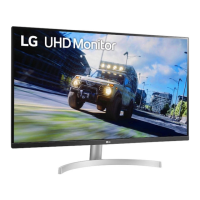
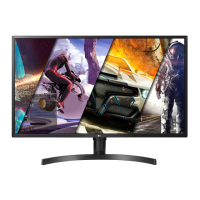
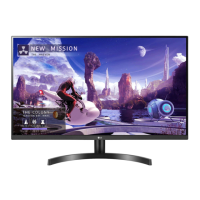
EasyManua.ls Logo

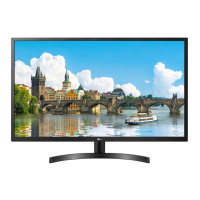
LG 32WL30MS - User Manual

LG 32WL30MS
74 pages
Print Icon
To Next Page IconTo Next Page
Loading...
www.lg.com
OWNER’S MANUAL
MONITOR SIGNAGE
32WL30MS
Please read this manual carefully before operating your set and retain it
for future reference.
MONITOR SIGNAGE MODELS
ENG
ENGLISH

Questions and Answers

  • S
    shannonjosephAug 4, 2025
    What to do if the audio function does not work on my LG Monitor?
    • K
      Kevin MillerAug 4, 2025
      Check the audio cable to ensure it is connected properly. Adjust the volume and verify that the sound is set correctly. You may also want to select the appropriate equalize sound and make sure the volume is properly adjusted.
  • J
    Jamie MillerAug 9, 2025
    What to do if the screen image looks abnormal on my LG 32WL30MS?
    • T
      Teresa TuckerAug 9, 2025
      If you are using a D-Sub analog signal, press the "AUTO" button on the remote control to automatically select the optimal screen status. If the adjustment is not satisfactory, use the Position, Clock or Phase OSD menu. Also, ensure that the video card resolution and frequency are supported by the monitor. If the frequency is out of range, set to the recommended resolution in the Control Panel "Display" Setting menu. Ensure the proper input signal is connected to the signal port by connecting the signal cable that matches the source input signal.
  • W
    Wanda BellAug 14, 2025
    How to fix abnormal screen color on my LG 32WL30MS Monitor?
    • L
      lreedAug 15, 2025
      First, set the number of colors to more than 24 bits (true color) by selecting Control Panel - Display - Settings - Color Table menu in Windows. Next, check the connection status of the signal cable, or re-insert the PC video card. Note that several pixels (red, green, white, or black) may appear on the screen due to the unique characteristics of the LCD panel, which is not a malfunction.
  • S
    Sarah ObrienAug 19, 2025
    Why does an after-image appear on my LG Monitor?
    • M
      Miguel ScottAug 20, 2025
      If a fixed image is displayed for a long time, the pixels may be damaged quickly; use the screen-saver function to prevent this. Also, when a dark image is displayed after an image with high contrast, it may cause image sticking, which is normal for LCD screens and will disappear after 2 or 3 minutes.
  • T
    Tiffany ByrdAug 25, 2025
    What does 'Key Lock On' mean on my LG Monitor and how to disable it?
    • C
      cooperpaulAug 25, 2025
      The 'Key Lock On' message indicates that the Lock function is enabled, preventing unintended changes to the OSD settings. To disable it, navigate to Menu, then Option, and disable the Key Lock option.
  • P
    Peter OlsonOct 29, 2025
    Why is no image displayed on my LG 32WL30MS Monitor?
    • M
      Michael LewisOct 29, 2025
      There might be several reasons: * Ensure the power cord is properly connected to the outlet. * Verify that the power switch is turned on; if not, it may require service. * Adjust the brightness and contrast settings. The backlight may need repair if this doesn't help. * If the monitor is in power saving mode, move the mouse or press any key. Try turning both the monitor and your device off and on again. * Check the signal cable connection between your PC and the monitor. Press the 'INPUT' menu on the remote control to check the input signal. * The signal from the PC (video card) might be out of the monitor's vertical or horizontal frequency range. Adjust the frequency range by referring to the Specifications. Maximum resolution RGB : 1920 x 1080 @ 60 Hz HDMI/DVI : 1920 x 1080 ...

Summary

ASSEMBLING AND PREPARING

Wall Mount Installation

Guidelines and precautions for wall mounting the monitor.

REMOTE CONTROL

USING THE MONITOR SET

PC Connection

Instructions for connecting a PC to the monitor via various inputs.

Screen Adjustments

How to optimize display quality using various picture settings.

PC Display Customization

Fine-tuning PC display settings for optimal image quality.

Audio Adjustments

How to set and customize the audio output.

ENTERTAINMENT

USB Device Connection

How to connect USB devices for media playback.

Movie Playback

How to play video content from USB or network sources.

Photo Viewing

How to display and manage image files from USB.

Music Playback

How to play audio files from connected USB storage.

CUSTOMIZING SETTINGS

Main Menu Navigation

Guide to navigating the monitor's main menu system.

Picture Setting Adjustments

Detailed adjustments for image quality, contrast, and color.

Audio Setting Adjustments

Options to fine-tune sound quality, balance, and mode.

MAKING CONNECTIONS

TROUBLESHOOTING

Troubleshooting: No Image

Solutions for issues with the screen showing no image.

Troubleshooting: Invalid Format

Troubleshooting steps when an 'Invalid Format' message appears.

Troubleshooting: Abnormal Image

How to resolve issues with distorted or abnormal screen displays.

Troubleshooting: No Audio

Solutions for problems related to sound output.

Troubleshooting: Color Issues

Troubleshooting steps for incorrect or unstable screen colors.

Troubleshooting: General Operation

Solutions for general operational issues with the monitor.

SPECIFICATIONS

LG 32WL30MS Specifications

General IconGeneral
Screen Size32 inches
Panel TypeIPS
Aspect Ratio16:9
Refresh Rate60Hz
Brightness300 cd/m²
Response Time5ms (GtG)
Contrast Ratio1000:1
Color GamutsRGB 99%
VESA Mount100 x 100 mm
ConnectivityHDMI, DisplayPort, USB
Viewing Angle178°
Resolution2560 x 1440 (QHD)

Related product manuals