43
ENG
ENGLISH
CUSTOMIZINGSETTINGS
Setting Description
Language Tochoosethelanguageinwhichthecontrolnamesaredisplayed.
PowerIndicator UsethisfunctiontosetthepowerindicatoronthefrontsideoftheproducttoOnorOff.
ISMMethod AfrozenorstillpicturefromaPC/Videogamedisplayedonthescreenforprolongedperiods
couldresultinaghostimageremainingevenwhenyouchangetheimage.Avoidallowingafixed
imagetoremainonthescreenforalongperiodoftime.
Setting
Normal Leaveonnormalifyoudon'tforeseeimageburninbeingaproblem.
Orbiter Mayhelp prevent ghost images.However, itis best notto allowanyfixed
image toremainon thescreen.Toavoidapermanent image onthescreen,
thescreenwillmoveevery2minutes.
Inversion This function inverts the panel color of the screen. The panel color is
automaticallyinvertedevery30minutes.
WhiteWash Whitewash fills the screenwith solid white.Thishelpsremovespermanent
imagesburnedintothescreen.Apermanentimagemaybeimpossibletoclear
entirelywithwhitewash.
DPMSelect Ausercanchoosetoturnthepowersavingmodeon/off.
FailOver Ifthereisnoinputsignal,itautomaticallyswitchestoanotherinputwithsignal.
Setting
Off Stopsautoswitchoftheinputsource.
Auto Switchestoanotherinputsourcewithvideosignalifnovideosignalcomes
fromthecurrentinputsource.
Manual Selectsthepriorityofinputsourceforautoswitch.
Whenseveralinputsourcesarefound,theinputsourcewithahigherpriority
willbeselected.
FactoryReset Selectthisoptiontoreturntothedefaultfactorysettings.
SetID YoucanassignauniqueSetIDNO(nameassignment)toeachproductwhenseveralproducts
areconnectedfordisplay.Specifythenumber(1to255)usingthebuttonandexit.Usethe
assignedSetIDtoindividuallycontroleachproductusingtheProductControlProgram.
OPTIONsettings
1
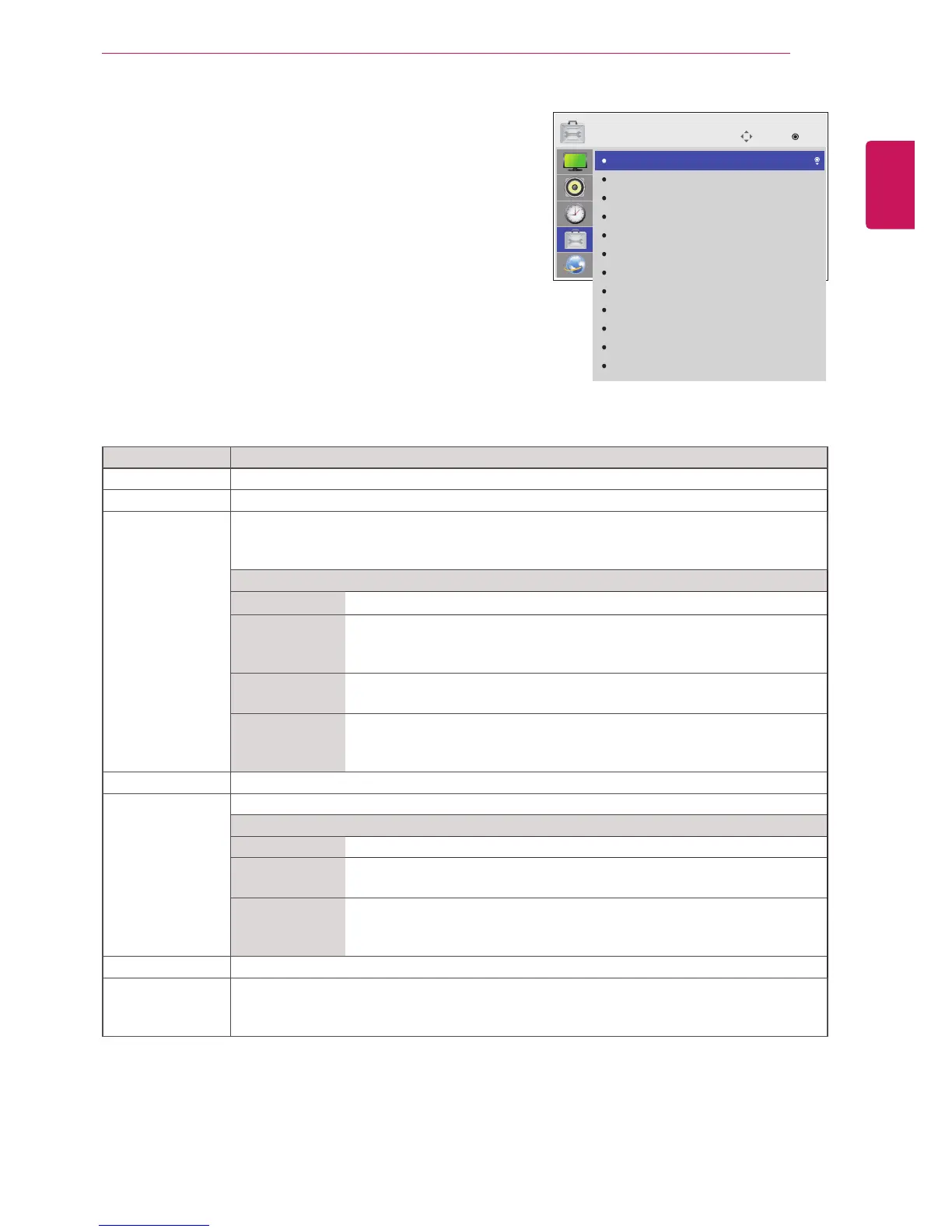
PressMENUtoaccessthemainmenus.
2
PresstheNavigationbuttonstoscrolltoOPTIONandpress
OK.
3
PresstheNavigationbuttonstoscrolltothesettingoroption
youwantandpressOK.
-Toreturntothepreviouslevel,pressBACK.
4
Whenyouarefinished,pressEXIT.
Whenyoureturntothepreviousmenu,pressBACK.
Theavailableoptionsettingsaredescribedinthefollowing:
Move
OK
OPTION
Language
PowerIndicator
ISMMethod
DPMSelect
FailOver
FactoryReset
SetID
TileMode
PIP/PBP
KeyLock
Product/ServiceInfo.
PortraitMode
:Normal
:On
:Off
:1
:Off



 To Next Page