36
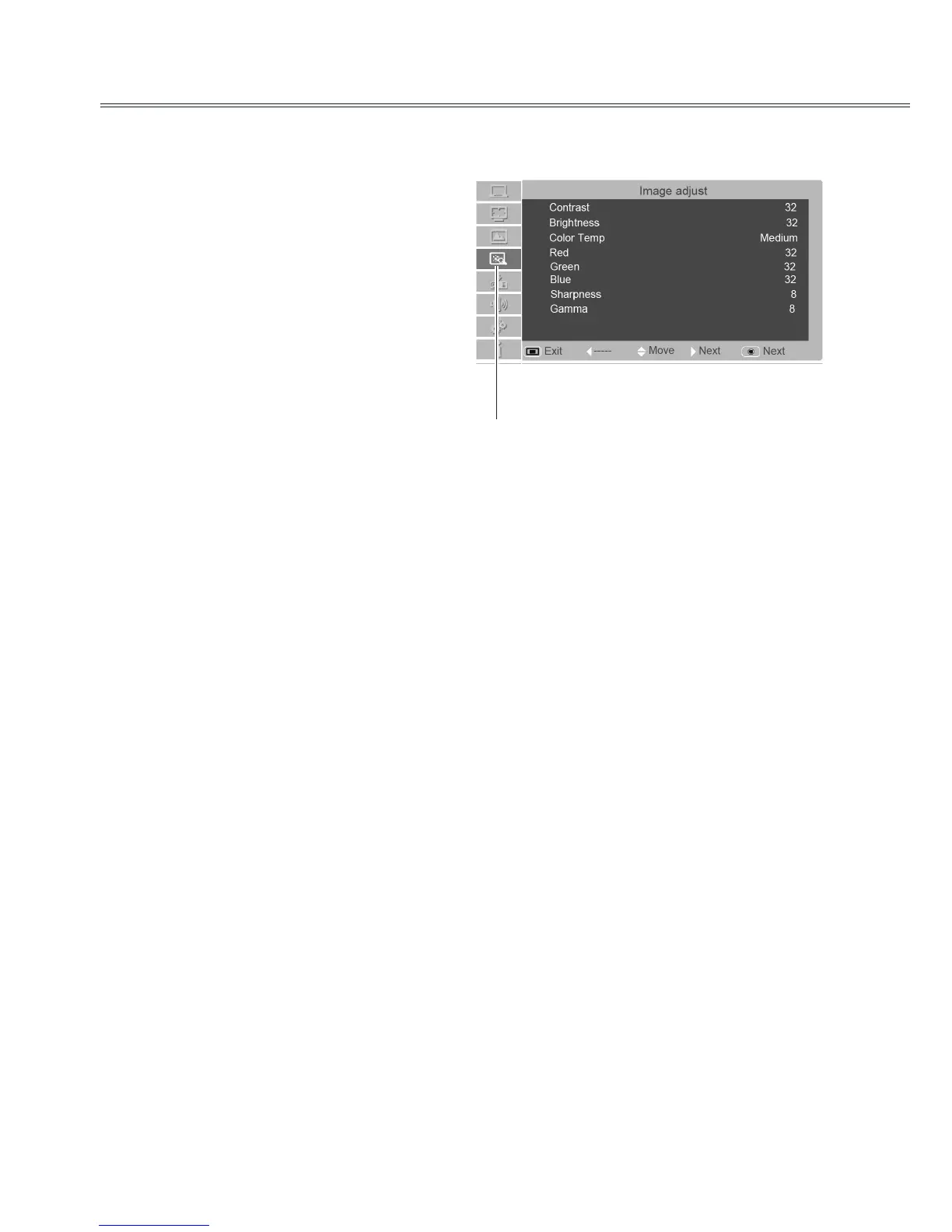
Image adjust
Computer input
1. Press Menu on the remote control to display
the on-screen menu. Press ▲▼ to select the
image adjust icon .Then press ► or press
OK.
2. Press ▲▼ to select the item to be adjusted,
and then press Select. At the time, the
adjustment dialogue box will appear. Press ◄►
to set the value.
Contrast
Press ◄ to decrease the contrast and press ► to
increase it. (from 0 to 63)
Brightness
Press ◄ to decrease the brightness and press
►to increase it.(from 0 to 63)
Color Temp.
Press◄► to select the desired color temperature
(option are "Cool ", " Medium", " Warm")
Red(White balance)
Press ◄ to make the red color lighter and press
►to make it stronger.(from 0 to 63)
Green(White balance)
Press ◄ to make the green color lighter and press
► to make it stronger.(from 0 to 63)
Blue(White balance)
Press ◄ to make the blue color lighter and press
► to make it stronger.(from 0 to 63)
Sharpness
Press ◄ to soften the image and press ► to
sharpen it.(from 0 to 15)
Gamma
Press ◄► to adjust the grey level to achieve
better contrast and balance.(from 0 to 15)
√ Note:
● After red( white balance),green( white balance) or blue( white balance) is adjusted, the image mode
will change to “User”.
● When colorboard is selected in the “ Image select ”, the color temperature will change to “colorboard”.
Image adjust menu
.
Image adjust icon


 To Next Page