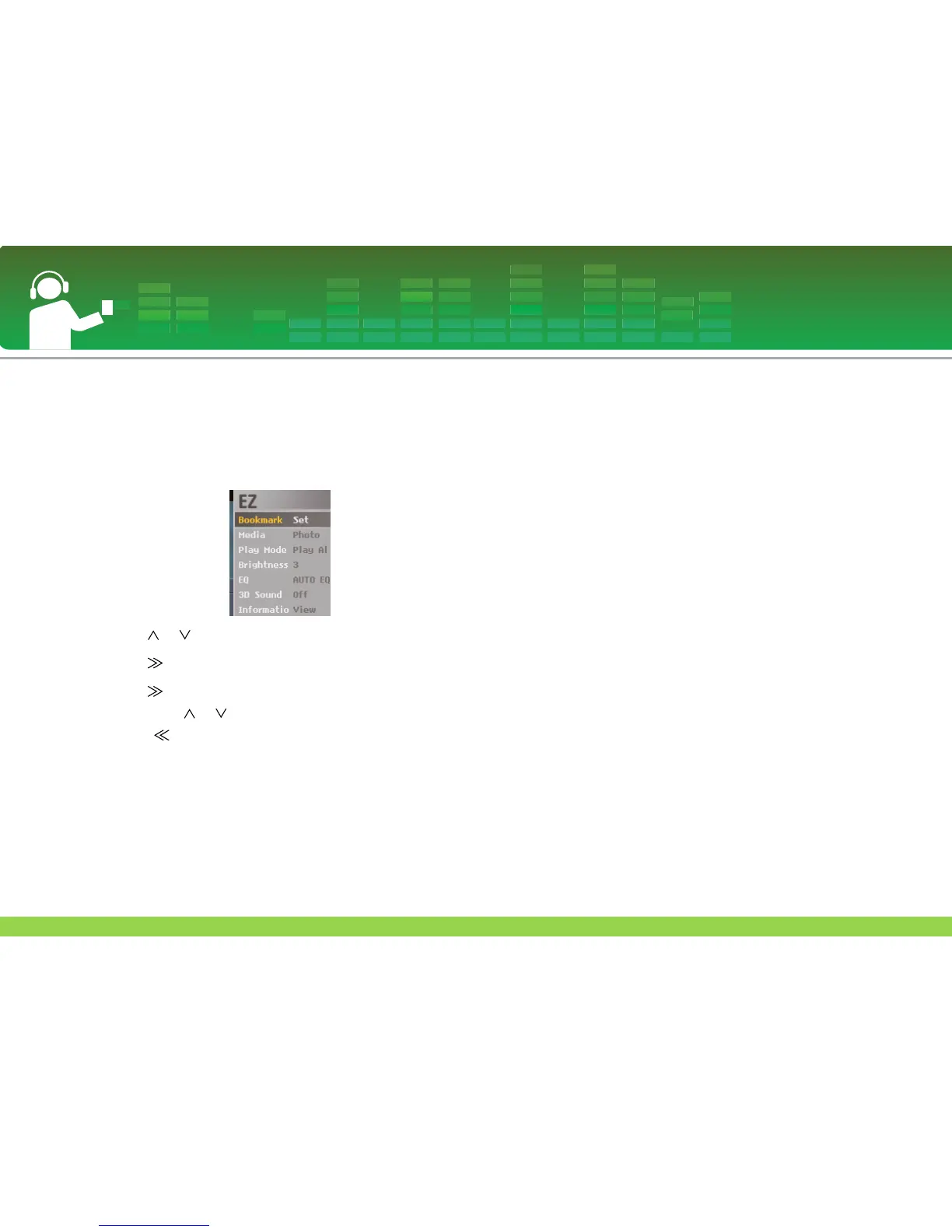
EZ menu
You can set the desired function or switch to the other mode
using EZ menu.
1
Press ez button to display EZ menu screen while playing
or pausing.
2 Press or button to move to the desired item.
3 Press or SELECT button to move to the submenu.
4 Press or SELECT button after changing the setting
by pressing or button.
- Press button to exit without change.
5 Press ez button to exit the EZ menu.
Bookmark Set/Move/Cancel
You can move to the point you set while playing the music.
1 ez button > [Bookmark] > [Set]/[Move]/[Cancel]
- If the bookmark is not set, [Set] menu will only appear.
2 Once the bookmark is set, the menu will be automatically
changed into [Move] and you can only change the book-
mark to [Cancel/Move].
- By selecting [Move], you can go to the bookmarked point.
3 If the bookmark is canceled, the menu will be automati-
cally changed to [Set].
- When the list is updated, the bookmark will be automatically
disabled.
Media selection
You can view the photo or text while listening to the music
simultaneously.
1 ez button > [Media] > [Photo]/[Text]
- Press SELECT button to move between the full view and
four-division view in the photo mode.
-You can control the volume while viewing the photo or text.
(Only in playing the music)
- If there is no photo or text, “No File” message is displayed.
- If the [Media] is set to the [Photo]/[Text], [Media] will be
automatically changed to [Music].
2 ez button > [Music] > [Back]/[Cancel]/[Next]/[Previous]
- [Back]: You can move to the music mode.
- [Cancel]: The music mode will be turned off.
- [Next]: You can play the next music.
- [Previous]: You can play the previous music.
Playing music
33


 To Next Page