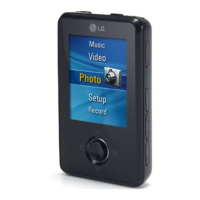
To play video
MP3 player can be only played the video files downloaded
via LG Media Center. For details about downloading, see
[Converting video file] of Help menu on LG Media Center.
1 Move to the Home menu, and press or button to
select [Video] menu.
2 Press or SELECT button to enter the [Video] menu.
3 Press or button to select the video file.
4 Press or SELECT button to play.
-Video clips are played in “Repeat Folder” mode by default.
5 Enter to the video list screen if MENU button is pressed
while playing the video.
- Press and hold MENU button for two seconds to enter
home menu.
- Press button to return to the playing mode from video
list screen.
To Play / Pause
1 To pause, press button once.
2 Press button again to resume playing.
- The video file will be displayed on the horizontal screen.
To play the previous or next video file
1
Press or button to select the previous or next file.
- Moving to the previous/next file and playing it.
-
If you press button after six seconds of playing time, the
current video file will be played from the beginning.
-
If you press button within
six
seconds of playing time, the
previous video file will be played from the beginning.
Speed search of video files
1 Press and hold
or
button for more thantwo sec-
onds while playing video file.
- The file will start playing as soon as you stops pressing
the button.
- It moves to the next video file in the ending point but
does not move to the previous video file in the begin-
ning point.
Capture Screen
1 After pausing of the video file, press REC button to store
the image on the display.
2 Check the stored screen in Photo menu.
- A file named P060825_0001(Year Month date_order) will
be created.
Playing video
35


 To Next Page