55
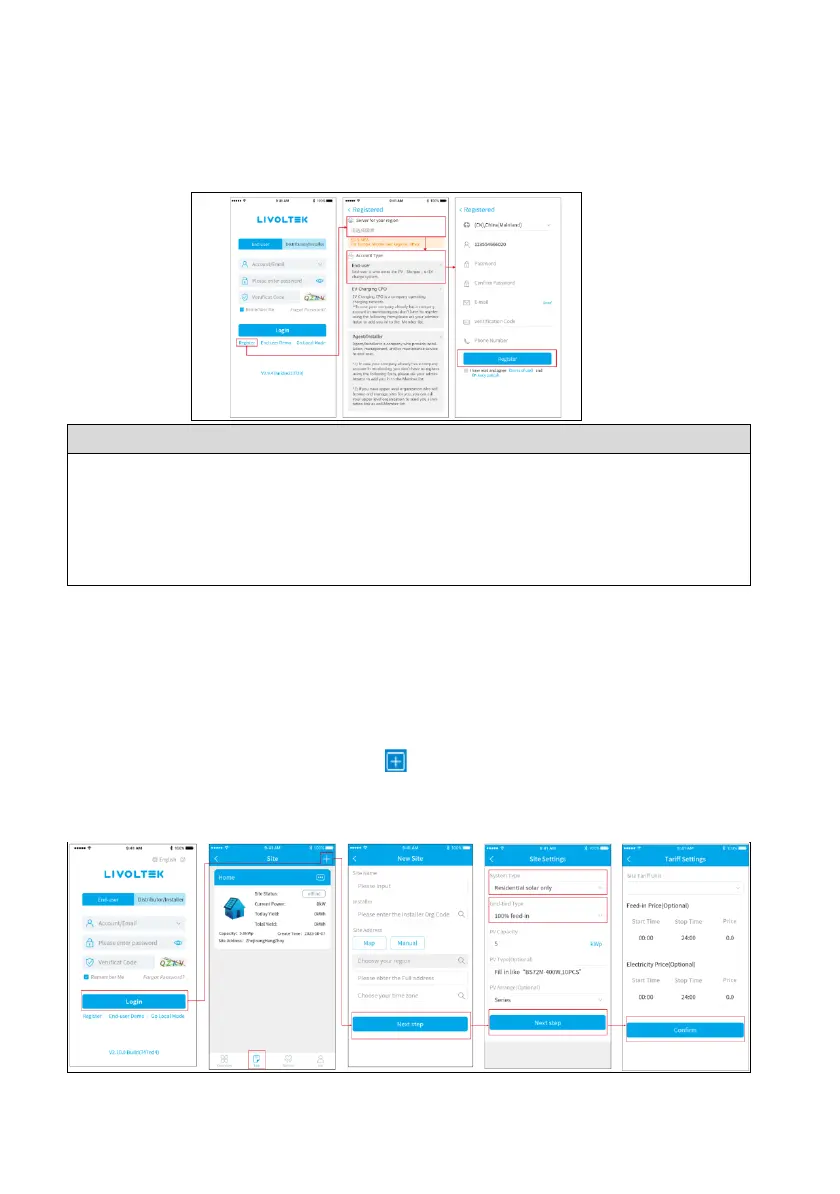
8.3 Register an account
Open the app or web and login with the username & password. Register it first if you don’t have
an account, which provides access to the remote monitoring and management.
-7-
• There are two different accounts for end users and business (agents/installers), with
different account authorizations.
• Business accounts can only be registered through web.
• Only end user accounts can be registered through the APP.
• The agent/installer can create a sub-account for the end user after the power site (PV
plant) is created.
8.4 Create a site and add the inverter to the site
You can edit the site (PV Plant) information, add the new inverter to the site, delete the site,
expand the list of added inverters of the site and set the electricity price.
8.4.1 Add Site
• Open the app and login with the username & password.
• Enter the "List" Page, touch "Add" button [ ] at the top right of the page.
• Enter the Plant Name, choose the Installer, Time Zone, location and other basic information.
• For the location, click the "Map" to enter the map page, system will automatically locate your
location.
Notes: Tick "I agree installers to access to this site ", then your installer can assist you to set the
inverter remotely.
8.4.2 Setting Site and Authorization
• Enter the PV capacity and system type (solar storage system) for your site.
• Set local electricity price to calculate grid-connected revenue and electricity saved.
• Choose your region and account to create a sub account for target user.





 To Next Page