47
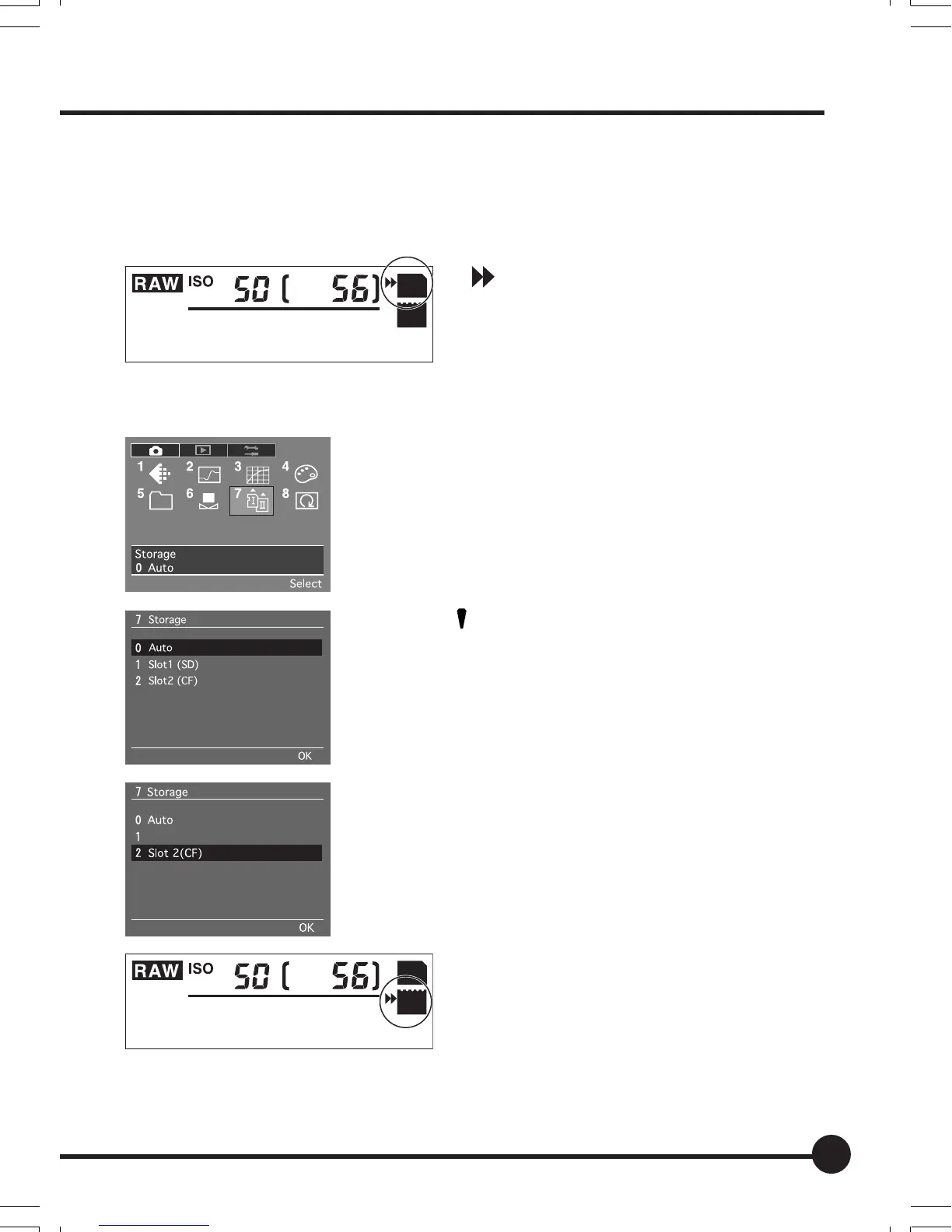
You can use two types of memory card in this unit, a CF card and an SD card.
The default setting is the slot that contains a card.
If both a CF card and an SD card are inserted when the default setting is set,
priority is given to the SD card.
[
] will be displayed by the digital LCD
panel’s memory card mark that has been
specified as the storage destination.
Selecting a Memory Card
1. Press the MENU button. Press the toggle keys
to select [7 Storage] in the recording menu and
press the OK button.
2. Press [
] on the toggle key to select a card
slot.
3. Press the OK button to set.
Subsequently captured images are saved to the
memory card in the selected card slot.
JPEG
SD
CF
PC
CUSTOM
* When you have selected a card slot, no images will be saved to the memory card in the
other card slot, if a card has been inserted.
* Insert the memory card that you want to use before selecting the card slot.
Slot 1(SD)
Selecting a Memory Card and Creating Folders
JPEG
SD
CF
PC
CUSTOM
03_ZD back_E_p031-052 07/3/9, 20:3947


 To Next Page