49
Changing the Folder
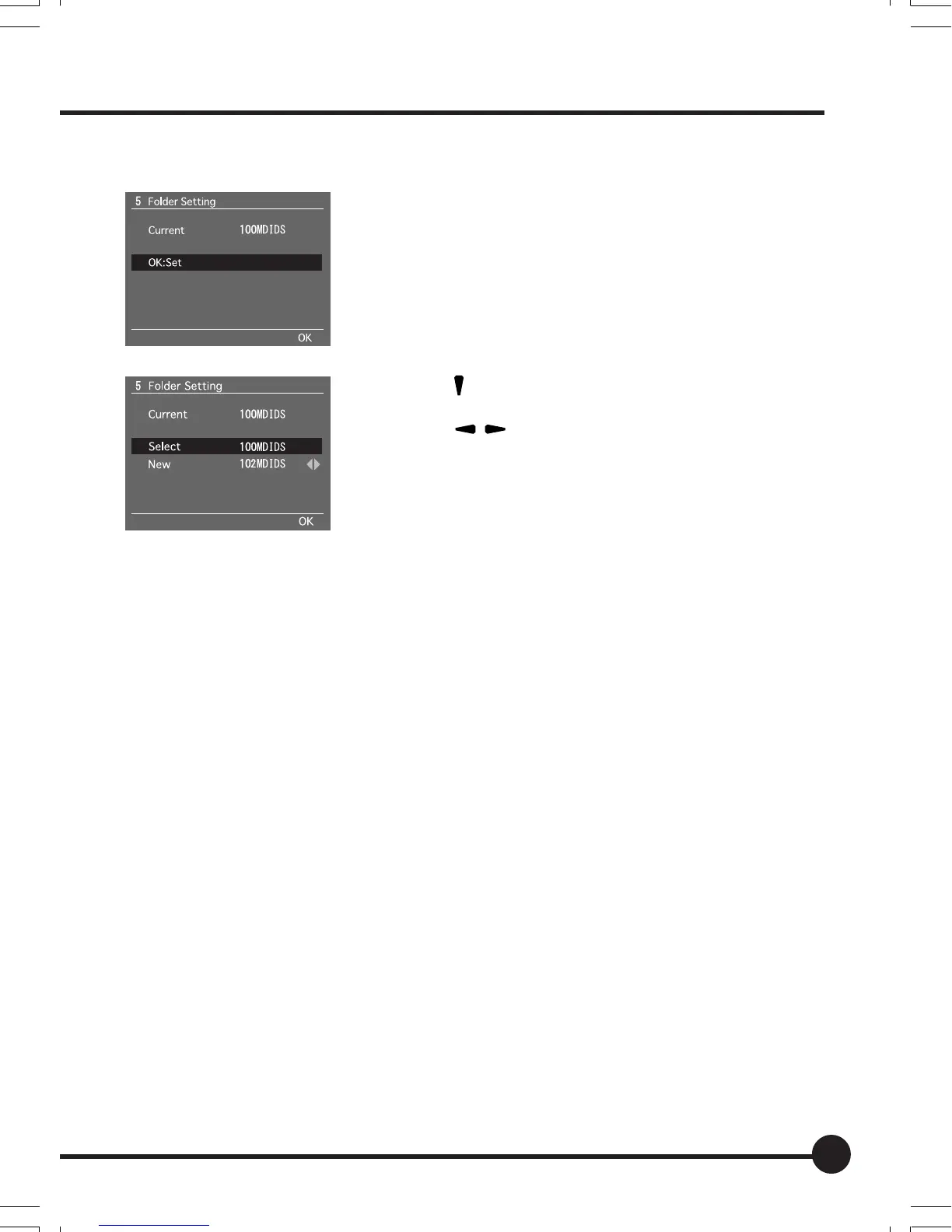
1. Display the folder setting window and press
the OK button.
2. Press [
] on the toggle key to select [Select].
3. Press [ ] on the toggle key to select the
number of an existing folder.
4. Press the OK button to set.
The selected folder number appears in the cur-
rent folder field and subsequently captured images
are saved to this folder.
* When the camera is turned off or the memory card cover is opened, the settings are
reset and the folder with the highest number is selected.
Automatically Creating a Folder
•A folder is automatically created when the memory card is formatted or a
card containing no folders is inserted.
•A new folder is created when the number of files saved to the folder exceeds
9999.
* If multiple folders have been created, the folder with the number closest to the cur-
rently used folder is selected and a new folder is not created. If the folder with the
highest number was selected, a new folder is created with the next sequential number.
• When the settings are reset in [3 File Numbering] in the Setup menu, a new
folder is created.
•A new folder is created if the settings are reset when file numbering is set to
[ON].
• New storage folders cannot be created once the storage folder number has
reached 999.
03_ZD back_E_p031-052 07/3/9, 20:3949


 To Next Page