Rev 10/21/19 28
A
A: Console Access
If you have two USB ports on your dev machine, you can use one of them to display the mangOH Yellow’s
diagnostic messages when the device boots, when certain commands are run, etc.
To set up a window to display diagnostic messages:
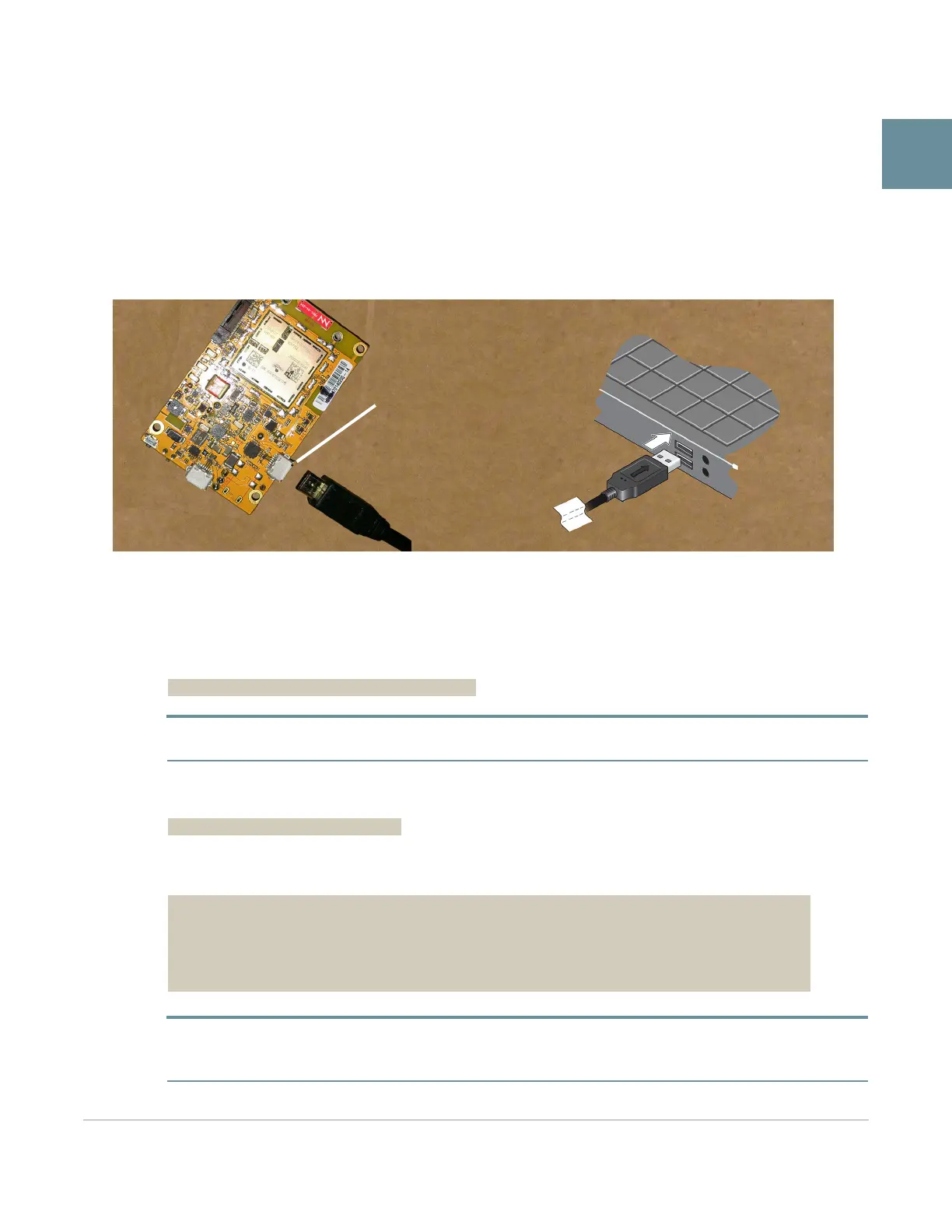
1. Use a micro-USB cable to connect the mangOH Yellow’s CON port to a USB port on the dev machine.
2. Open and connect a terminal window to the WP7702 module to display its console messages (kernel
messages, warnings, etc.):
· Linux
i. In the terminal window, enter the following command to install the minicom application on your dev
machine (if it is not already there):
$ sudo apt-get install -y minicom
Note: ’sudo’ tells the dev machine to run the command as the ’superuser’. Each time you use sudo, you must
enter your dev machine’s password to continue.
ii. Connect to the CF3 module’s Linux console via the USB serial port (which enumerated when you
connected the CON connector to the dev machine):
$ minicom -D /dev/ttyUSB0
A welcome message appears, and the window will show console messages when the mangOH Yellow
powers on in the next step.
Note: The USB serial port enumerates as ttyUSB0 because you connected CON to the host before connecting
USB to the host (which you will do later). However, if you connected USB first, it would enumerate ttyUSB0,
ttyUSB1, and ttyUSB2. Then when CON is connected, it will enumerate as ttyUSB3.
Welcome to minicom 2.7
Options: I18n
Compiled on Feb 7 2016, 13:37:27.
Port /dev/ttyUSB0, 20:04:25
Press CTRL-A Z for help on special keys


 To Next Page