35
ENGLISH
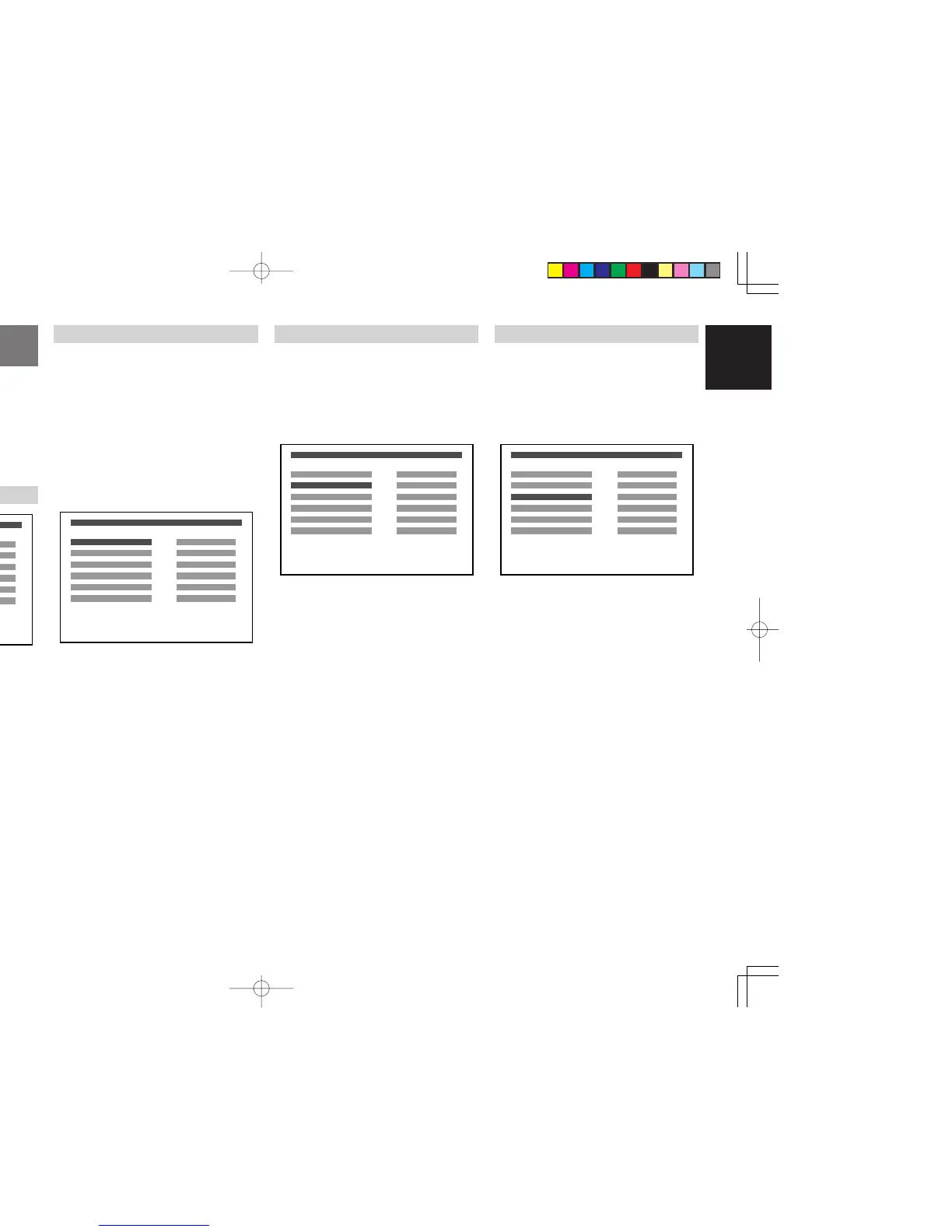
DVD SETUP MENU
OPERATION
You can set up settings for the unit and for TV monitor
by your preference form.
The SETUP MENU that appears on the TV can be
shown in any of the languages available under OSD
LANGUAGE (English, French, Spanish). English is
used in this explanation.
Note:
The DVD setup menu is displayed in DVD mode
and stop mode.
CONTENTS OF SETUP MENU
OSD LANGUAGE
SUB-TITLE
TV DISPLAY
TV TYPE
PARENTAL RATING
PASSWORD
ENGLISH
OFF
4:3 LB
MULTI
UNLOCK
CHANGE
DVD SETUP MENU
OSD LANGUAGE (
☞
p35)
: To set the language for setup menu.
(English, French, Spanish)
SUB-TITLE (
☞
p35)
: To set the subtitle language when playing the
DVD. (OFF, English, French, Spanish,
German, Italian, Dutch)
TV DISPLAY (
☞
p35)
: To set the aspect ratio of the picture to fit into
your TV. (4:3 LB, 4:3 PS, 16:9/WIDE)
TV TYPE (
☞
p36)
: To set the TV format. (MULTI, NTSC, PAL)
PARENTAL RATING (
☞
p36)
: To set the level for parental lock.
(UNLOCK, LEVEL1-8)
PASSWORD (
☞
p37)
: To set password for parental lock.
OSD LANGUAGE
You can select the language for OSD (On Screen
Display). This setting allows you select a preferred
language for the DVD SETUP menu operating
messages and sound track language. The default
language is “ENGLISH”.
Note:
In case of resume playing the language setting
what you selected before will be appear.
1.
To select DVD mode, press the DVD button on
the remote control unit.
2.
Press DVD-SETUP button to display the setup
menu in stop mode.
3.
With Cursor buttons, select “OSD LANGUAGE”.
OSD LANGUAGE
SUB-TITLE
TV DISPLAY
TV TYPE
PARENTAL RATING
PASSWORD
ENGLISH
OFF
4:3 LB
MULTI
UNLOCK
CHANGE
DVD SETUP MENU
4. Press ENTER button repeatedly, select your
preferred language.
• You can select from English, French,
Spanish.
5. Press
DVD-SETUP
button to confirm it and to
exit from the setup menu.
TV DISPLAY
This menu is to set picture aspect ratio to fit into
your TV. The default setting is “4:3 LB”.
1.
To select DVD mode, press the DVD button on
the remote control unit.
2.
Press DVD-SETUP button to display the setup
menu in stop mode.
3.
With Cursor buttons, select “TV DISPLAY”.
OSD LANGUAGE
SUB-TITLE
TV DISPLAY
TV TYPE
PARENTAL RATING
PASSWORD
ENGLISH
OFF
4:3 LB
MULTI
UNLOCK
CHANGE
DVD SETUP MENU
4. Press ENTER button repeatedly, select the
aspect ratio of your TV.
• You can select from 4:3 LB, 4:3 PS and
16:9/WIDE.
4:3 LB(Letter Box): Displays wide picture on
aspect 4:3 TV in Letter
Box format.
4:3 PS(Pan-Scan): Displays wide picture on
aspect 4:3 TV in Pan &
Scan format.
16:9/WIDE: Set here when your TV
has wide screen.
Note:
When setting the aspect ratio, see the following
section “How it is displayed”.
5. Press
DVD-SETUP
button to confirm it and to
exit from the setup menu.
SUB-TITLE
To set the subtitle language to display. The default
setting is “OFF”.
1.
To select DVD mode, press the DVD button on
the remote control unit.
2.
Press DVD-SETUP button to display the setup
menu in stop mode.
3.
With Cursor buttons, select “SUB-TITLE”.
OSD LANGUAGE
SUB-TITLE
TV DISPLAY
TV TYPE
PARENTAL RATING
PASSWORD
ENGLISH
OFF
4:3 LB
MULTI
UNLOCK
CHANGE
DVD SETUP MENU
4. Press ENTER button repeatedly, select your
preferred language.
• You can select from OFF, English, French,
Spanish, German, Italian and Dutch.
5. Press
DVD-SETUP
button to confirm it and to
exit from the setup menu.
ER2500UDFU01eng4/4 04.8.26, 4:32 PMPage 35 AdobePageMaker6.5J/PPC



 To Next Page