37
ENGLISH
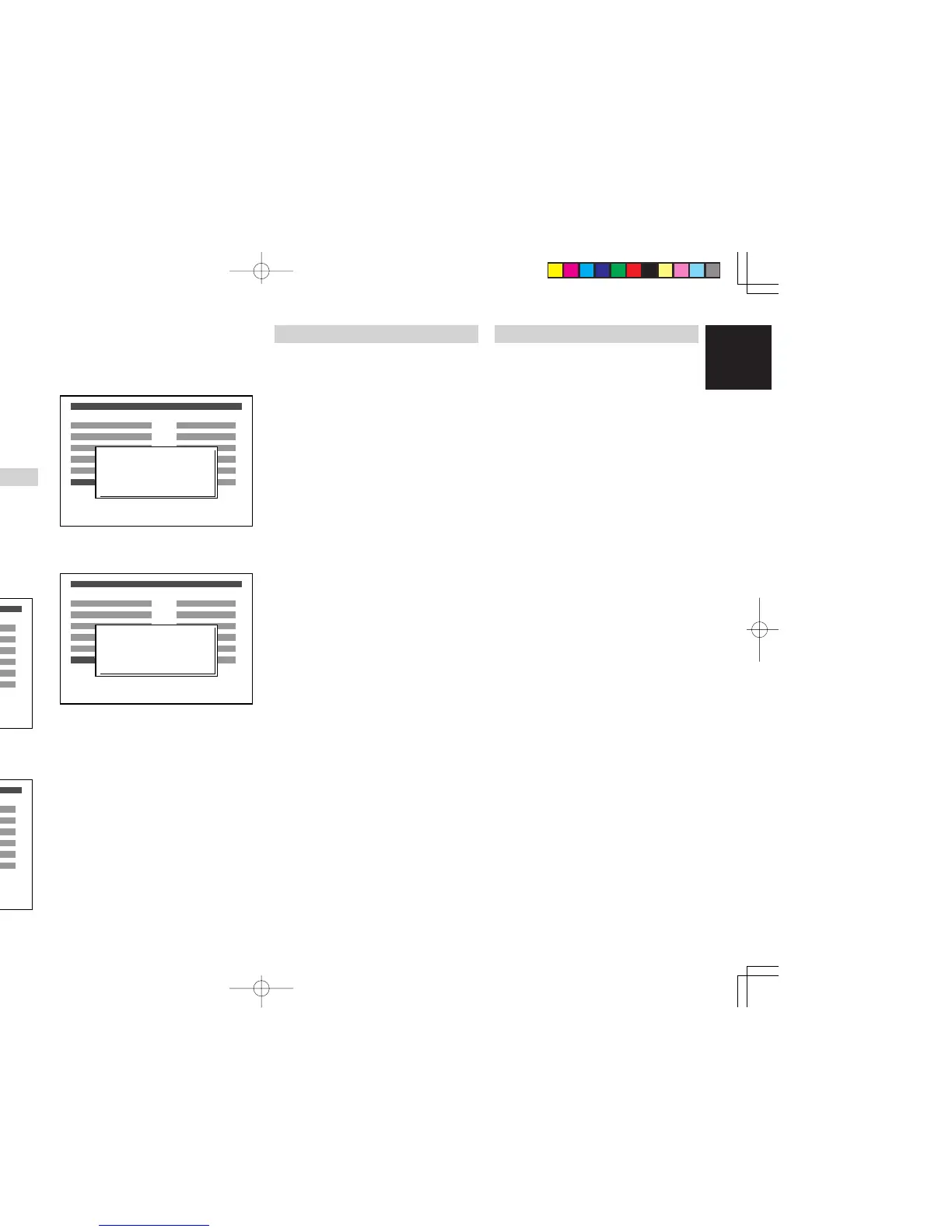
5. With numeric buttons, enter your password.
•
After you entered the password, the password
input screen disappears and then the setup
menu appears again.
• The default password is “0000”.
6.
Press ENTER button repeatedly, select parental
lock level.
• You can select from UNLOCK, 1 - 8.
7. Press
DVD-SETUP
button to confirm it and to
exit from the setup menu.
PASSWORD
You need to enter password to play discs under
parental lock or to change parental lock level, to
change password. This is to set the password.
1.
To select DVD mode, press the DVD button on
the remote control unit.
2.
Press DVD-SETUP button to display the setup
menu in stop mode.
3. With Cursor buttons, select “PASSWORD”.
•
After you entered the new password, the
password input screen disappears and then
the setup menu appears again.
8. Press
DVD-SETUP
button to confirm it and to
exit from the setup menu.
PROGRESSIVE SCAN VIDEO OUTPUT
Notes:
• Regardless of the setting, the VIDEO jack is
active Progressive scan off mode.
• If your TV is compatible with progressive scan,
connect the TV via the COMPONENT VIDEO
OUTPUT jack.
Press the DVD-SETUP button to display the setup
menu in stop mode.
Press the DISPLAY button. “PROGRESSIVE
SCAN ON MODE” will be display under the menu.
If you don't want to change progressive scan
mode, Press DISPLAY button again.
•
When your TV or monitor isn't compatible with
progressive scan, never set the progressive scan
mode to ON. No picture will be shown on the
monitor.
In case you
set the progressive scan mode to
“ON”
by mistake, press the DVD-SETUP button
again.
DVD SETUP MENU will display on TV.
And press the DISPLAY button to turn OFF the
progressive scan mode.
•
If you play the DVD disc with NTSC to PAL or
PAL to NTSC video conversion and Progressive
Scan On mode, a part of Subtitles may not be
able to be displayed depending on recording
condition. In this case, we recommend set to use
Progressive Scan Off mode.
DEFAULT SETUP (DVD SETUP MENU ONLY)
If this default setup is set, all the settings made in the
DVD setup menu are reset to the factory defaults.
1.
To select DVD mode, press the DVD button on
the remote control unit.
2.
Press DVD-SETUP button to display the setup
menu in stop mode.
3.
With
numeric buttons
, enter “2580”.
• After you entered “2580”, the message
“FACTORY RESET” appears on the
setup menu.
• If you don't want to reset the settings, press
the DVD-SETUP button.
4.
Press ENTER button, reset to the default.
• All the settings are reset.
5. Press DVD-SETUP button to quit the setup
menu.
Notes:
• If you have forgotten the password, perform
this default setup to all the settings.
ER2500UDFU01eng4/4 04.8.26, 4:32 PMPage 37 AdobePageMaker6.5J/PPC



 To Next Page