Getting
Started
Basic
Connections
Advanced
Connections
Basic
Operations
Advanced
Operations
Other
setting
Settings
Other
information
Explanation
terms
Troubleshooting Specifications Index
31
Advanced
Operations
ENGLISH
Playing Files
To make a playlist
1
“Files playback” (vpage 30)
perform steps 1 – 4.
2
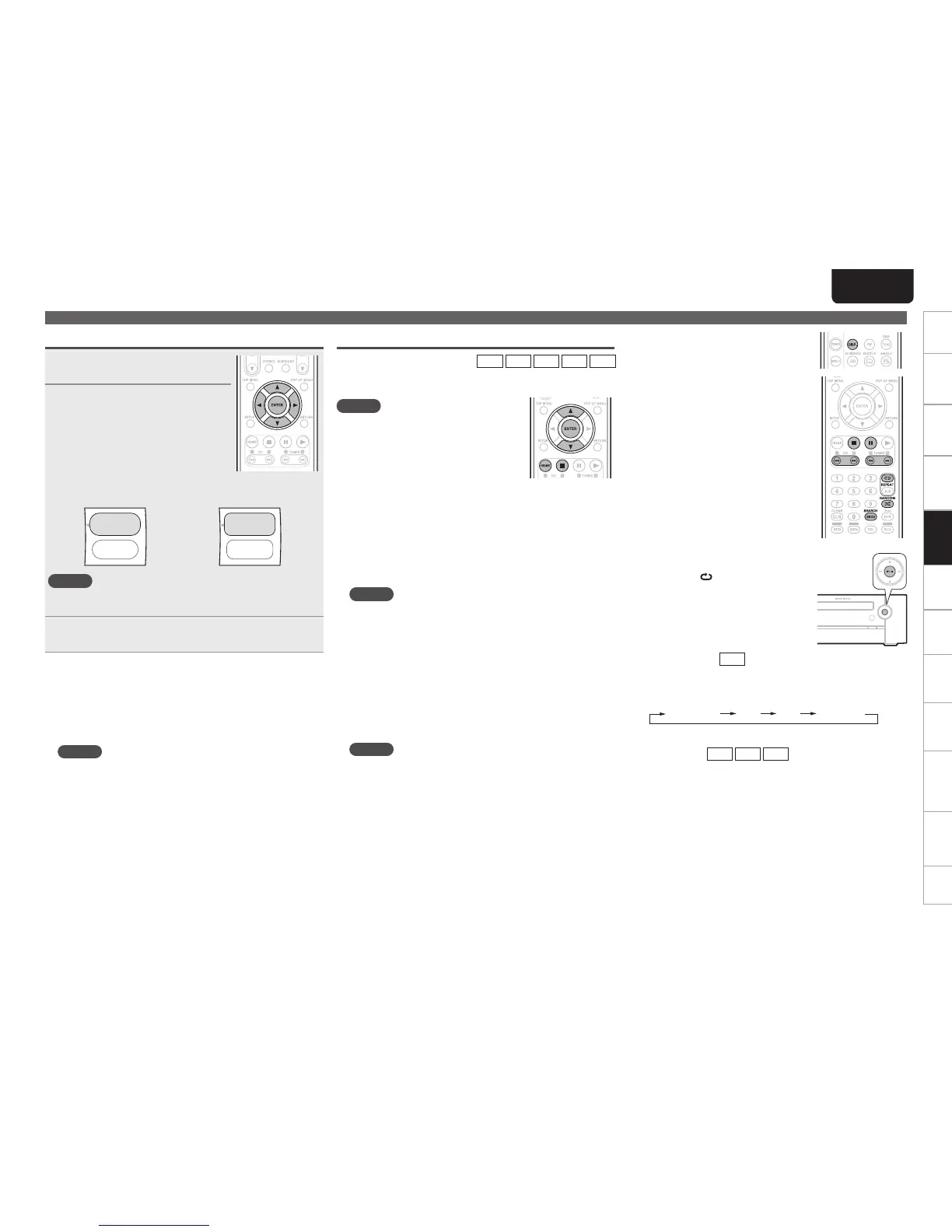
Use uio p to select the
desired le or folder, then press
ENTER.
The corresponding dialog box is
displayed depending on whether the
playlist is selected as a media or not as
follows.
• When selecting the optical disc
or the USB2
• When the file added to the
playlist is selected
Play (File)
Add To Playlist
Play (File)
Remove from Playlist
NOTE
When the JPEG file is selected as a type of file to be played, the
“Play(File)” cannot be selected.
3
Use ui to select the desired item in the dialog box,
then press ENTER.
n When selecting “Remove from Playlist”
• The selected file is cleared in the playlist.
• Repeat the above steps 2 and 3 until other files are cleared.
n When selecting “Add To Playlist”
• The selected file is added in the playlist.
• Repeat the above steps 2 and 3 until other files are added.
NOTE
• When a disc is unloaded or the USB memory device disconnected,
the files are all cleared in the playlist.
• When the home menu reappears, all picture (JPEG) files are
cleared in the playlist.
n Stop playback (vpage18)
Press 2.
n Pause playback (vpage18)
Press 3.
• You can also perform the same operations
by pressing
1/3 on this unit.
n Step-by-step playback (vpage18)
During pause, press 3.
• You can also perform the same operations
by pressing 1/3 on this unit.
n Fast forward/fast reverse playback
(vpage19)
During playback, press 6 7.
n Slow forward playback (vpage19)
During pause, press 7.
n Skipping to the file (vpage19)
During playback, press 8 9.
n Repeat playback (vpage20)
Press REPEAT .
n Random playback (vpage20)
Press RANDOM.
n Rapid playback
JPEG
During playback, press 7.
• Each time 7 is pressed, the time interval to display is shortened
as follows:
5 seconds 2 1 No delay
5 seconds No delay
n Displaying file information
(vpage15)
AVI
WMV
JPEG
During playback, press DISP..
n Playing the desired section of file (vpage19)
During playback, press SEARCH.
Selecting an item in the play menu
AVI
WMV
WMA
MP3
JPEG
The items listed in the play menu may vary depending on the operation
status and the selected media, etc.
NOTE
• During playback of file, press 2 to display
the play menu, etc.
• In the stop mode, use ui to select an item
in the play menu, then press ENTER.
n When selecting “home menu” with the HOME
button
• The home menu will be returned to.
n When selecting “Play (File)”
• Press ui to select the desired play mode in the play menu,
then press ENTER. Then playback will start according to the
selected play mode.
NOTE
• When playing JPEG files, each file is displayed for the time
interval you specified.
• The selectable play mode may vary depending on the operation
status and the selected media, etc.
n When selecting “Browse Pictures” or the
“Browse Music”
• The JPEG file or the music file will be changed to as the type of
file to be played.
n When selecting “Add all to playlist”
• All the files are added in the playlist.
NOTE
You cannot add a folder in the playlist.
n When selecting “Remove all from playlist”
• All the files are cleared in the playlist.
n When selecting “Previous folder”
• Each time this item is selected, the previous folder or the previous
menu will be returned to.
n When selecting “Now Playing”
• The playback status for music files is displayed.


 To Next Page