NAMES AND
FUNCTIONS
19
BASIC
CONNECTIONS
BASIC
OPERATION
ADVANCED
CONNECTIONS
SETUP
ADVANCED
OPERATION
TROUBLESHOOTING
OTHERS
ADVANCED
OPERATION
ADVANCED OPERATION
AMP OPERATION
USING THE SLEEP TIMER
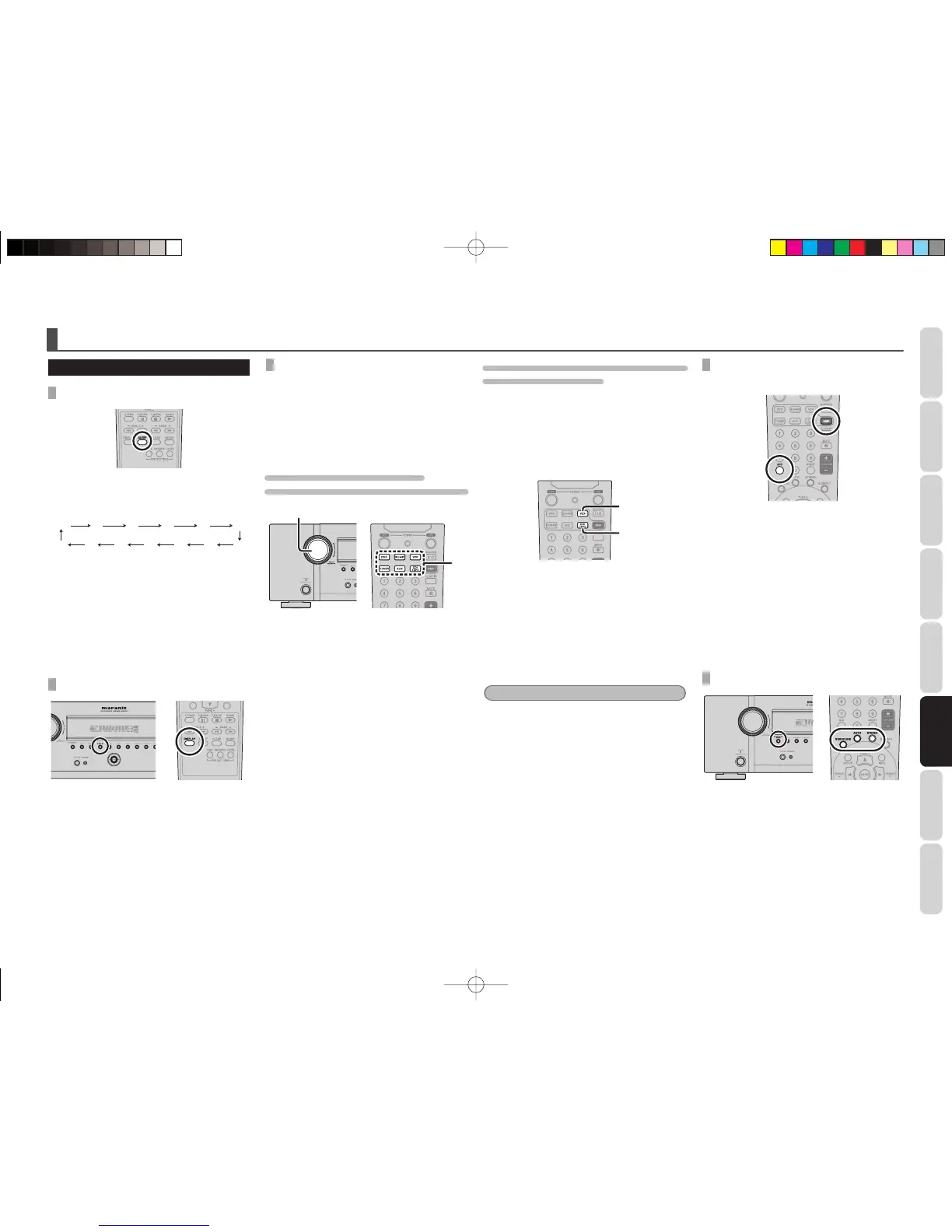
To program this unit for automatic standby, press
the SLEEP button on the remote controller.
Each press of the button will increase the time
before shut down in the following sequence.
OFF 10 20 30 50
40
120 90 80 70 60100110
The sleep time will be shown for a few seconds in
the display on the front panel, and it will count down
until the time has elapsed.
When the programmed sleep time has elapsed, the
unit will automatically turn off.
Note that the SLEEP indicator on the display will
illuminate when the Sleep function is programmed.
To cancel the Sleep function, press the SLEEP
button until the display shows “SLEEP OFF” and
the SLEEP indicator will disappear.
DISPLAY MODE
You can select the display mode for the front display
of the unit.
To select this mode, press the DISPLAY on the front
panel or the remote controller.
When this button is pressed, the display mode is
switched in the following sequence.
→ Surround Mode → Input Function with DIMMER
→ Surround Mode with DIMMER → Input Function
→ Surround Mode....
RECORDING AN ANALOG SOURCE
In normal operation, the audio or video source
selected for listening through this unit is sent to the
record outputs.
This means that any program you are watching
or listening to may be recorded simply by placing
machines connected to the outputs for TAPE OUT,
VCR OUT in the record mode.
TO RECORD THE INPUT SOURCE SIGNAL
YOU ARE CURRENTLY WATCHING OR LISTENING TO
1.
1.
1. Select the input source to record by turning
the INPUT SOURCE knob on the front panel
or press the input selector buttons on the
remote controller two times in a row.
The input source is now selected and you
may watch or listen to it as desired.
2. The currently selected input source signal
is output to the TAPE OUT, VCR OUT
outputs for recording.
3. Start recording to the recording component
as desired.
RECORDING THE VIDEO FROM ONE SOURCE AND
THE AUDIO FROM ANOTHER
You can add the sound from one source to the
video of another source to make your own video
recordings.
Below is an example of recording the sound from a
compact disc player connected to CD/TAPE IN and
the video from a video camera connected to DSS
to video cassette recorder connected to the VCR
OUT jack.
1.
2.
1. Switch the video output source to VCR by
pressing the input selector buttons on the
remote controller two times in a row.
2. Switch the audio input source to CD/TAPE
by pressing the input selector buttons on
the remote controller two times in a row.
3. Now “CD/TAPE” has been selected as the
audio input source and “VCR” as the video
input source.
Notes
• If you change the input source during recording,
you will record the signals from the newly selected
input source.
• You cannot record the surround effects.
• Digital input signals are only output to the digital
outputs. There is no conversion from digital to
analog.
When connecting CD players and other digital
components, do not connect only the digital
terminals, but the analog ones as well.
SELECTING ANALOG AUDIO INPUT OR
DIGITAL AUDIO INPUT
Press the AMP button and press the A/D button.
When this button is pressed, the input mode is
switched in the following sequence.
→ Auto → Digital → Analog → Auto....
In Auto mode, the types of signals being input to the
digital and analog input jacks for the selected input
source are detected automatically.
If no digital signal is being input, the analog input
jacks are selected automatically.
In Digital mode, input is fixed to digital input
terminal.
In analog mode, the analog input jacks are
selected.
SELECTING THE SURROUND MODE
To select the surround mode during playback, press
the SURROUND MODE button on the front panel
or the SURROUND MODE buttons on the remote
controller.
• For surround modes, see “Surround Mode” on
page 26.
SR3053S01ENG.indd19SR3053S01ENG.indd19 09.4.2111:46:54AM09.4.2111:46:54AM


 To Next Page