Bank-up the data to the SD card
1. Press [F4] six times on the keyboard to move below screen.
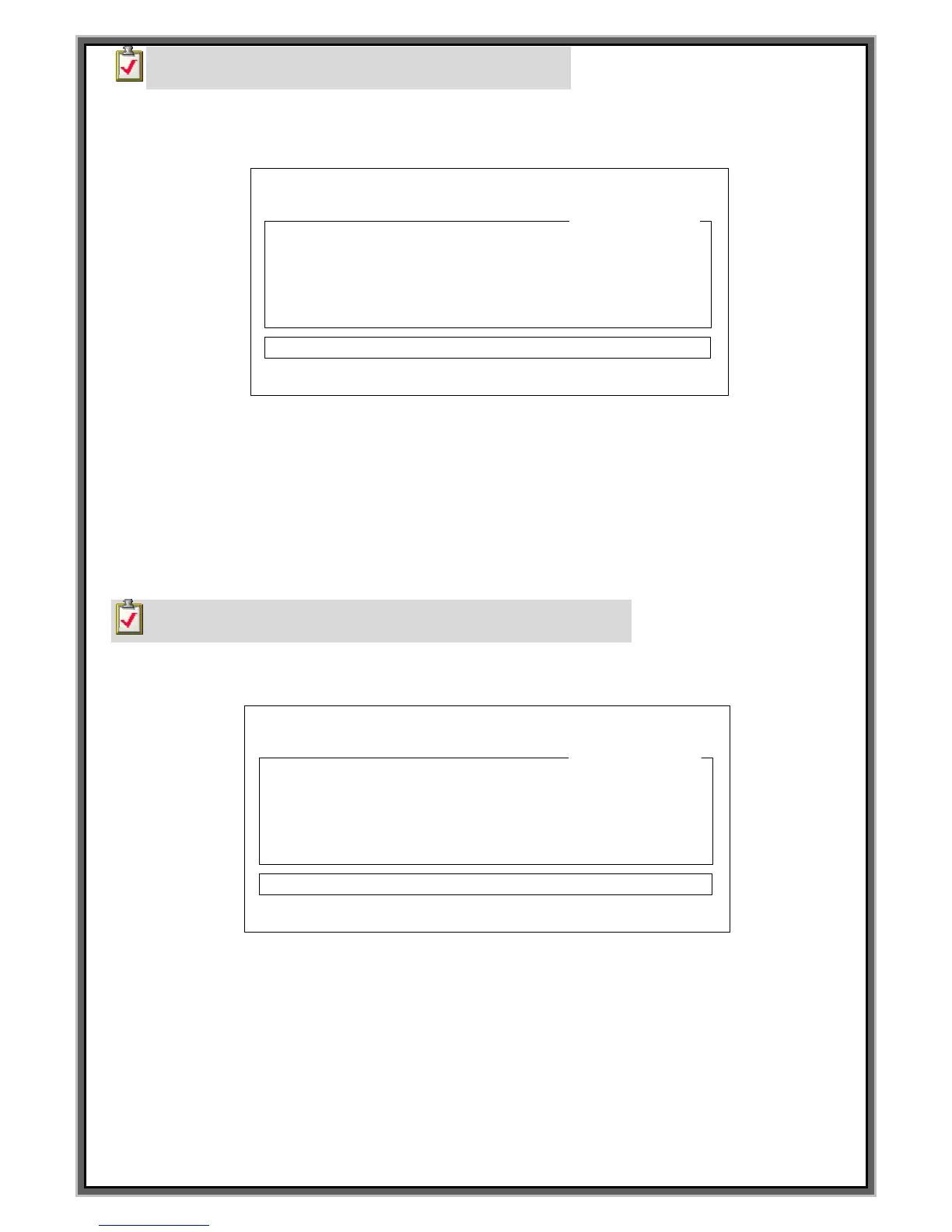
F1 : M_MENU F2 : A_MARK F3 : EDIT F4 : FILE
F5 : SETUP F6 : TEST F7 : LOAD F8 : COMM
FILE NAME [ ]
STATUS [ ]
[ALL SETUP SAVE]
F4 : MARKING DATA LOAD
FILENAME DATA TIME
>< NO FILE >
2. Input the file name that you want using keyboard when the cursor is in FILE NAME [ ] and then
press “Enter”to save. Can see the data on the STATUS[ ].
(File name can be saved is an 8 digit which is the combination of alphabetic and numeric.)
3. [SAVE DATA OK] is indicated on the STATUS[ ] if the back is done.
4. Press F2 if all setting value are changed for marking.
**In case of communication mode by RS-232, press [F8] Communication mode **
How to recover the data using SD card
1. Press [F4] five times on the keyboard to move below screen.
F1 : M_MENU F2 : A_MARK F3 : EDIT F4 : FILE
F5 : SETUP F6 : TEST F7 : LOAD F8 : COMM
FILE NAME [ ]
STATUS [ ]
[ALL SETUP LOAD]
F4 : SEQUENCE DATA SAVE
FILENAME DATA TIME
>< NO FILE >
2. Indicated the file which is in SD card to “>< NO FILE >” if press direction Key[↓]
on the keyboard at above screen.
3. Select the file which you want and click “Enter” on the keyboard to recover the data.
4. [LOAD DATA OK] is indicated on the STATUS[ ] if the data recover is done.
5. Press F2 if all setting value are changed for marking.
**In case of communication mode by RS-232, press [F8] Communication mode ****


 To Next Page