Trawl Explorer | V2 | Sensor Configuration
Sensor Configuration
Learn how to configure Trawl Explorer sensor settings.
Note: This guide refers to the following versions of Mosa: 01.01.01-01.02.00. If you use
another version, the visual interface and options may vary.
Note: Mosa is now available on tablet computers:
• Download Mosa app on the Play Store.
• The range of the bluetooth connection depends on the model of tablet. Refer to your local
Marport office for guidance.
Installing Mosa
If Mosa is not already installed on your computer, you need to install it to configure the sensor.
About this task
Note: On desktop and laptop computers, Mosa can only be installed on a macOS operating
system.
Note: To install Mosa on a tablet computer, download the app from the Play Store.
Procedure
1.
Double-click the *.dmg file received from Marport.
2.
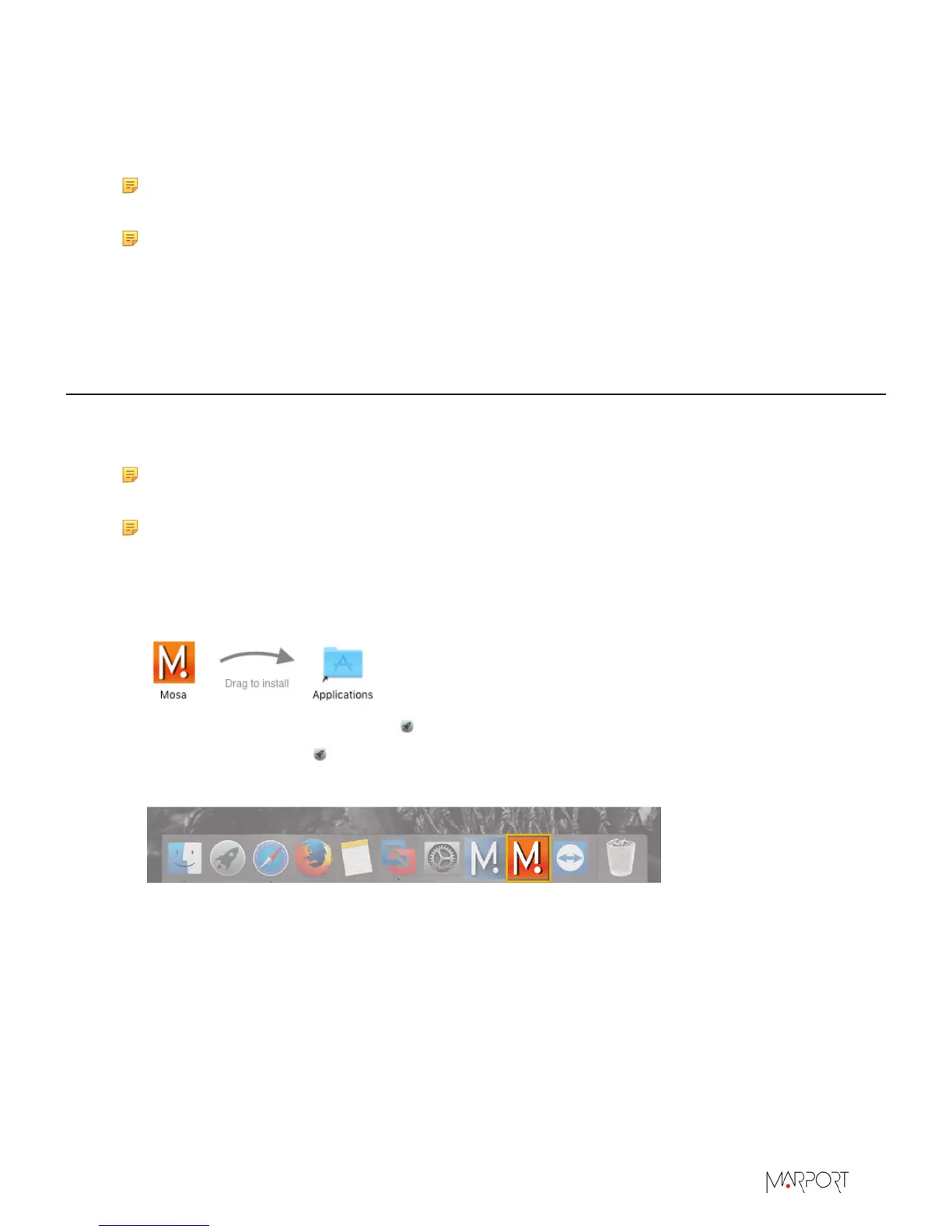
From the installation window that appears, drag the Mosa icon to the Applications icon.
Mosa is added to the Launchpad .
3.
From the Launchpad , click and drag Mosa icon to the Dock at the bottom of the screen.
To open Mosa, click its icon on the Dock.
4.
If you have an error message when trying to open Mosa, change the Security & Privacy settings:
a)
From the upper left corner of the screen, click Apple menu> System Preferences> Security
& Privacy .
b)
From the lower left corner of the Security & Privacy dialog box, click the lock icon and enter
the password, if applicable.
c)
At Allow apps downloaded from, select Anywhere, then close the dialog box.
d)
If you are under macOS Sierra, Anywhere option may not be displayed by default. To display
Anywhere:
• Click the magnifying glass from the top right corner of your screen and type Terminal.
| 12


 To Next Page