MC310 USER GUIDE 2-4
2.2.2 Operator Panel
,
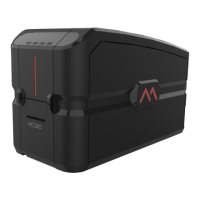
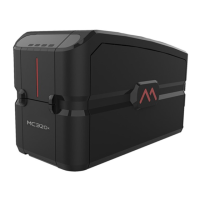
The front operator panel consists of 4 soft touch buttons and 4 status LEDs along with an informative display
Button operation
o Power button (Shown as 1)
Short press to turn on the printer
Long press to turn off the printer when it is ON
o Selection button (Shown as 2)
To select the menu option and transit to respective sub-menu
Selecting option in sub-menu. Ex. Standard Cleaning, chip encoder setting
o Menu/Scroll button (Shown as 3)
Button will be used to enter in Menu
Same button will be used to scroll to next menu item
Same button will be used for incrementing the value while setting Sleep time
o Wi-Fi button (Shown as 4)
Press to tun on the Wi-Fi, if the Wi-Fi option is present in the system
LCD will display the status
Status LED
o Power LED (Shown as 5)
White - indicates printer is ON
o Status LED – Ready (Shown as 6)
Amber – indicates ribbon is nearing end
Amber blinking – indicates there is no card OR no ribbon
o Status LED – Error (Shown as 7)
Red – indicates there is an error, card jam, cover open etc in printer
Red blinking – indicates printer requires servicing OR firmware upgrade
Green – indicates printer is ready for printer
Green blinking – indicates printer is receiving data or printing
o Wi-Fi LED – (Shown as 8)
Off – indicates Wi-Fi is not available in printer
Blue blinking – indicates Wi-Fi is available in printer but not connected
Blue – indicates printer is connected
o Input hopper LED – (Shown as 9)
Off – indicates there is no card available in printer
Red blinking – indicates no. of cards in the hopper are running low.
Red – indicates there are cards available in input hopper


 To Next Page