User Guide
3-9
MC310 USER GUIDE I 4-3
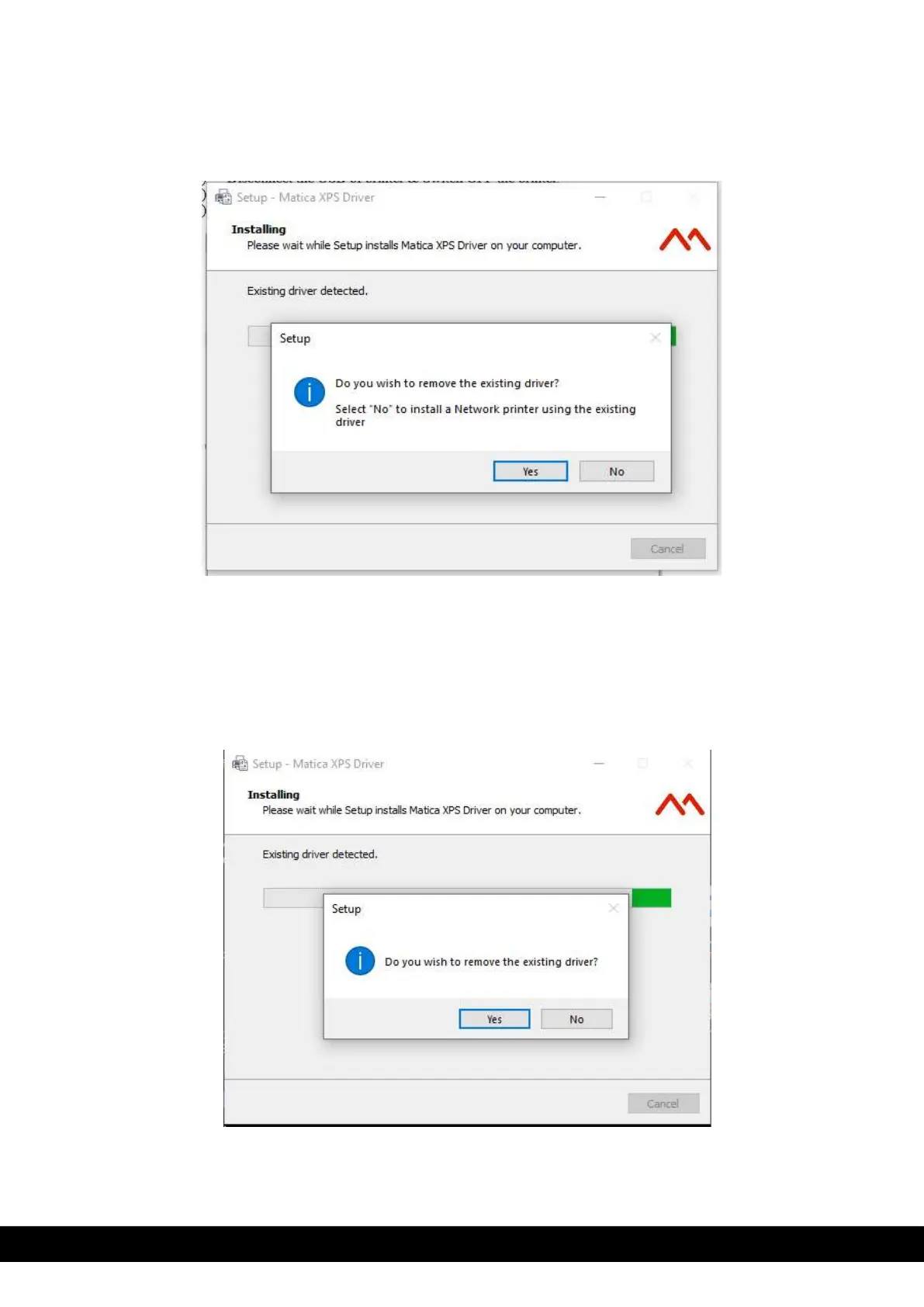
6) Installation process starts & below dialog box appears. Click No if user already installed the new version of driver in
Laptop/PC. Click yes if user going with fresh installation & follow steps
7) During the Installation process, Installer checks for the previous version of the Driver
c. If it detects then it pops up a window asking for the permission to remove the existing driver. Click ´Yes´
as it is recommended to remove the Older version of the Driver.
d. If it doesn’t detect then there is no Computer Restart needed and can continue with Switching on and
connecting the Printer to USB (See Step 11)


 To Next Page