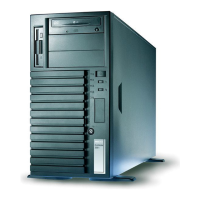
MAXDATA PLATINUM Server Board
More Problem Solving Procedures
This section provides a more detailed approach to identifying a problem and locating its
source.
Preparing the System for Diagnostic Testing
Turn off devices before disconnecting cables: Before disconnecting any peripheral cables
from the system, turn off the system and any external peripheral devices. Failure to do so
can cause permanent damage to the system and/or the peripheral devices.
Turn off the system and all external peripheral devices. Disconnect all of them from the
system, except the keyboard and video monitor.
Make sure the system power cord is plugged into a properly grounded AC outlet.
Make sure your video display monitor and keyboard are correctly connected to the system.
Turn on the video monitor. Set its brightness and contrast controls to at least two thirds
of their maximum ranges (see the documentation supplied with your video display
If the operating system normally loads from the hard disk drive, make sure there is no
diskette in drive A. Otherwise, place a diskette containing the operating system files in
If errors are encountered, power off the system and remove all add-in cards.
Verifying Proper Operation of Key System Lights
determines the system configuration, it tests for the presence of each mass storage
device installed in the system. As each device is checked, its activity light should turn on
briefly. Check for the following:
Does the diskette drive activity light turn on briefly?
If a second diskette drive is installed, does its activity light turn on briefly
Con rming Loading of the Operating System
Once the system boots up, the operating system prompt appears on the screen. The prompt
varies according to the operating system.
Speci c Problems and Corrective Actions
This section provides possible solutions for these specific problems:
Power light does not light.
No characters appear on screen.
Characters on the screen appear distorted or incorrect.
System cooling fans do not rotate.
Diskette drive activity light does not light.
CD-ROM drive activity light does not light.
There are problems with application software.
The bootable CD-ROM is not detected.
Try the solutions in the order given. If you cannot correct the problem, contact your service
representative or authorized dealer for help.



 To Next Page