101
QM00991-1
Presentation tools
PC-LESS Presentation (continued)
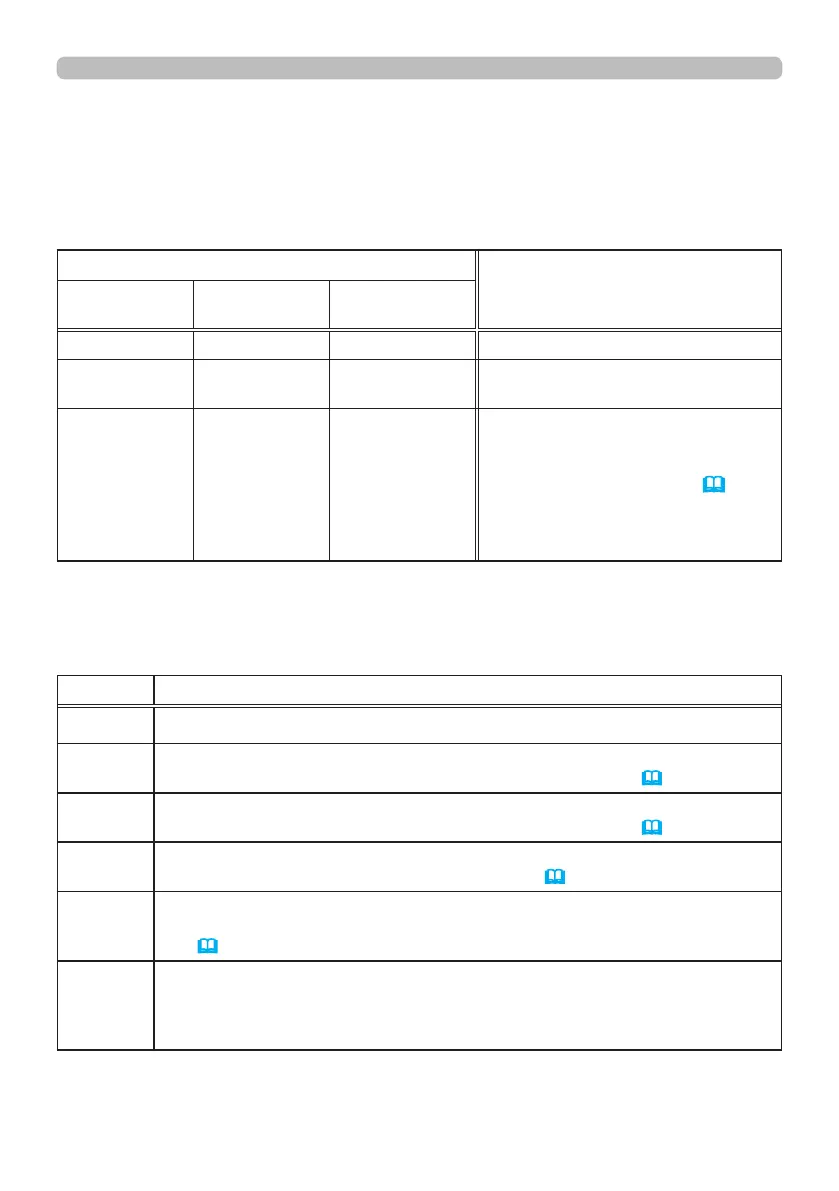
The setup menu for the selected image
Use the ◄/► cursor buttons to switch each setting or use the ► cursor button to execute
the functions as follows.
Item Functions
RETURN Press the ► cursor button or ENTER to return to the Thumbnail screen.
START
Switch to ON to set the selected image as the rst image in the Slideshow.
This setting information will be saved in the “playlist.txt” le (
107).
STOP
Switch to ON to set the selected image as the last image in the Slideshow.
This setting information will be saved in the “playlist.txt” le (
107).
SKIP
Switch to ON to skip the selected image in the Slideshow. This setting
information will be saved in the “playlist.txt” le (
107).
ROTATE
Press the ► cursor or ENTER button to rotate the selected still image 90
degrees clockwise. This setting information will be saved in the “playlist.txt”
le (
107).
DELETE
Press the ► cursor or ENTER button to delete selected image.
After executing delete, renew the image number displayed Thumbnail menu.
If rst or end image in the Slideshow is deleted, renew the setting of start/
stop.
You can control the images on the Thumbnail screen with the remote control,
control panel or Web Remote Control. The following functions can be supported
while the Thumbnail is displayed.
Operating by buttons or keys
Button operation
Functions
The remote
control
Control panel
Web Remote
Control
▲/▼/◄/► ▲/▼/◄/► [▲]/[▼]/[◄]/[►] Moves cursor
PAGE UP
PAGE DOWN
-
[PAGE UP]
[PAGE DOWN]
Switches pages
ENTER INPUT [ENTER]
• Displays the selected image on
the Full Screen mode when a cursor
is on a thumbnail image.
• Displays the setup menu (
below)
for the selected image when a
cursor is on a thumbnail image
number.



 To Next Page