42
QM00991-1
Operating
KEYSTONE: allows you to adjust the vertical and
horizontal keystone.
PERFECT FIT:
allows you to adjust each of the screen
corners and sides to correct the
distortion.
• The menu or dialog will automatically disappear after several seconds
of inactivity. Press the GEOMETRY button again, or point the cursor at EXIT in
the dialog and press the ►or ENTER button to end the operation and close the
menu or dialog.
• This function is unavailable when TRANSITION DETECTOR is ON. (96)
NOTE
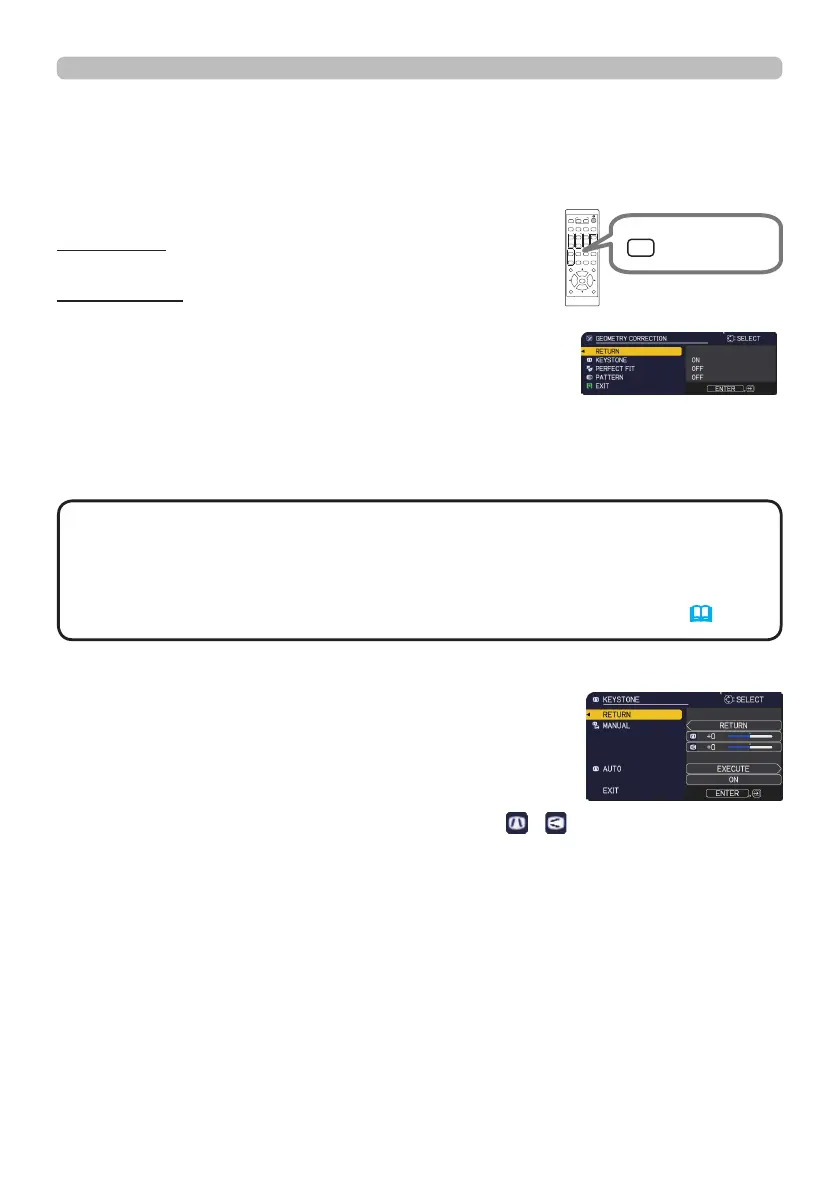
To correct the distortion of projected screen, you can select one of two options,
KEYSTONE and PERFECT FIT. First press the GEOMETRY button to display the
GEOMETRY CORRECTION menu, and point at one of the items with the ▲/▼
buttons.
Correcting the distortion
Then follow the procedure shown below for the item you selected.
Use KEYSTONE / PERFECT FIT for adjustment. When
one of them is selected, the other item is not available.
KEYSTONE:
When KEYSTONE is pointed at, pressing the ► or
ENTER button displays the KEYSTONE dialog.
1.
Select MANUAL with the ▲/▼ buttons and press
the ► or ENTER button.
ASPECT
BLANK
ESC MENU
RESET
AUTO
PAGE
DOWN
ON
OFF
FREEZE
UP
ENTER
FOCUS
-
+
ZOOM
-
+
INPUT
INTERACTIVE
MYBUTTON
1 2
PbyP
MAGNIFY
VOLUME
-
+
GEOMETRY PICTURE MUTE
NETWORK
OSD MSG
ASPECT
BLANK
ESC MENU
RESET
AUTO
PAGE
DOWN
ON
OFF
FREEZE
UP
ENTER
FOCUS
-
+
ZOOM
-
+
INPUT
INTERACTIVE
MYBUTTON
1 2
PbyP
MAGNIFY
VOLUME
-
+
GEOMETRY
PICTURE MUTE
NETWORK
OSD MSG
GEOMETRY
button
(continued on next page)
Select the vertical or horizontal keystone (
/ ) with the ▲/▼ buttons
and adjust the keystone distortion with the ◄/► buttons.



 To Next Page