37
QM00991-1
Operating
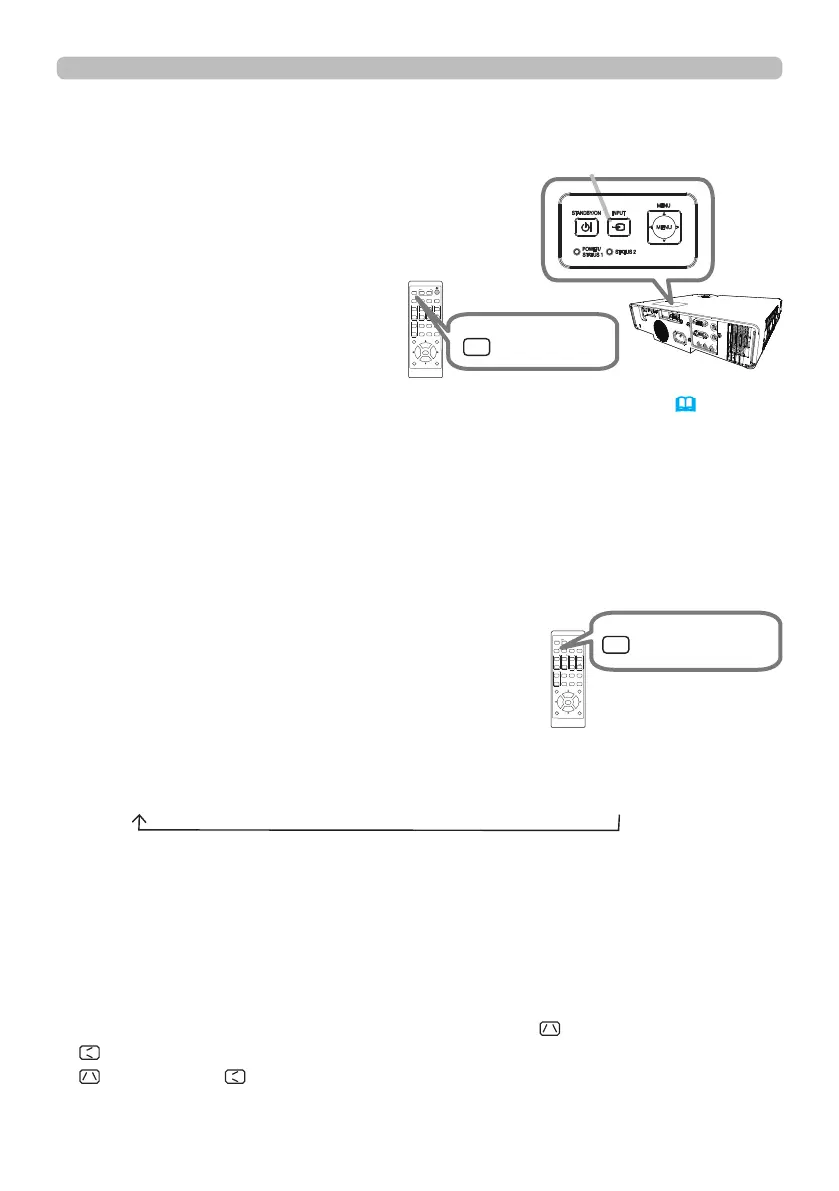
Press ASPECT button on the remote control.
Each time you press the button, the projector
switches the mode for aspect ratio in turn.
Selecting an aspect ratio
● ASPECT button does not work when no proper signal is input.
● NORMAL mode keeps the original aspect ratio setting.
● The on-screen menu might be displayed outside of the image display area
depending on the adjustment value of the ASPECT, KEYSTONE,
KEYSTONE and PERFECT FIT. Changing the values of ASPECT,
KEYSTONE, KEYSTONE and PERFECT FIT may x the symptom.
For an input signal from the LAN or USB TYPE A port, or if there is no
signal
Full Screen (xed)
For a computer signal, HDMI
TM
signal, a video signal or
component video signal
NORMAL 4:3 16:9 16:10 14:9 ZOOM NATIVE
Press the INPUT button on the projector
or the remote control. Select a desirable
input referring to the displayed input list.
Selecting an input signal
● While ON is selected for AUTO SEARCH item in OPTION menu (
75), the
projector will keeps checking every port sequentially until an input signal
is detected. The ports can be set to be ignored in searching by the AUTO
SEARCH function.
ASPECT
BLANK
ESC MENU
RESET
AUTO
PAGE
DOWN
ON
OFF
FREEZE
UP
ENTER
FOCUS
-
+
ZOOM
-
+
INPUT
INTERACTIVE
MYBUTTON
1 2
PbyP
MAGNIFY
VOLUME
-
+
GEOMETRY PICTURE MUTE
NETWORK
OSD MSG
ASPECT
BLANK
ESC MENU
RESET
AUTO
PAGE
DOWN
ON
OFF
FREEZE
UP
ENTER
FOCUS
-
+
ZOOM
-
+
INPUT
INTERACTIVE
MYBUTTON
1 2
PbyP
MAGNIFY
VOLUME
-
+
GEOMETRY PICTURE MUTE
NETWORK
OSD MSG
INPUT button
ASPECT
BLANK
ESC MENU
RESET
AUTO
PAGE
DOWN
ON
OFF
FREEZE
UP
ENTER
FOCUS
-
+
ZOOM
-
+
INPUT
INTERACTIVE
MYBUTTON
1 2
PbyP
MAGNIFY
VOLUME
-
+
GEOMETRY PICTURE MUTE
NETWORK
OSD MSG
ASPECT
BLANK
ESC MENU
RESET
AUTO
PAGE
DOWN
ON
OFF
FREEZE
UP
ENTER
FOCUS
-
+
ZOOM
-
+
INPUT
INTERACTIVE
MYBUTTON
1 2
PbyP
MAGNIFY
VOLUME
-
+
GEOMETRY PICTURE MUTE
NETWORK
OSD MSG
ASPECT button
INPUT button


 To Next Page