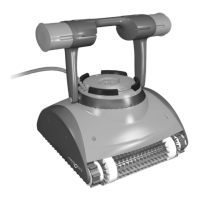
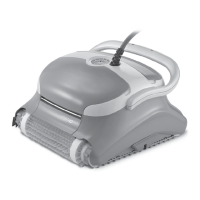
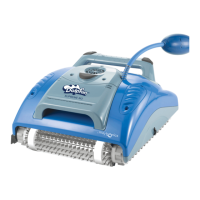
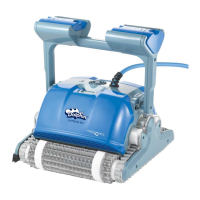
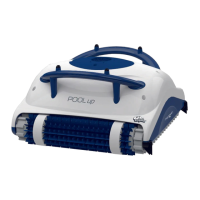
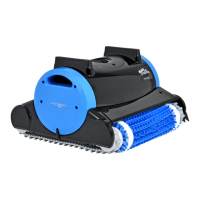
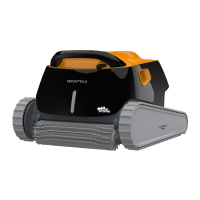
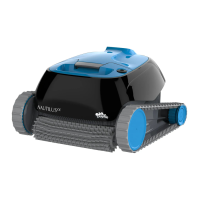
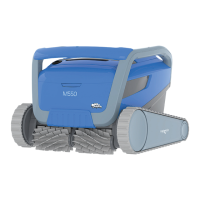
The Maytronics Dolphin Robotic Pool Cleaner, including models M550, Zenit 55, Ultimate Smart, and Active X5.5, is designed to provide reliable, convenient, and cost-effective pool cleaning. It features advanced cleaning technology, long-lasting performance, and easy maintenance, ensuring maximum pool hygiene through reliable filtration and all-surface climbing brushes.
Function Description
The robotic pool cleaner is an autonomous device that cleans swimming pools. It operates by moving across the pool surfaces, scrubbing away debris, and filtering the water. The cleaner is equipped with a blue cable and an anti-tangle swivel to ensure unrestricted movement throughout the pool. An IoT (Internet of Things) power supply enables smart control and connectivity. The device can be operated manually via a single ON/OFF button on the power supply or through the MyDolphin™ Plus mobile app, offering advanced features like weekly scheduling, remote control, and smart-home integration.
Important Technical Specifications
- Motor Protection: IP68, up to 5 meters (16.4 ft)
- Minimum Depth: 0.4 meters (1.33 ft)
- Maximum Depth: 5 meters (16.4 ft)
- Digital Switch-Mode Power Supply:
- IP Rating: IP54
- Input: 100 VAC to 240 VAC, 50-60 Hertz, 180 Watt
- Output: <30 VDC
- Bluetooth® Max Output: < 5.7 mW
- Wi-Fi® Max Output: < 76 mW - Frequency 2.4 MHz
- Water Conditions for Operation:
- Chlorine: 4 ppm max
- pH: 7.0 - 7.8
- Temperature: 6 °C to 35 °C (43 °F to 95 °F). Climbing performance may be affected below 15 °C (59 °F).
- NaCl: 5000 ppm max
Usage Features
The robotic pool cleaner offers flexible usage options:
- Setup: Position the power supply approximately in the middle of the long side of the pool, at least 3.5 m (12 ft) from the pool's edge and 11 cm (4 in) above ground to prevent electrocution. Unwind the blue cable completely to avoid kinks, connect it to the power supply, and then place the cleaner in the pool, ensuring the cable is free of obstacles. Finally, connect the power supply to a 100-240 volt AC outlet.
- Manual Operation: Press the ON/OFF button on the power supply to start a cleaning cycle.
- Weekly Schedule: Pressing the power button for 5 seconds activates a weekly timer, allowing the robot to clean every two days for a week. The filter should be rinsed weekly.
- MyDolphin™ Plus App Integration:
- Download: Available on Google Play and Apple's App Store.
- Connectivity: Cloud-connected via Wi-Fi® for remote control and diagnostics. Can also connect via Bluetooth® when near the power supply.
- Pairing: Activate the app near the power supply, sign up, agree to permissions, and the app will pair with the robot. Users can also scan a QR code if the robot is not found.
- Wi-Fi® Connection: Connects to 2.4GHz Wi-Fi® networks. Users with dual-band routers may need to separate 2.4GHz and 5GHz networks.
- Pick-up Mode: A convenient feature in the app that brings the robot to the closest wall and raises it to the water surface for easy retrieval.
- Power Supply LED Indicators:
- Blue (blinking 4 times): Occurs after connecting to power outlet.
- Blue (consistent): Bluetooth® connected.
- Green and Blue (alternating blink): Pairing process ongoing.
- Green (consistent): Wi-Fi® connected to home network.
- ON/OFF LEDs: Steady blue for normal operation, flashing green for delay mode/weekly timer, alternating blue/green/red for remote program updates, and steady red for error.
- Quick Start Feature: Activates specific features (configurable via app) by pressing and holding the ON/OFF button for 5 seconds.
- Automation Mode: Activates smart-home connectivity by pressing and holding the ON/OFF button for 15 seconds.
- Retrieval: Turn off the power supply. Pull the robot to the waterline using the blue cable, then use the handle to lift it out, allowing water to drain. Avoid pulling the robot above the waterline by the cable to prevent damage.
Maintenance Features
Regular maintenance is crucial for the cleaner's longevity and performance:
- Safety First: Always ensure the power supply is switched OFF and unplugged before performing any maintenance to prevent injury and damage.
- Quick Rinse (After Each Use):
- Open the filter cover, which will automatically lift the handle.
- Lift out the filter basket.
- Open the latch to release the bottom lid of the basket.
- Clean the filter basket thoroughly with a hose, both inside and outside.
- Rinse chemicals off the robot and store it in the shade or a caddy cover.
- Do not let filter panels dry out before cleaning, as dried debris is harder to remove.
- Periodic Filter Cleaning (Recommended Monthly):
- Dismantle the ultra-fine filter panels from the outer basket by pressing the plastic frame near the numbers (panels 1, 2, 3, 4 in sequence).
- Clean the filter panels with a hose.
- Reassemble the filter panels in reverse order (4, 3, 2, 1).
- Insert the complete filter basket and close the filter cover.
- Cleaning the Impeller (Underwater Propeller):
- Unplug the power supply and remove the filter basket.
- Squeeze two black tabs together to remove the exhaust manifold.
- Pull the manifold towards the filter basket niche.
- Clean any trapped debris from the impeller.
- Return the manifold until it clicks, then replace the filter basket.
- Periodic General Maintenance (Recommended Weekly):
- Spread the blue cable flat and straight in the yard for at least five hours to dry and prevent twisting.
- Wash the robotic pool cleaner with fresh water to reduce damage from pool chemicals.
- Off-Season Storage:
- Ensure no water remains in the cleaner.
- Thoroughly clean the filter basket and panels and reinsert them.
- Roll up the blue cable without kinks.
- Store the cleaner in a protected area away from direct sun, rain, or frost, at a temperature between 5°C and 45°C (41°F and 113°F).
Troubleshooting guides are provided for common issues such as the power supply not working, the robot not moving, moving in circles, not cleaning effectively, cleaning only part of the pool, cable kinks, and issues with wall climbing or app connectivity. For persistent problems, Maytronics Customer Care can be contacted via phone or their website.

 Need help?
 General



 To Next Page