Trim Menu
The trim menu allows you to make and store
adjustments to various settings for all inputs. The
trim menu can be entered using the INPUT knob or
the remote control.
The following table lists the trim options and the
range of values that can be adjusted:
Setting Values
Bass
Treble
Dirac Live
Voicing EQ Select to apply to current input
Audio Delay
(Lip Sync)
Trim Surrounds
Trim Heights
Trim Subwoofer
Meter Lights
Display Brightness
Input Mode
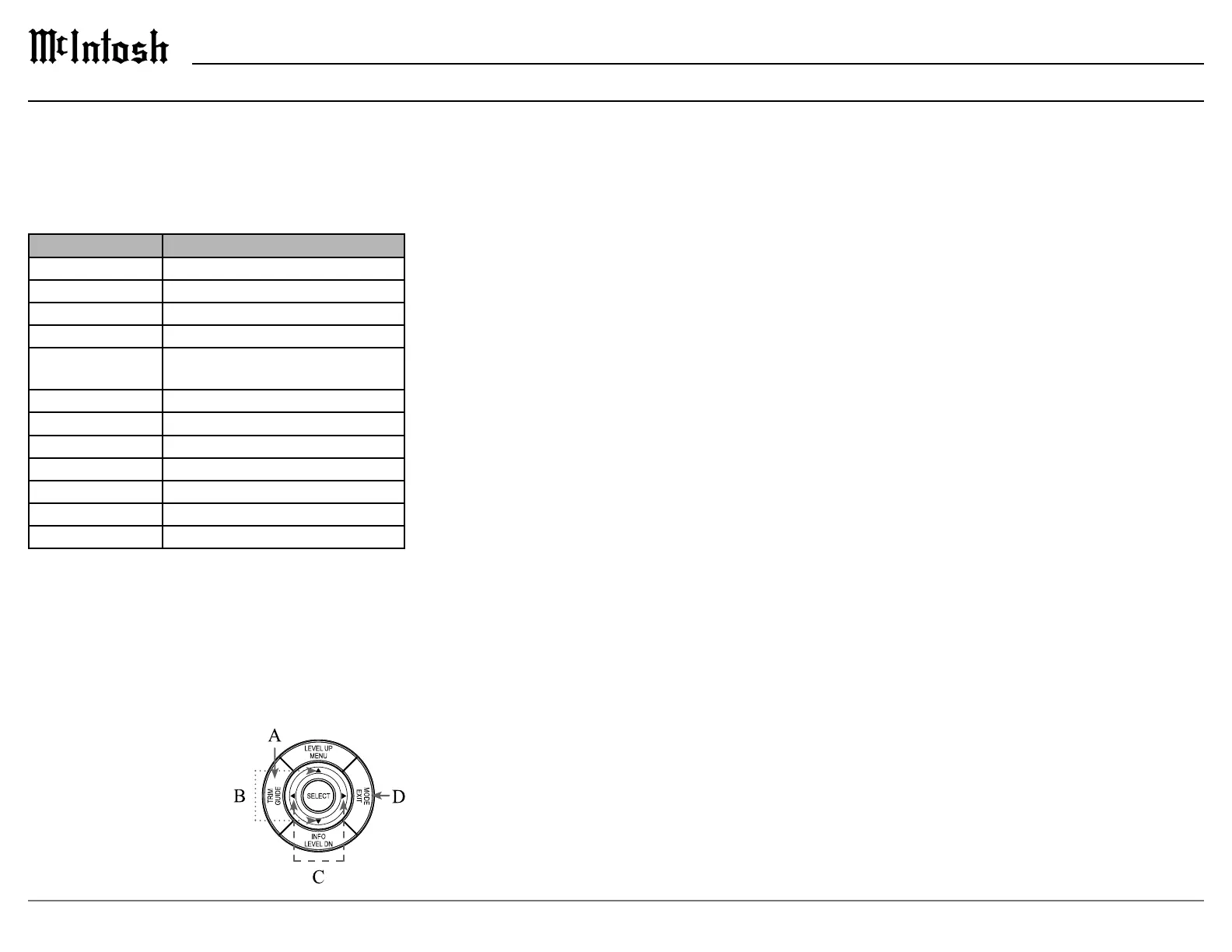
Trim Menu Using the Remote Control
A. Enter the trim menu by pressing the TRIM button.
B. You can scroll through the trim options by press
ing the up or down arrows on the silver ring.
Use the left and right arrows on the silver ring to
change values for the selected trim option.
D.
ten seconds for the menu
to close automatically.
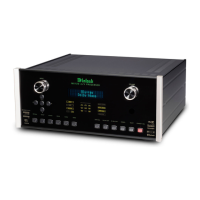
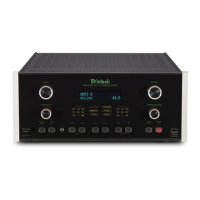
Trim Menu Using Knobs
To enter the trim menu, press and release the
INPUT knob. (Holding the knob for two seconds
enters the setup menu instead of the trim menu.)
Scroll through the options by turning the INPUT
knob.
the VOLUME knob. Turn the INPUT knob to select
another option to edit or press the INPUT knob and
Saving Trim Settings
Most trim settings are saved per input. For these
input. The following trim inputs are saved by
individual input:
• Bass
• Treble
• Audio Delay
•
• Trim Surrounds
• Trim Subwoofer
• Mode
• Voicing EQ
change to these settings for any input will make the
same change for all inputs
• Dirac Live EQ
• Meter Lights
• Display Brightness
Input Mode
The following input modes are available:
• AUTO
•
• MOVIE
•
•
for each option is AUTO. Other options are Dolby
Stereo and Through. For more information about
these options see “Setup: Audio > surround mode”
on page 16.
mode is to use the MODE button on the outer ring
of the remote control. Pressing the MODE button
will cycle through the surround modes. Stop on your
and your choice will be saved.
Assigning Input Modes
A. Enter the trim menu by pressing the INPUT knob
or the TRIM button on the remote control.
B. Rotate the INPUT knob or press the down arrow
on the remote control until MODE is displayed on
the VFD.
button on the remote control.
D. Rotate the INPUT knob or the up and down
arrows on the remote control until the desired
input is displayed.
E. Rotate the VOLUME knob or press the left and
right arrows to scroll through the surround modes.
F. Press and hold the INPUT knob for two seconds or
press the EXIT button to leave the trim menu (or
wait until it times out).



 To Next Page