MultiTest-dV Operating Manual Mecmesin 9
3.3. Switching dV Modes
To switch to dV(u) mode you require a dV(u) key, a test stand with firmware version
3.0.2 or later and VectorPro 5.1.0.0 or later. The dV(u) key is a separate accessory and can
be purchased from your local Mecmesin agent.
The key is linked to an individual test stand. It is crucial when ordering the key that you
supply the test stand’s serial number.
To switch your stand into dV(u) mode first open VectorPro. Once the workspace screen
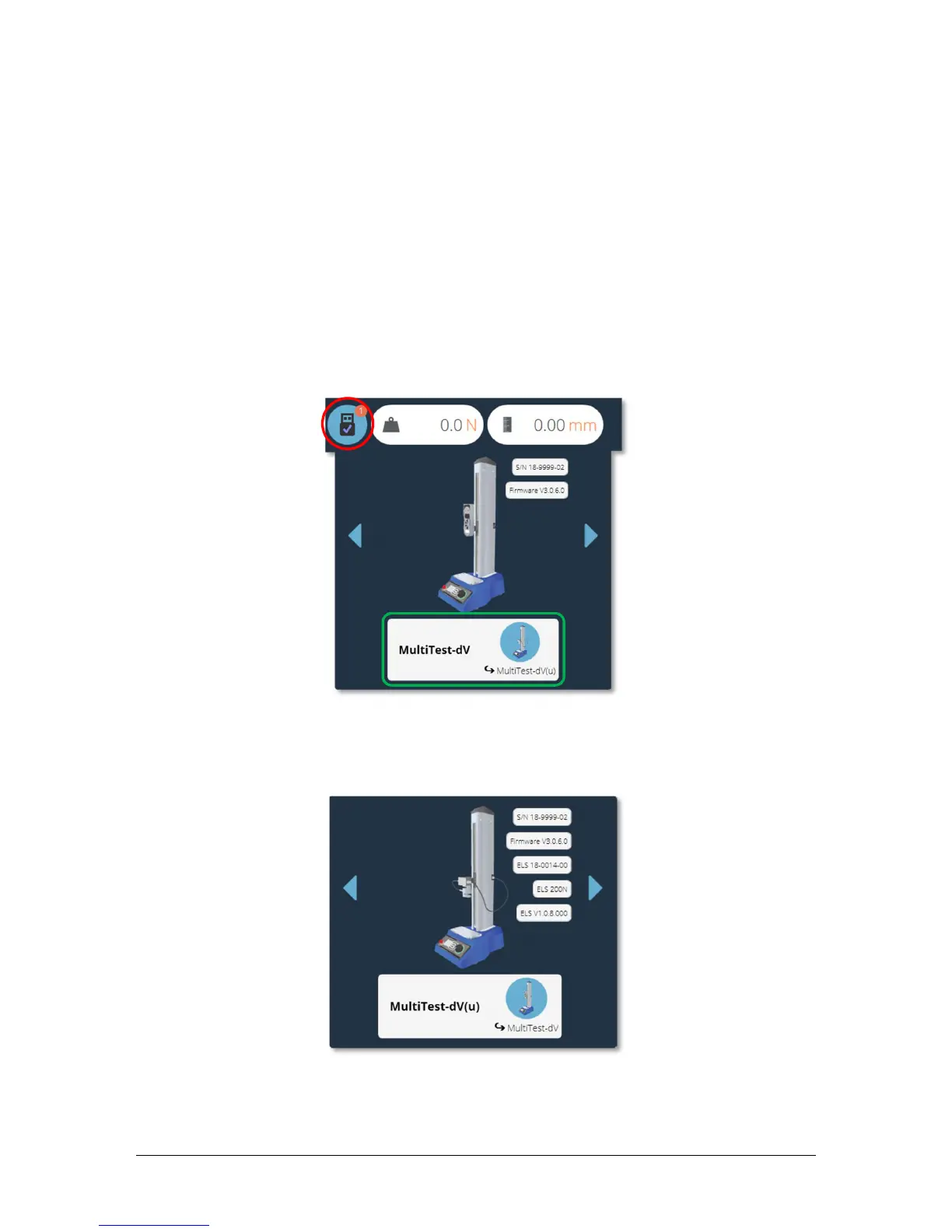
is displayed, click the USB icon located in the top left of the screen (circled in red below).
Next, click the button highlighted in green in the image below, if a corresponding dV(u)
key is present the stand will enter dV(u) mode.
Pressing the button highlighted, in green above, switches the stand into dV(u) mode. In
the screenshot above the stand is currently in dV mode, this is illustrated by the AFG
connected to the stand and by the stand name located within the switch button.
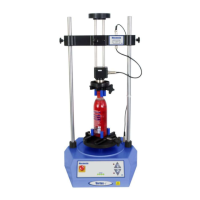
The image above shows the device in dV(u) mode, this is illustrated by the connected
ELS in the image, as well as the ELS device information in the main panel.


 To Next Page