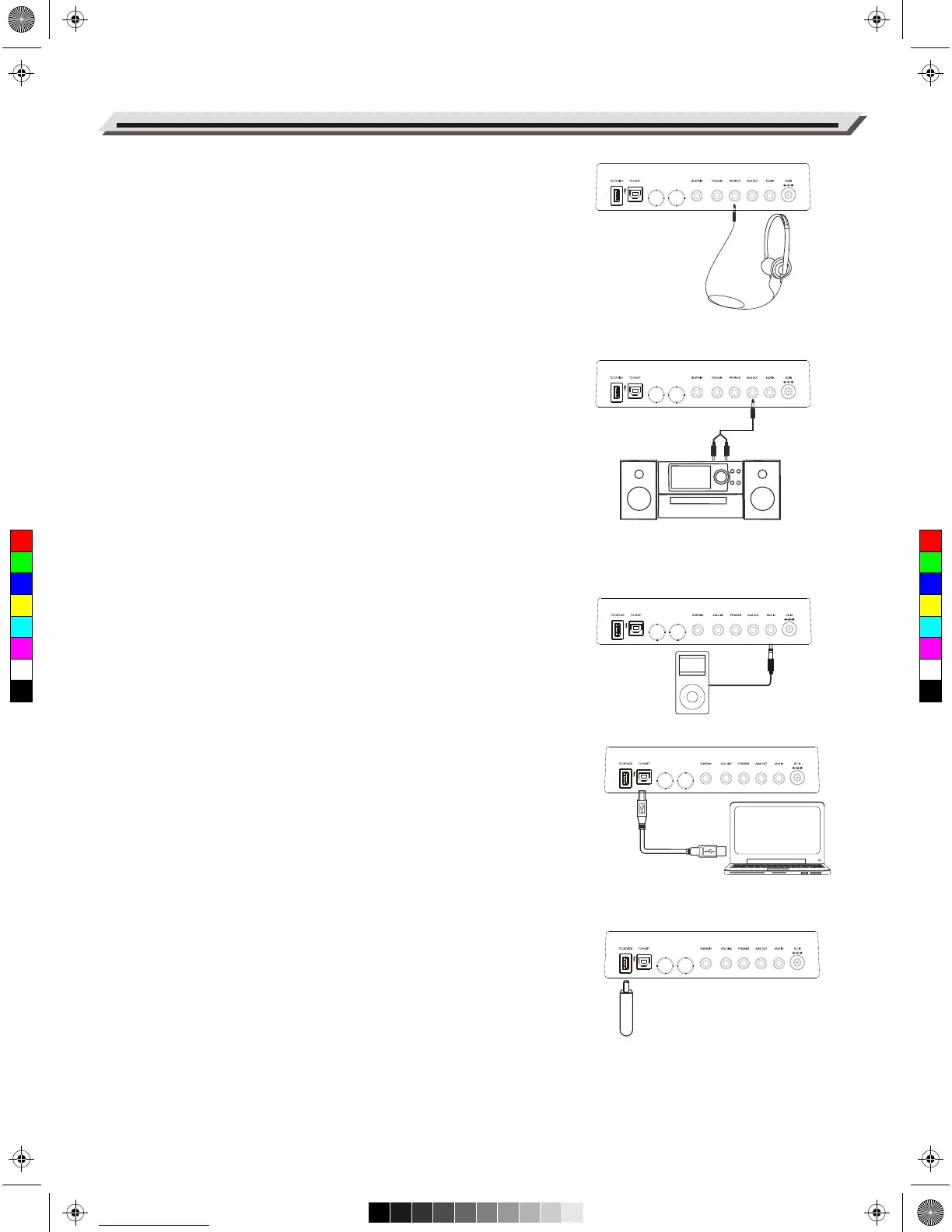
Connecting a pair of Headphones
Plug a pair of standard stereo headphones into the PHONES jack
for private practice or late-night playing. When headphones are
connected, the internal speakers will be muted, and the sound can
only be heard from the headphones.
Note:
Do not use headphones at high volume for long periods of time.
Doing so may cause hearing loss.
Connecting an Audio Equipment
The AUX OUT jack delivers the output of the instrument to external
audio equipment such as a keyboard amplifier, stereo sound
system, mixing console, or recording interface. Use an audio cable
to connect the AUX OUT jack of the instrument to the INPUT jack of
the external audio equipment.
Note:
To avoid damaging the speakers, please set the master volume
level to minimum before connecting the power and other devices.
Connecting an MP3/CD Player
The AUX IN jack receives audio signals from an external audio
source such as an MP3 or a CD player. Use an audio cable to
connect the AUX IN jack of the instrument to the OUTPUT jack of
an MP3/CD player. The instrument’s speakers will play the music
transmitted from the external player, and you can play along.
Connecting a Computer
Use a standard USB cable to connect the USB jack of the instru-
ment to the USB port of a computer. With USB, you can save a
keyboard performance to the computer or use the instrument to
play back music played on the computer.
Connecting a USB Flash Drive
Connect a USB flash drive to the instrument to save the data you’ve
created to the USB flash drive. You can also load files from a USB
flash drive to the instrument, or use the instrument to play back files
saved on USB flash drive.
Note:
To avoid errors or damaging the USB flash drive, do not remove it
when reading or writing is in progress
Connections
08
C
M
Y
CM
MY
CY
CMY
K
AW_AW830_Manual_G03_171207.pdf 8 17/12/12 17:59


 To Next Page