23
SETUP MENU (CONTINUED)
NOTE: Select OTHER if your language is not listed, or ORIGINAL to hear the language recorded on the DVD.
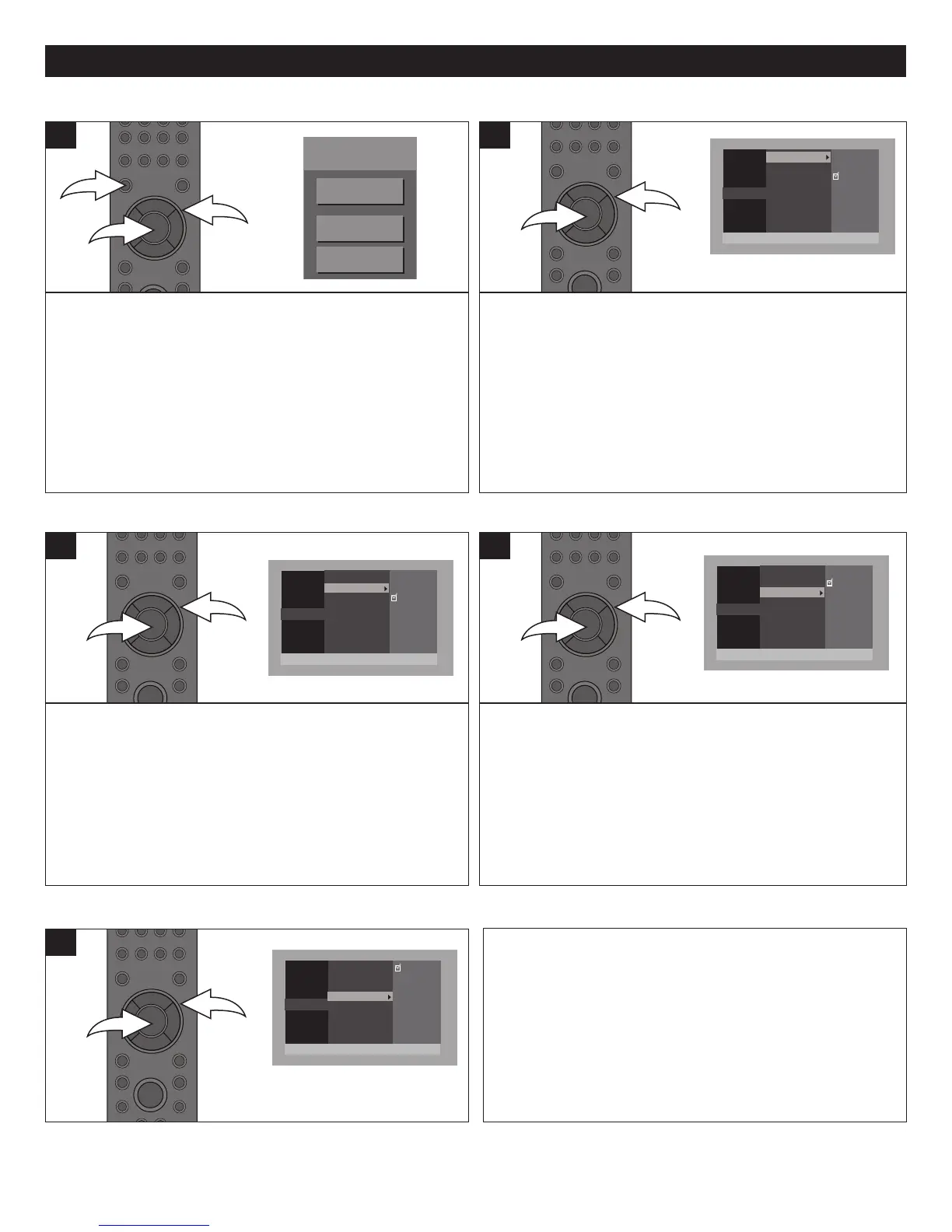
Press the SETUP button 1 and the BD-Video Menu will
appear. Select SETTING using the Navigation (π,†)
buttons 2, then press the ENTER button 3 to enter the Main
menu.
Select LANGUAGE using the Navigation (π,†) buttons 2,
then press the ENTER button 3 to enter the Language menu.
1
Use this option to select the language the disc will be played
back in. Select the Language menu as shown to the left.
Select AUDIO LANGUAGE using the Navigation (π,†)
buttons 1, then press the ENTER button 2; the Language
options will appear. Select the desired language using the
Navigation (π,†) buttons 1, then press the ENTER button
2. The disc must be recorded in the selected language,
otherwise the default language of the disc will be played.
1
LANGUAGE SETUP MENU
AUDIO LANGUAGE
BD-Video
TOP MENU
SETTING
BD-VIDEO DATA ERASE
G
ENERAL
VIDEO
AUDIO
LANGUAGE
PARENTAL
NETWORK
JAPANESE
ENGLISH
O
RIGINAL
OTHER****
AUDIO LANGUAGE
SUBTITLE LANGUAGE
M
ENU LANGUAGE
ON-SCREEN LANGUAGE
GENERAL
VIDEO
AUDIO
LANGUAGE
PARENTAL
NETWORK
A
UTO
J
APANESE
ENGLISH
OTHER****
A
UDIO LANGUAGE
S
UBTITLE LANGUAGE
MENU LANGUAGE
ON-SCREEN LANGUAGE
GENERAL
V
IDEO
AUDIO
LANGUAGE
PARENTAL
N
ETWORK
J
APANESE
ENGLISH
OTHER****
A
UDIO LANGUAGE
SUBTITLE LANGUAGE
MENU LANGUAGE
O
N-SCREEN LANGUAGE
GENERAL
VIDEO
AUDIO
LANGUAGE
PARENTAL
NETWORK
ENGLISH
G
ERMAN
FRENCH
S
PANISH
AUDIO LANGUAGE
S
UBTITLE LANGUAGE
MENU LANGUAGE
O
N-SCREEN LANGUAGE
Use this option to select the language the Subtitle will be in.
Select the Language menu as shown above. Select
SUBTITLE LANGUAGE using the Navigation (π,†) buttons
1, then press the ENTER button 2; the Language options
will appear. Select the desired language using the Navigation
(π,†) buttons 1, then press the ENTER button 2.
The disc must be recorded in the selected language,
otherwise the default language of the disc will be shown.
1
Use this option to select the language the Disc Menu will be in.
Select the Language menu as shown above. Select MENU
LANGUAGE using the Navigation (π,†) buttons 1, then
press the ENTER button 2; the Language options will
appear. Select the desired language using the Navigation
(π,†) buttons 1, then press the ENTER button 2.
The disc must be recorded in the selected language,
otherwise the default language of the disc will be shown.
1
SUBTITLE LANGUAGE
MENU LANGUAGE
GENERAL
VIDEO
A
UDIO
LANGUAGE
PARENTAL
NETWORK
JAPANESE
ENGLISH
ORIGINAL
OTHER****
AUDIO LANGUAGE
SUBTITLE LANGUAGE
MENU LANGUAGE
ON-SCREEN LANGUAGE
GENERAL
VIDEO
AUDIO
LANGUAGE
PARENTAL
NETWORK
A
UTO
J
APANESE
ENGLISH
O
THER****
A
UDIO LANGUAGE
S
UBTITLE LANGUAGE
MENU LANGUAGE
O
N-SCREEN LANGUAGE
GENERAL
V
IDEO
AUDIO
LANGUAGE
PARENTAL
N
ETWORK
JAPANESE
ENGLISH
O
THER****
AUDIO LANGUAGE
SUBTITLE LANGUAGE
M
ENU LANGUAGE
ON-SCREEN LANGUAGE
GENERAL
VIDEO
AUDIO
LANGUAGE
PARENTAL
NETWORK
ENGLISH
GERMAN
FRENCH
SPANISH
AUDIO LANGUAGE
SUBTITLE LANGUAGE
MENU LANGUAGE
ON-SCREEN LANGUAGE
Use this option to select the desired language for the On-
Screen display to display text.
Select the Language menu as shown above. Select ON-
SCREEN LANGUAGE using the Navigation (π,†) buttons
1, then press the ENTER button 2; the Language options
will appear. Select the desired language using the Navigation
(π,†) buttons 1, then press the ENTER button 2.
1
ON SCREEN LANGUAGE
GENERAL
VIDEO
A
UDIO
LANGUAGE
PARENTAL
NETWORK
J
APANESE
ENGLISH
O
RIGINAL
OTHER****
A
UDIO LANGUAGE
SUBTITLE LANGUAGE
M
ENU LANGUAGE
ON-SCREEN LANGUAGE
G
ENERAL
VIDEO
AUDIO
LANGUAGE
P
ARENTAL
NETWORK
AUTO
J
APANESE
ENGLISH
O
THER****
AUDIO LANGUAGE
S
UBTITLE LANGUAGE
MENU LANGUAGE
O
N-SCREEN LANGUAGE
GENERAL
VIDEO
AUDIO
LANGUAGE
PARENTAL
NETWORK
JAPANESE
ENGLISH
O
THER****
AUDIO LANGUAGE
SUBTITLE LANGUAGE
M
ENU LANGUAGE
ON-SCREEN LANGUAGE
GENERAL
VIDEO
AUDIO
LANGUAGE
PARENTAL
NETWORK
ENGLISH
GERMAN
FRENCH
SPANISH
AUDIO LANGUAGE
SUBTITLE LANGUAGE
MENU LANGUAGE
ON-SCREEN LANGUAGE
GENERAL
VIDEO
AUDIO
LANGUAGE
P
ARENTAL
NETWORK
JAPANESE
ENGLISH
ORIGINAL
OTHER****
AUDIO LANGUAGE
SUBTITLE LANGUAGE
MENU LANGUAGE
ON-SCREEN LANGUAGE
GENERAL
VIDEO
AUDIO
LANGUAGE
PARENTAL
NETWORK
A
UTO
JAPANESE
ENGLISH
O
THER****
A
UDIO LANGUAGE
SUBTITLE LANGUAGE
MENU LANGUAGE
O
N-SCREEN LANGUAGE
GENERAL
V
IDEO
AUDIO
LANGUAGE
PARENTAL
N
ETWORK
JAPANESE
E
NGLISH
OTHER****
AUDIO LANGUAGE
S
UBTITLE LANGUAGE
MENU LANGUAGE
O
N-SCREEN LANGUAGE
GENERAL
VIDEO
AUDIO
LANGUAGE
PARENTAL
NETWORK
E
NGLISH
GERMAN
FRENCH
SPANISH
A
UDIO LANGUAGE
SUBTITLE LANGUAGE
MENU LANGUAGE
ON-SCREEN LANGUAGE


 To Next Page