3.7
HPS Software Features
Using the Patient Toolbar Icons
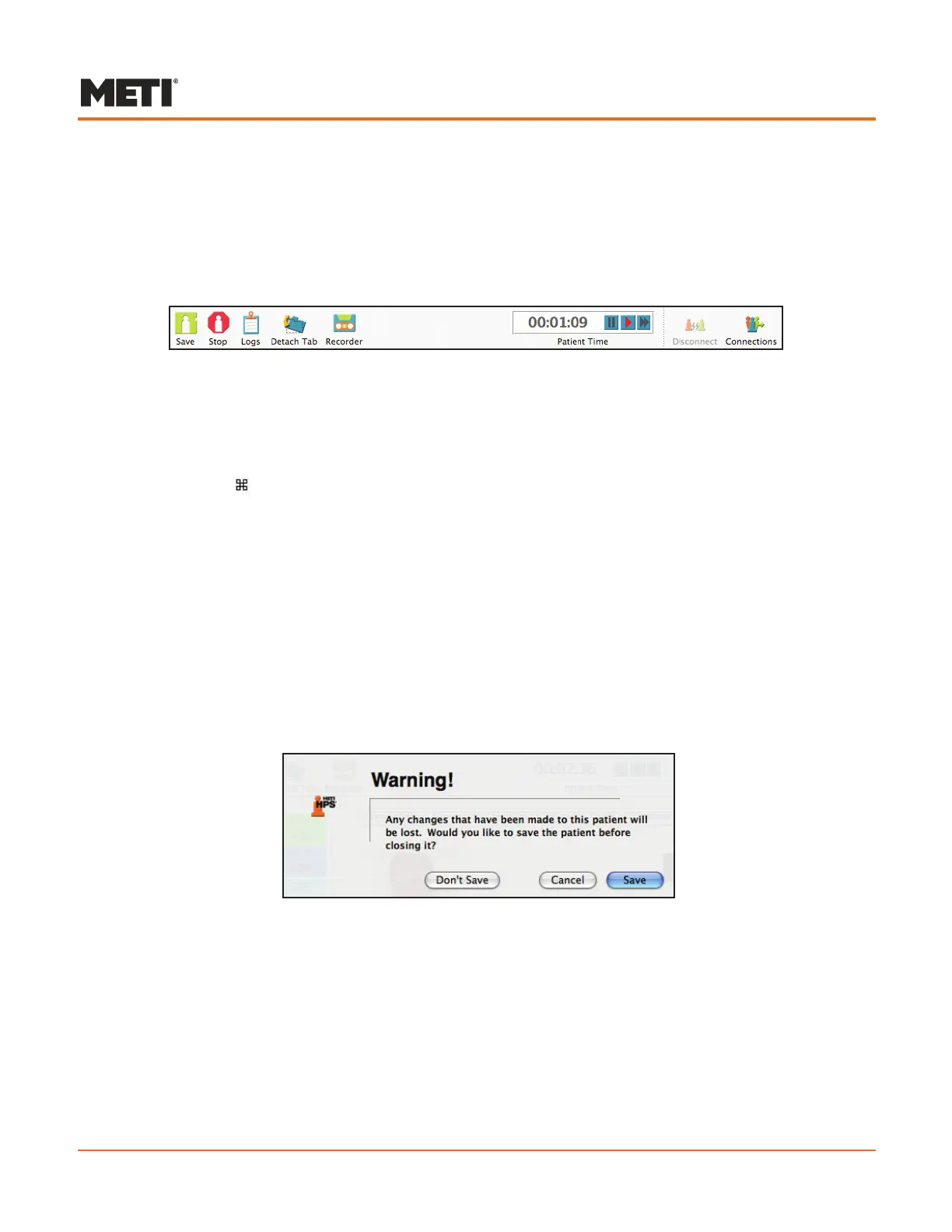
The Patient toolbar is located beneath the title bar, displaying several icons used to
provide basic system functionality.
Menu options for these functions can also be found on the menu bar.
The Patient Toolbar
Save
Clicking the Save icon saves the active patient file. Files can also be saved using
the Save option located in the Patient menu or by simultaneously holding down the
Command ( ) and S keys.
When the Save icon is clicked, the current version of the patient file OVERWRITES
(replaces) the previous version. Preconfigured patients, such as Stannette, cannot
be overwritten in HPS user mode, so selecting Save prompts a warning requiring the
patient to be saved to the User/Shared directory as a new patient file.
When saving a new patient file, the Save file as ... window appears, providing the
means of naming the patient file and navigating to a location in the directory where the
file can be stored.
Stop
Clicking the Stop icon prompts a warning to save the patient file.
Lost Changes Warning Box
Clicking Save in the Warning box functions in the same way as choosing the Save icon
(see Save above), while clicking Cancel returns the user to the Patient window without
saving the file. Clicking Don’t Save closes the active Patient window without recording
any unsaved changes to the patient file.
The patient file can also be stopped by clicking the Stop icon on the Patient Palette.



 To Next Page