3.23
HPS Software Features
Saving Data
Patient information can be saved locally on the hard drive or transferred to external
storage via a CD or a USB memory device. Files are created in a simple text (TXT)
format. Consequently, transferred files can be printed on any computer (PC or Mac) that
has printing capability.
Backing up files is especially important when custom patients and scenarios have been
created. Whenever important files exist, it is recommended that the files be stored on a
second source and a hard copy of the records be generated.
Saving Patient Files
Before the Patient window is closed, the patient file can be saved using either the Save
icon on the Patient window or the Save or Save As options located on the Patient
menu. Clicking the Stop icon on the Patient window also prompts a warning that
provides an option to save.
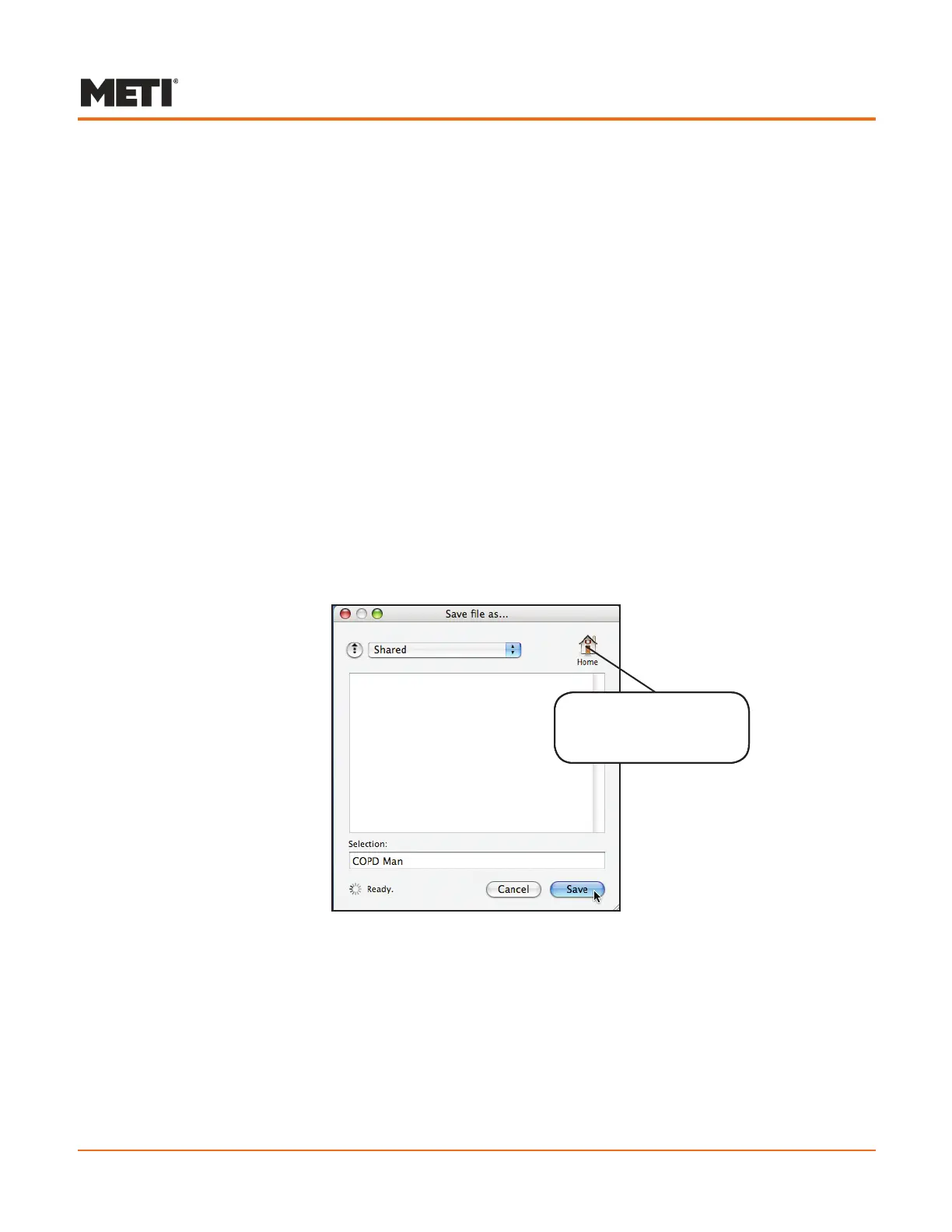
If the file is being saved for the first time, the Save file as... window appears.
Navigate to the Shared directory. As a shortcut, clicking on the Home icon navigates
automatically to the user’s default directory.
Saving a New Patient File
Enter the new name in the Selection field and click Save.
All customized patients and scenarios should be saved in the Users/Shared folder.
By default, patient files are stored in the preset Users/Shared folder. However, files can
be stored in any folder on the hard drive. The navigational pull-down menu at the top of
the window provides the means for locating the appropriate folder.
Click on the Home icon
to navigate to the user’s
default directory



 To Next Page