ZLR964222L Line Module User Guide
22
Microsemi Corporation Confidential and Proprietary
5.3.2 Reviewing and Editing Profile Entries
The user can edit any of the profiles by clicking on the corresponding item and can check the ones that he or she
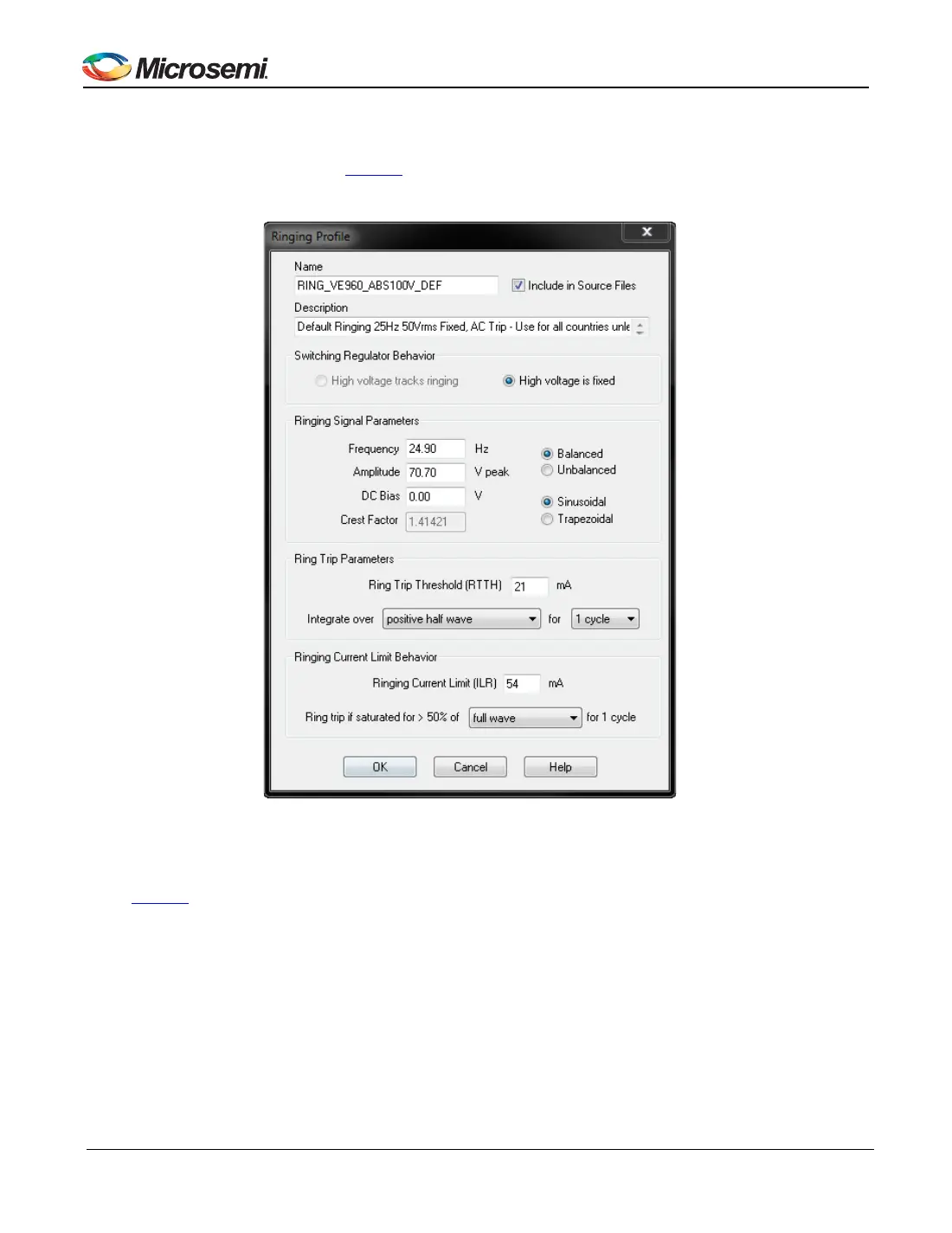
needs for the project. As an example,
Figure 8 shows the contents of the Ringing Profile. The user can change any
of the values, such as the ringing frequency, amplitude, DC bias, by simply typing them in the corresponding boxes
and pressing the “OK” button on the bottom.
Figure 8 - Ringing Profile Configuration Example
After saving the Profile data, the user should press the “Save and Generate” button on the left panel of the Main
Menu (Figure 7). This will generate new .c file with the selected profiles in the directory that is selected.
5.3.3 Running New Profiles
After completing the changes to Profile Wizard, the user should follow the following steps:
1. Start the MiToolkit application.
2. When MiToolkit starts up, it will display a list of applications. Run the Mini-PBX application.
3. When Mini-PBX starts, it will prompt for which serial port to use. If VP-Script is already running, Mini-PBX will
know what port is being used. Note that the ZTAP Support Package software installation includes a Virtual COM
Port Driver to support USB-to-serial UART interface on the ZTAP board.


 To Next Page