© Microhard 40
4.0 Configuration
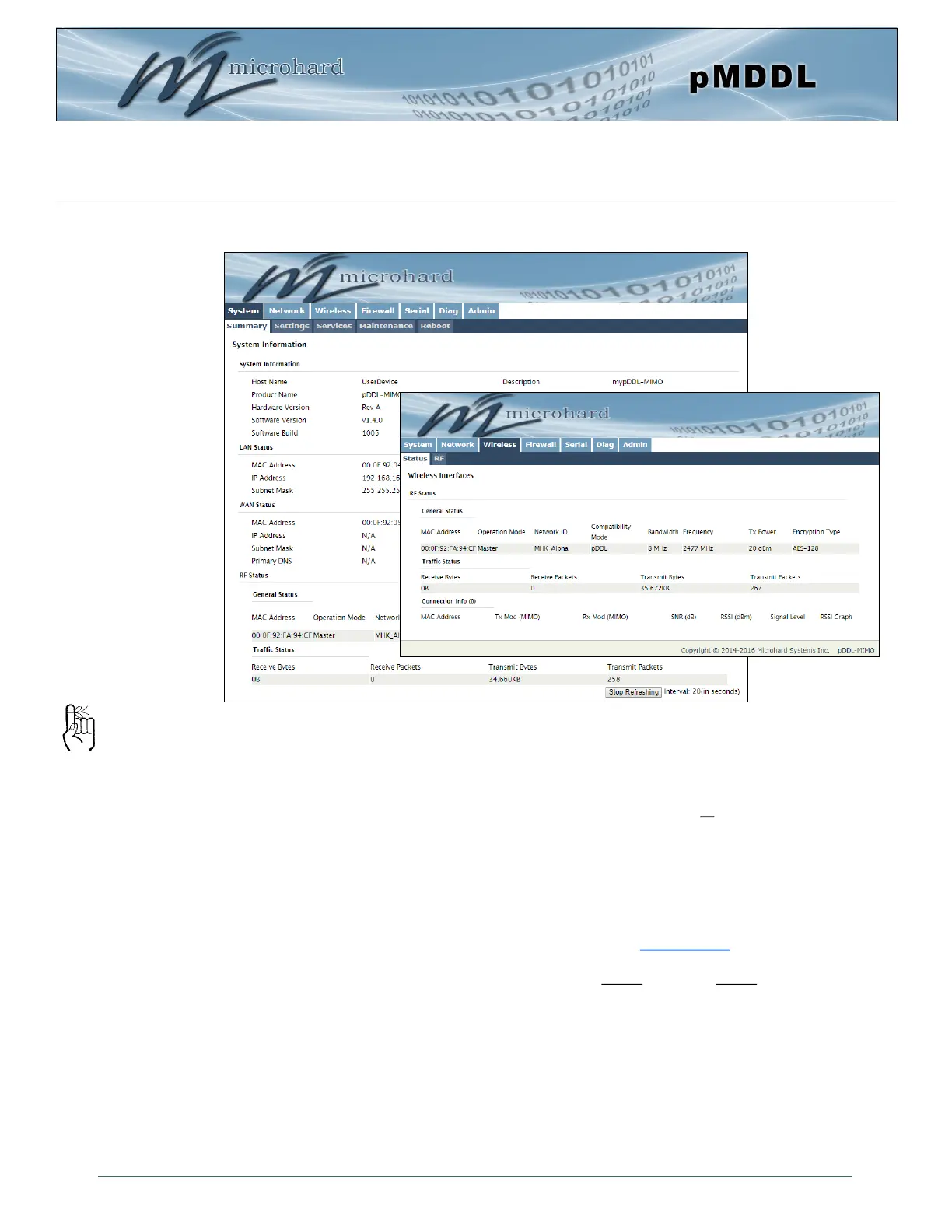
4.0 Web User Interface
Initial configuration of an pMDDL using the Web User (Browser) Interface (Web UI) method involves the
following steps:
• configure a static IP Address on your PC to match the default subnet or if your PC is configured for
DHCP, simply connect a PC to the LAN port of the pMDDL and it will be assigned a IP address
automatically.
• connect the pMDDL LAN port to PC NIC card using an Ethernet cable
• apply power to the pMDDL and wait approximately 60 seconds for the system to load
• open a web browser and enter the factory default IP address (192.168.168.1) of the unit:
• logon window appears; log on using default Username: admin Password: admin
• use the web browser based user interface to configure the pMDDL as required.
• refer to Section 2.0: Quick Start for step by step instructions.
In this section, all aspects of the Web Browser Interface, presented menus, and available configuration
options will be discussed.
Image 4-0-1: WebUI
The factory default network
settings:
IP: 192.168.168.1
Subnet: 255.255.255.0


 To Next Page