This lets you send files from a near-field communications device,
such as a smartphone, to the Surface Hub screen.
Surface Hub has an onboard computer that supports Microsoft
Edge and Office 365 apps like Word and PowerPoint.
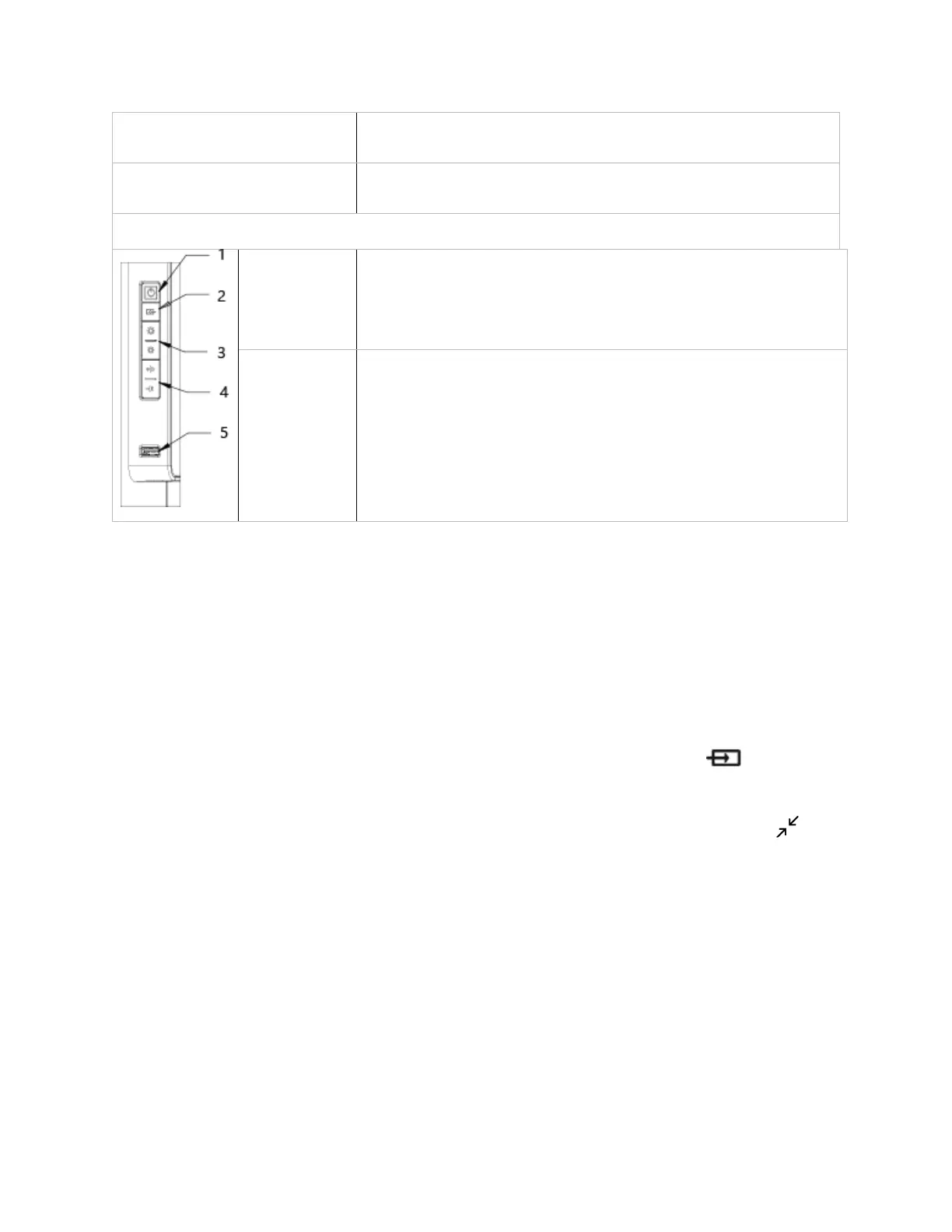
Keypad (7) and USB 3.0 port (8)
The keypad is on the right side of your Surface Hub, above the pen
dock. Use it to set screen brightness (3) and volume (4). See Keypad
under Interacting with Surface Hub, below.
The keypad also has the power button (1) and source selector (2).
Use the USB 3.0 port—(5) on the keypad—to load files onto your
Surface Hub for your meeting.
Wake / sleep
When someone enters the room, Surface Hub wakes up and displays the Welcome screen. When it
stops detecting movement, it goes to sleep.
NOTE If your Surface Hub seems to be asleep when you're in the room or does not respond as
expected, try the following:
On the keypad on the side of your Surface Hub, press the Source button to toggle
through the possible video input sources.
Swipe up from the bottom of the screen. If a menu appears, select Exit Full Screen .
For more info, see Welcome screen, below.



 To Next Page