address assigned by the ISP (Internet Service Provider).
2.2.1 Static IP Connection
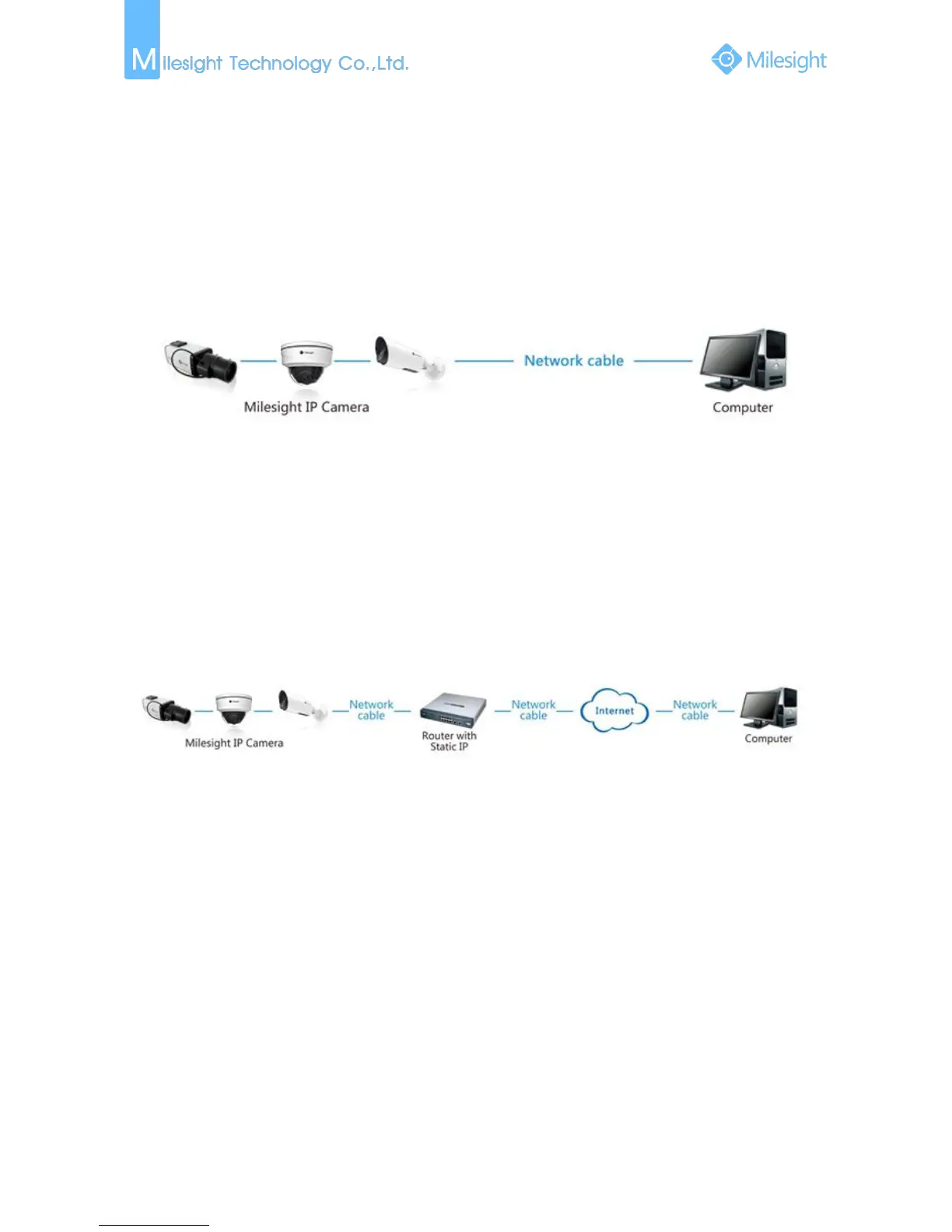
Connecting the network camera with public IP directly
You can also set a public IP of the camera and directly connect it to the internet without using a
router. Details are as follows.
Figure 2-2-1 Connecting the network camera with public IP directly
Connecting the network camera via a router
Step1: Connect the network camera to a router.;
Step2: Assign a LAN IP address, the Subnet mask and the Gateway;
Step3: Set port mapping, E.g. 80, 8000 and 554 ports. The steps for port mapping vary depending
on different routers. Please call the router manufacturer for assistance with port mapping;
Step4: Visit the network camera through a web browser or Milesight VMS over the internet.
Figure 2-2-2 Connecting the network camera via a router using static IP
2.2.2 Dynamic IP Connection
Connecting the network camera via a router
Step1: Connect the network camera to a router;
Step2: On the camera, assign a LAN IP address, the Subnet mask and the Gateway;
Step3: On the router, set port mapping. E.g. 80, 8000 and 554 ports. The steps for port mapping
vary depending on different routers. Please call the router manufacturer for assistance with
port mapping;
Step4: Apply a domain name from a domain name provider;
Step5: Configure the DDNS settings in the setting interface of the router;
Step6: Visit the camera via the domain name.



 To Next Page