OPERATION
Mirage 2000/4000/6000 User’s Manual
3-67
Step 1: General Setup
1a)
Adjust primary colors (see Matching Colors in Multiple Screens for this
procedure). This ensures matched overall color temperatures and light output
between screens.
IMPORTANT
Double-check that all WHITES and LIGHT OUTPUT are well-matched.
See Step 3f of the “Matching Colors in Multiple Screens” procedure.
Use a color meter if necessary.
1b)
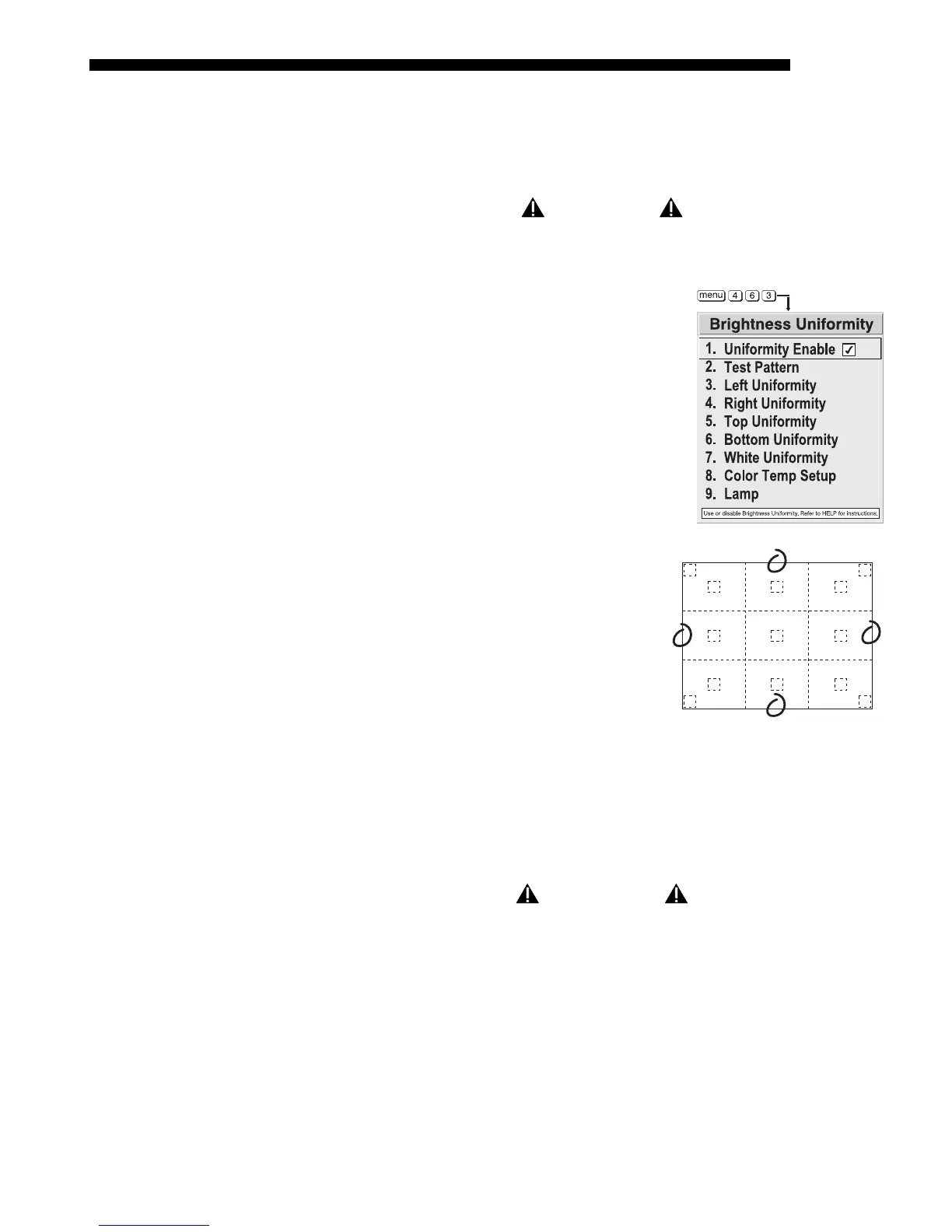
Enable the Brightness Uniformity checkbox.
This will enable access to the uniformity
controls and will apply the settings to your
image.
1c) Select the 13 Point test pattern for display.
This pattern provides 9 screen “zones” with
13 targets.
FOR BEST RESULTS: Rather than
examining the CENTER of each zone when
assessing Brightness Uniformity
adjustments, focus on extreme EDGES as
indicated in the illustration at right.
1d)
In the Color Temperature Setup menu,
select “User 1”. Then:
• If you have adjusted “User 1” Primary Colors to create a well-matched
wall (recommended), continue to Step
1e.
• If you prefer maximum brightness rather than a particular color
temperature, set the User 1 white levels to 100 (maximum).
IMPORTANT
Never change color temperature white levels
in color-matched applications!


 To Next Page