OPERATION
Mirage 2000/4000/6000 User’s Manual
3-7
highlight it and press
Enter
), the display will automatically change and update
according to the numerous setup parameters defined for that channel.
NOTE:
Chan
key behavior during a presentation depends on whether or not the
Display Channel List option is selected in the Menu Preferences menu. You can
choose to use a scrollable list of channels when you press
Chan
, or you may prefer to
enter the desired channel number “blind”, i.e., without on-screen feedback. See
Menu Preferences later in this section.
Standby
Press
Stby*
and hold for approximately 1 second to blank all display while keeping the
projector in a warmed-up and ready state. Or quickly press and release
Stby*
and
follow immediately by
ON
or
OFF
if you want to guarantee the correct toggle
(useful if you are unsure of the present status). Note that the lamp and electronics
remain ON in standby mode, even though the image turns to black and most
functions are disabled. To leave standby press and hold
Stby*
again (or use
Stby*
OFF
).
Or simply press
Exit
or
Menu
.
Menu
Press
Menu
to display the Main menu. A list of several options appears for access to
specific functions, such as Channel Setup or Image Settings. Press
Menu
again to
remove all menus and return to presentation level.
Enter
Press
Enter
to select a highlighted item, to toggle a checkbox (checked vs. unchecked),
or to accept a parameter adjustment and return to the previous menu or image.
Exit
Press
Exit
to return to the previous level, such as the previous menu.
NOTE:
Exit
does not save changes within text editing boxes (including number
editing of a slidebars) or within pull-down lists. It acts as a “cancel” in these cases.
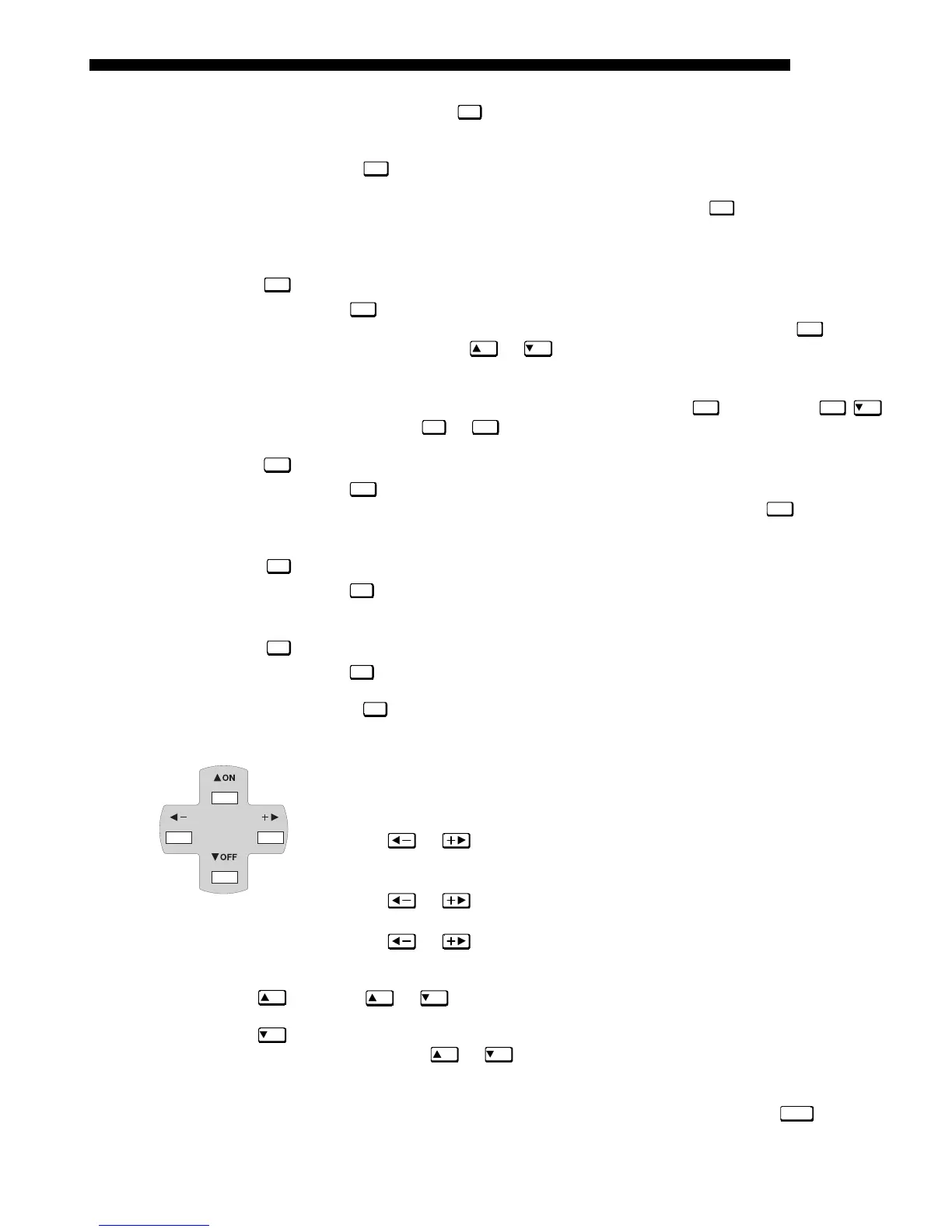
Arrow Keys
The arrow keys have a variety of functions depending on the situation. Some typical
uses are described below. See also Editing Text later in Section 3.
• Use
or to change a slidebar value—hold as desired for continuous
adjustment (note the adjustment increments and range depend on the
parameter being adjusted).
• Use or to change to a different option within a pull-down list
without having to display the list first
• Use
or to jump between “pages”, such as in Help or lengthy pull-
down lists.
Use the
ON
or
OFF
keys to navigate within a menu, pull-down list or text box, or to
increase or decrease the value in the second (bottom) slidebar of a double slidebar.
You can also use
ON
or
OFF
in conjunction with certain toggle keys—i.e., those
including an asterisk symbol—to ensure a toggle only in the desired direction. When
turning the projector on, for instance, you may be too far from the projector to know
whether it is really off or if the shutter is merely closed. If you press
Power*
and hold it
for approximately 1 second in hopes of turning the projector on, the projector will
Stby*
Menu
Enter
Exit
ON
or
OFF


 To Next Page