OPERATION
Mirage 2000/4000/6000 User’s Manual
3-35
Good RGB or input
levels—that is, the
drives and blacklevels
for each of the three
colors, red, green and
blue—ensure that
images from analog
sources other than
decoded video have
maximum contrast
without crushing black
or white. By default
(and in an “Auto Setup”
from the Main menu), the projector automatically determines the best input levels by
monitoring image content and adjusting the controls appropriately—further
adjustment is typically not required to obtain proper blacks or whites. NOTE: This
automatic adjustment requires at least 1 white pixel in the image. Without a white
pixel, input levels may produce skewed colors, particularly in non-video images.
However, for a very unusual source exhibiting overly high blacklevels (most often
caused by a noisy source that causes blacklevel spikes), an experienced user may
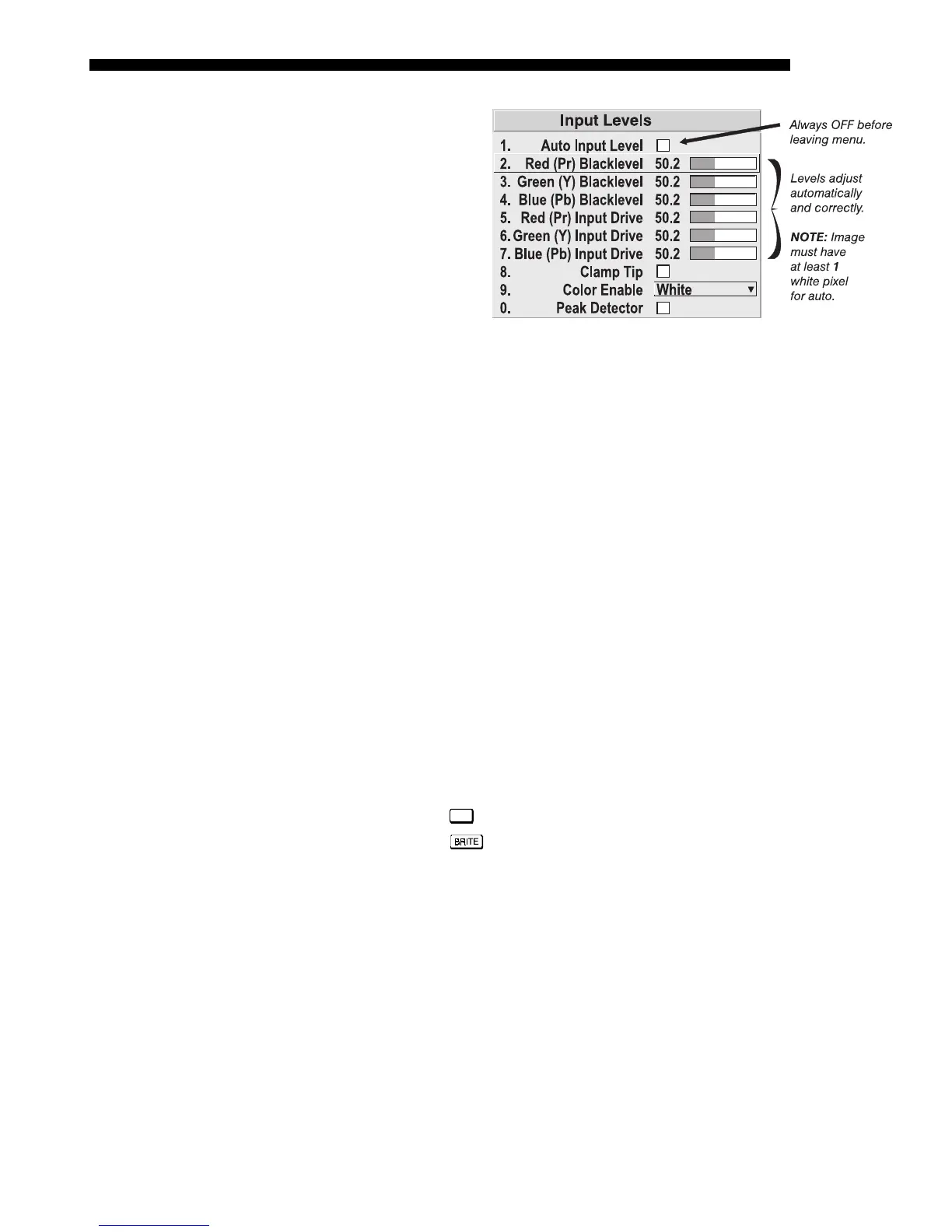
prefer to use the Input Levels menu (see Figure 3.21). These adjustments, which are
actually a calibration process to compensate for differences in sources and cabling,
enables an experienced user to perfect the source image input levels. Note that Input
Levels are of limited use with digital signals, but offer some ability to tweak poorly
mastered source materials.
AUTO INPUT LEVEL – Keep off for virtually all sources (default). Temporarily enter a
checkmark only if you are an experienced user and you have an unusual source that
you feel needs further color temperature and/or input level adjustment. After entering
a checkmark, wait for the six values to stabilize, then delete the checkmark and exit.
BLACKLEVELS AND DRIVES - To check your image and adjust these controls:
1. Make sure overall Contrast and Brightness are both set to near 50.
NOTE: Not required for “Auto” adjustment.
•
Cont
= 50 (approx.)
•
= 50 (approx.)
2. Check the color temperature setup using an internal grayscale test
pattern, adjusting as desired to obtain a neutral grayscale. NOTE: Not
required for “Auto” adjustment.
3. Make sure you are using an analog source not connected to
INPUT 3 or
INPUT 4, as Input Levels are not applicable for digital sources or sources
going through the decoder. A grayscale is recommended.
4. If the blacks and/or whites appear OK, input levels do not need
adjustment. If black levels are too high (and/or whites are too low, which
is rare), you likely have a noisy source that is producing skewed input
levels. Continue with Step 5.
5. Temporarily enable “Auto” in the Input Levels submenu. Wait for all 6
values to stabilize. Alternatively, do not use “Auto”—reduce blacklevels
manually instead. Judge by eye and change one or more of the six levels
as necessary to obtain proper blacks and whites. You may want to see
Figure 3.21. Input Levels Submenu


 To Next Page