Using the advanced PIP functions
You can use the pause button in the Picture-in-Picture mode to
display special PIP features by selecting one of the following set-
tings:
• TV Still,
• Snap-shot, or
• Replay.
In "TV Still," the PIP image switches between still and moving. In
"Snap-shot," you can view and move the frozen PIP image. In
"Replay," you can view still :PIP images in ,_equence for a "strobe"
animation effect. These images will appear in sets of three (from a
total of seven stored images) at the speed you select. (See "Using
the Picture-in-Picture (PIP) Mode," pages 84 - 90.)
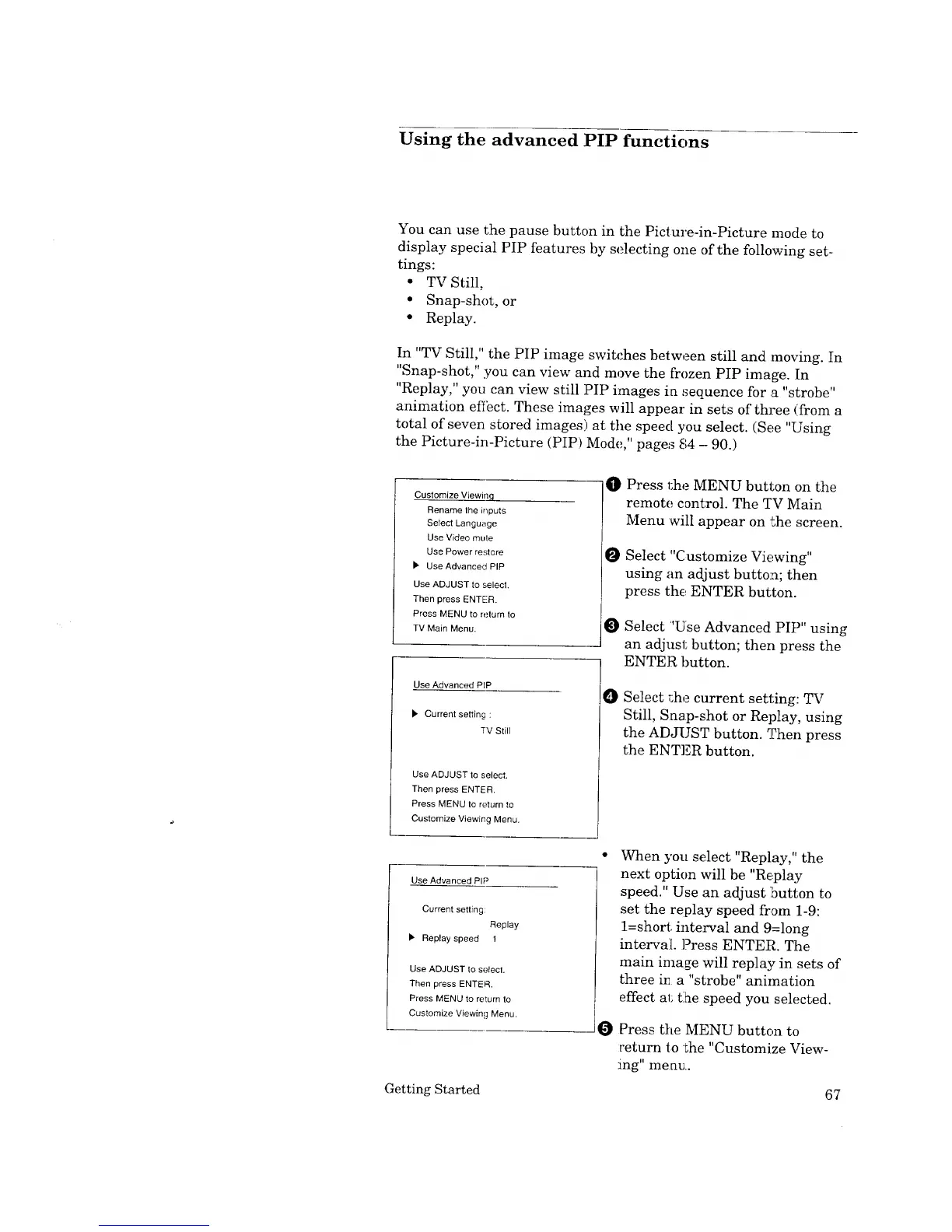
Customize Viewinq
Rename lhe inputs
Select Language
Use Video mute
Use Power restore
_' Use Advanced PIP
Use ADJUST to selec|.
Then press ENTER,
Press MENU to return to
TV Main Menu.
Use Advanced PIP
b. Current setting :
7V Still
Use ADJUST to select.
Then press ENTER.
Press MENU to return to
Customize Viewing Menu.
O
O
O
O
Press 1;he MENU button on the
remote control. The TV Main
Menu will appear on 'the screen.
Select "Customize Viewing"
using an adjust button; then
press the ENTER button.
Select "Use Advanced PIP" using
an adjust button; then press the
ENTER button.
Select r.he current setting: TV
Still, Snap-shot or Replay, using
the ADJUST button. _hen press
the ENTER button.
Use Advanced PIP
Current setting:
Replay
• Replay speed 1
Use ADJUST to select.
Then press ENTER,
Press MENU to return to
Customize Viewing Menu.
O
When you select "Replay," the
next option will be "Replay
speed." Use an adjust button to
set the replay speed from 1-9:
1=short interval and 9=long
interval. Press ENTER. The
main image will replay in sets of
three ir_ a "strobe" animation
effect al; tlhe speed you selected.
Press the MENU button to
return to the "Customize View-
ing" merlE..
Getting Started 67



 To Next Page
 Loading...