103/164
Network And Power Connection
© MOBOTIX AG • Security-Vision-Systems • Made in Germany
www.mobotix.com • sales@mobotix.com
The MOBOTIX factor default is Class 2, because a Q24M with SD card storage activated
requires around 4.5 W. This default is usually fine, and nothing needs to be changed.
However, if the lower power level class 1 is sucient for your application, it may - due to
possible internal power distribution schemes amongst the ports of the PoE switch in use
- be advantageous to change the PoE power level class in the browser:
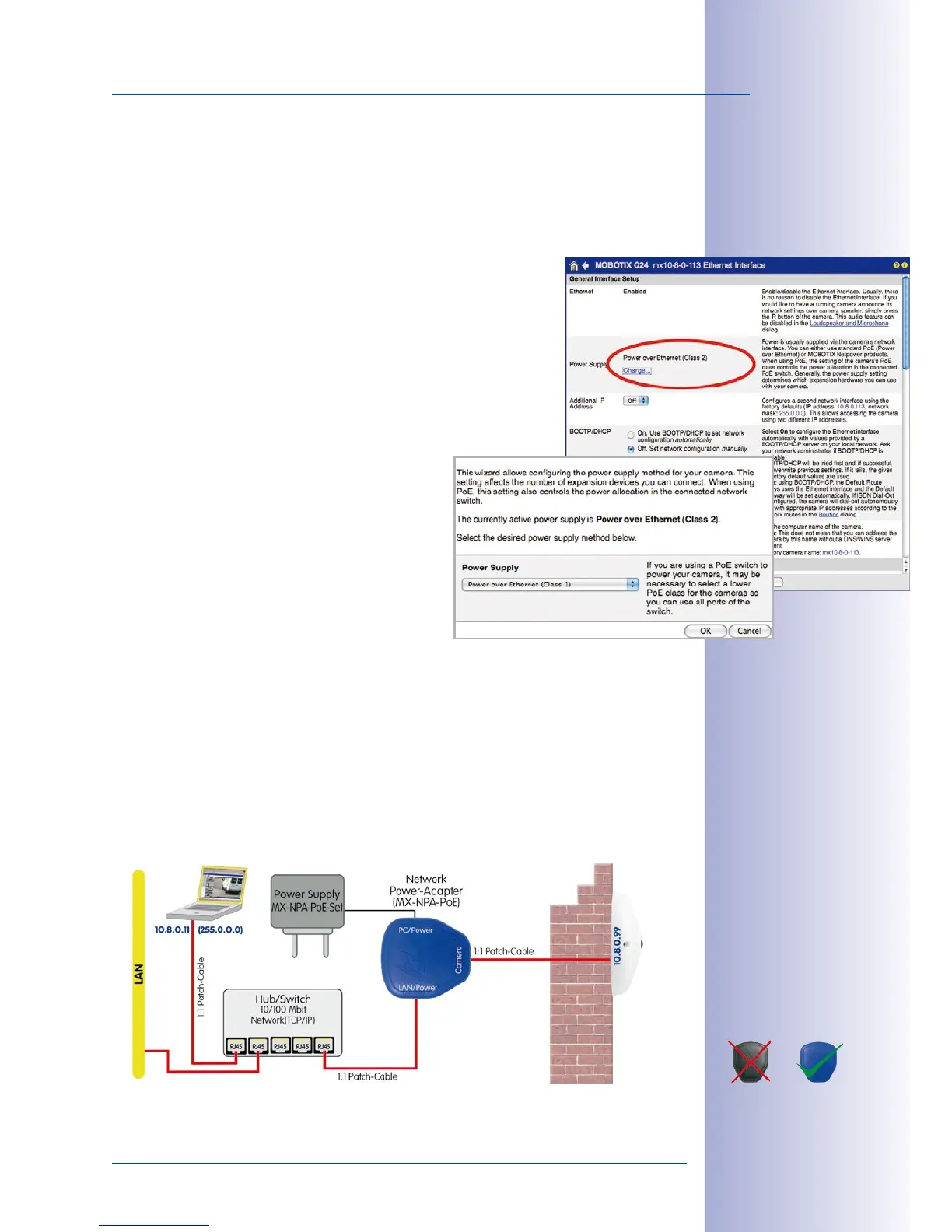
1. Select Admin Menu > Network Setup > Ethernet interface
(for experts).
2. Under Power Supply, click Change.
3. A Power Wizard will appear to guide you through the PoE
configuration steps.
4.
The camera will then need to be cycled through a hard reboot
(disconnect the camera from the power supply, then reconnect
it, e.g. by disconnecting, then reconnecting
the network cable at a PoE switch).
2.11.3 Power Supply Using A Switch
1. Connect the factory pre-installed cable of the camera to the Camera connector of
the Network Power Adapter.
2. Connect the LAN/Power connector of the NPA to an Ethernet connector of the
switch/router or the Ethernet wall outlet.
3. Plug the RJ45 connector of the external power unit into the PC/Power connector
on the Network Power Adapter.
The IP addresses in the
gures are only examples!
Only use the new (blue)
MX-NPA-PoE set
for the Q24M - the
MOBOTIX Network
Power accessories NPA-
Set, Power-Box, and
Power-Rack (MX-NPA-
Set, MX-NPR-4
and MX-NPR8/20)
are not compatible
with the Q24M


 To Next Page