115/164
First Images And The Most Important Settings
© MOBOTIX AG • Security-Vision-Systems • Made in Germany
www.mobotix.com • sales@mobotix.com
MOBOTIX– Searching And Displaying MOBOTIX Cameras
Launch MxControlCenter after successful installation by double-clicking on the shortcut
that was created during installation or the executable file MxCC.exe in the installation
directory on your computer.
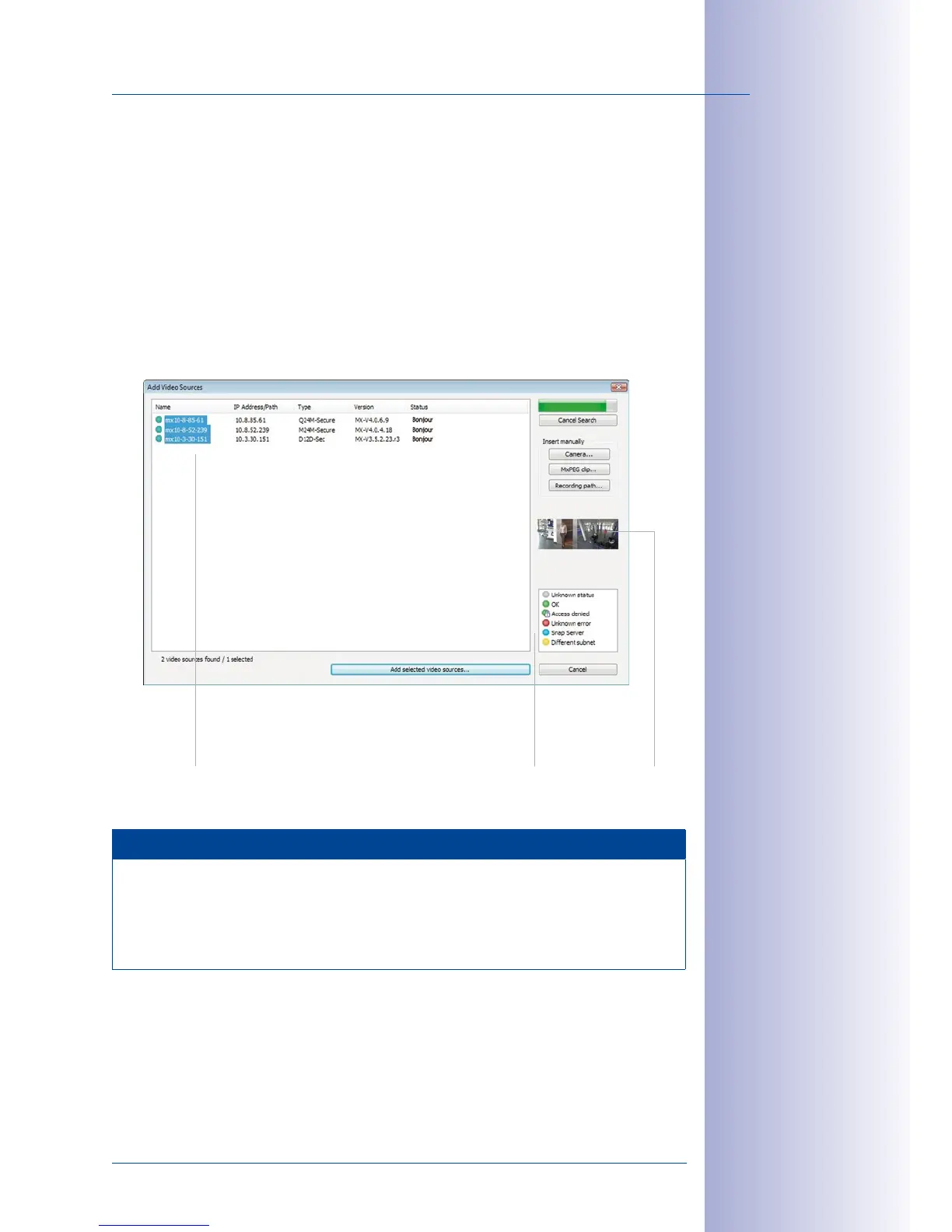
The Add Video Sources dialog box appears and the application automatically searches
for MOBOTIX cameras in the local network when you launch the program for the first time.
Select
Video Source > Add
from the menu to perform a camera search at a later time.
If your MOBOTIX camera is properly connected, it should appear together with the exist
-
ing video sources in the following list:
Note
Video sources
in this context not only refer to MOBOTIX cameras, but also to third-
party IP cameras, file server paths, MxPEG clips and analog cameras connected via
MxServer (for example, analog dome cameras). These video sources are not found
automatically and need to be added manually.
List of video sources
Legend Camera preview
Automated Search For
MOBOTIX Cameras



 To Next Page