To do the „first time setup“ the MC has to be connected via the LAN-Interface to the computer (PC)
that runs the MC-Config-Program.
What to take into account:
- The connected PC (Notebook) should have a fixed IP-Address on its LAN-Port (no DHCP).
- The LAN-Port needs to be recognized as active by the operating system of the PC. You can check
the LAN-Port by entering “ipconfig” in the terminal.
- If the LAN-Port is recognized as active by the PC then press “Refresh” in the MC-Config-Application.
- An active Firewall on the PC might prevent communication with the MC.
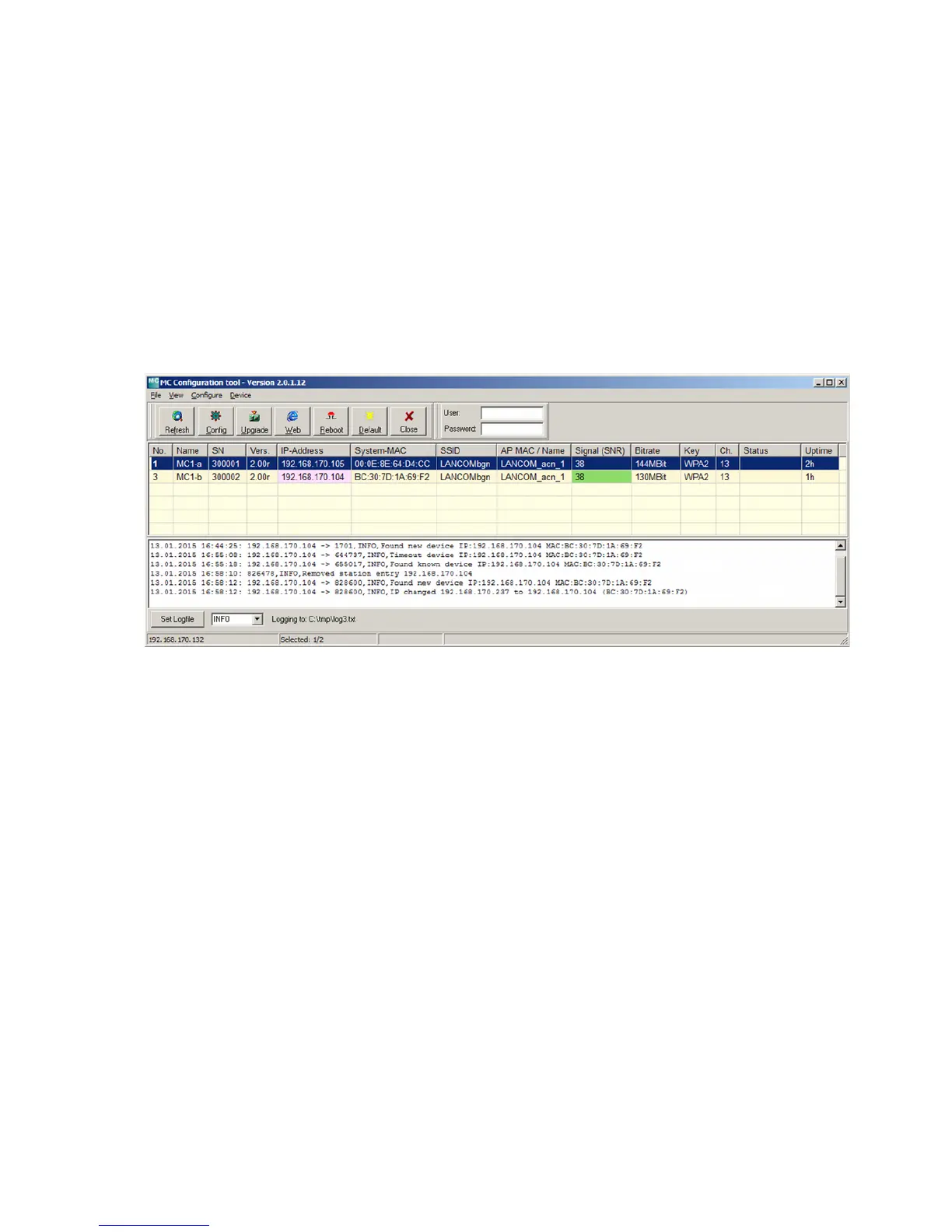
After launch, the MC-Config-Application first detects all network interfaces, that are currently active on the
PC. A Broadcast-UDP-Request is then sent out to all these interfaces and the MC devices will respond. The
responding devices will be registered and listed in the application.
Besides the device properties like name, serial number, software-version, IP-Address and MAC-Address, the
Wireless LAN connection details are displayed as well. Initially the set SSID is visible. As soon as a
connection to an Access-Point has been established the MAC-Address and the name of the AP are
displayed as well as the signal strength represented by a number and an equivalent background color. The
numbers can be interpreted as follows:
Signal >= 40 Very good connection
Signal >= 30 Good connection
Signal >= 20 Connection still sufficient
Signal < 20 Connection impaired, Bit rates are reduced in order to transfer data
How to use the MC-Config-Application is described in detail in a separate manual.
MC Manual Version 2.10c



 To Next Page