EasyManua.ls Logo

Motorola RS507 - User Manual

Motorola RS507
36 pages
Print Icon
To Next Page IconTo Next Page
Loading...
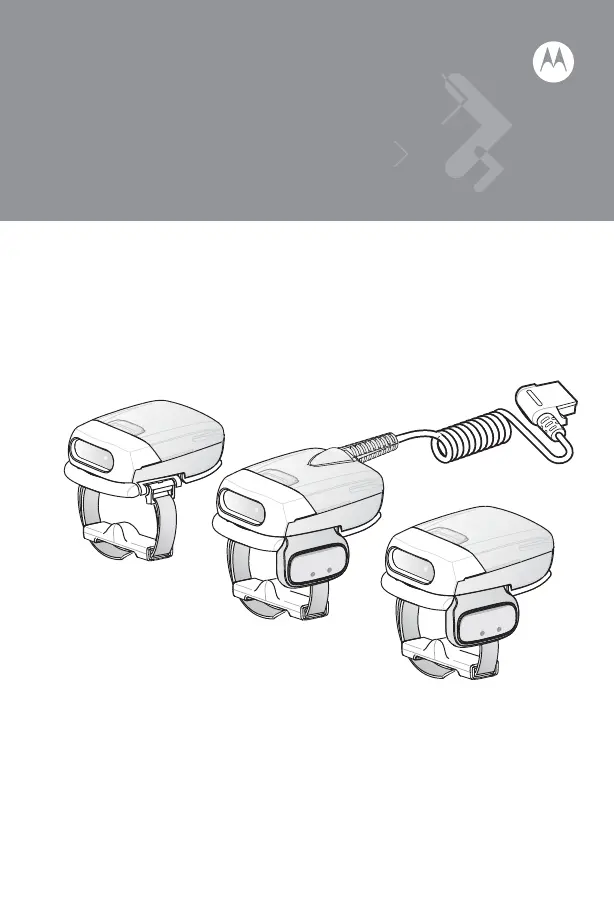
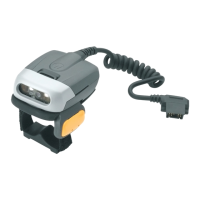
RS507 Hands-Free Imager
Quick Reference Guide

Other manuals for Motorola RS507

Questions and Answers

  • L
    latoyatranAug 1, 2025
    What to do if Motorola RS507 does not decode a barcode?
    • L
      Lisa WhiteAug 1, 2025
      If your Motorola Barcode Reader isn't decoding barcodes, first ensure the barcode isn't smudged or damaged. Then, clean the exit window using a lens tissue, avoiding tissues with lotion. If the issue persists, the bar code symbology might not be supported or enabled, so you should consult your system administrator. For cordless models, check the Bluetooth connection.
  • L
    Lisa FordAug 8, 2025
    Why laser aiming pattern does not display on Motorola RS507 Barcode Reader?
    • B
      barrettchristopherAug 8, 2025
      If the laser aiming pattern on your Motorola Barcode Reader doesn't display when you press the scan trigger: * For corded models, check the interface cable is securely connected. * For cordless models, replace or charge the battery. * Verify the mobile computer has a charged battery installed (corded) or replace/charge the imager battery (cordless). * Restart the scanning application on the mobile computer. * Reset the imager.
  • B
    Brooke TannerAug 16, 2025
    What to do if Motorola Laboratory Equipment imager does not decode a barcode?
    • D
      Derek MartinezAug 16, 2025
      If your Motorola Laboratory Equipment imager isn't decoding barcodes, first, check if the barcode is smudged or broken. Then, clean the exit window with a lens tissue (avoid lotion-coated tissues). If using a cordless imager, ensure the Bluetooth connection is active. If the issue persists, contact your system administrator to check if the barcode symbology is supported and enabled.
  • M
    Marcus RileyAug 25, 2025
    Why laser aimer does not display when pressing the Scan Trigger on Motorola Laboratory Equipment?
    • D
      Daniel TaylorAug 25, 2025
      If the laser aimer on your Motorola Laboratory Equipment isn't displaying when you press the scan trigger, take these steps: * For corded imagers, check the interface cable connection. * For cordless imagers, ensure the battery is charged or replace it. * Verify the mobile computer (e.g., WT4090) has a charged battery installed. * Restart the scanning application on the mobile computer. If the problem continues, reset the imager.

Summary

Unpacking the Imager

Cordless Configuration Features

Corded Configuration Features

Change Trigger Position

Getting Started - Cordless Configuration

Getting Started - Corded Configuration

Connect to a Wearable Terminal

Status Indications

Bluetooth Connection

Establish Bluetooth Connection

Steps to establish a Bluetooth connection with a mobile computer.

Restore Lost Bluetooth Connection

Steps to restore a lost Bluetooth connection.

Scan

Scan Triggering Modes

Explains manual and auto-triggering modes for scanning.

Aiming the Imager

Customize the Imager

Resetting the Imager

Troubleshooting

Field Replaceable Parts

Health and Safety Recommendations

Ergonomic Recommendations

Guidelines to avoid or minimize the risk of ergonomic injury.

Warnings for Use of Wireless Devices

General warnings regarding wireless device usage, including hazardous atmospheres and hospitals.

Pacemakers

Recommendations for users with pacemakers to avoid interference.

Other Medical Devices

Advice to consult a physician regarding other medical devices.

RF Exposure Guidelines

Information on reducing RF exposure and safety guidelines.

Laser Devices

Information and cautions regarding laser device classification and usage.

Batteries

Battery Safety Guidelines

Guidelines for safe battery usage, charging, storage, and disposal.

Radio Frequency Interference Requirements-FCC

Radio Frequency Interference Requirements - Canada

CE Marking and European Economic Area (EEA)

Japan (VCCI) - Voluntary Control Council for Interference

Korea Warning Statement for Class B ITE

Service Information

Motorola RS507 Specifications

General IconGeneral
Device TypeBarcode Reader
ManufacturerMotorola
ModelRS507
Scan TechnologyLaser
Scanning SpeedUp to 100 scans per second
BatteryRechargeable Lithium-ion
IP RatingIP54
ConnectivityBluetooth, USB
InterfaceUSB
Operating Temperature-20°C to 50°C
Storage Temperature-40°C to 60°C
Weight125 g
Supported Barcodes1D barcodes

Related product manuals