21
5.4.5 Set cutting weekday and time
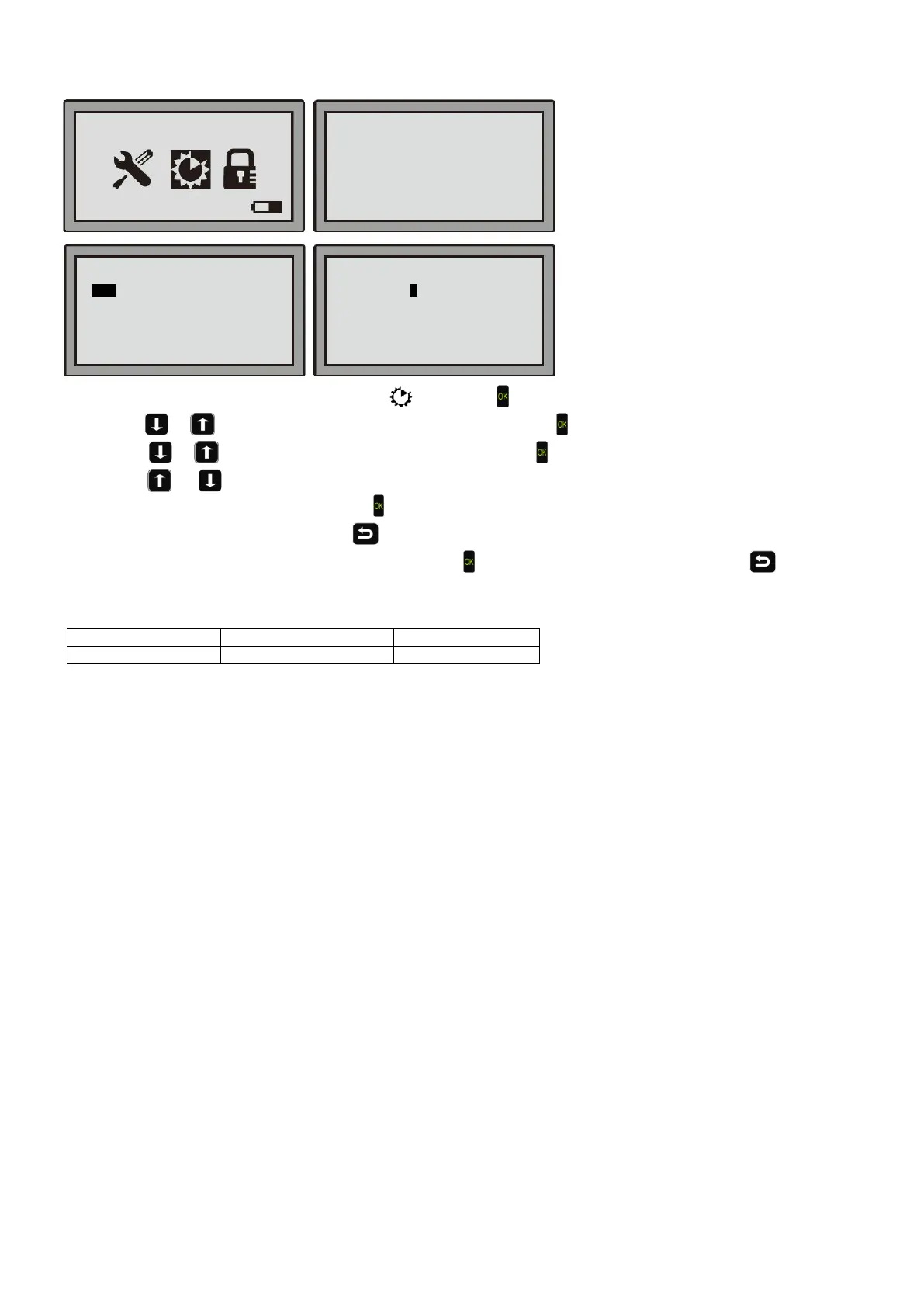
Step 1: Move the cursor to the Function setting
, then press .
Step 1:Use
or to move the cursor to Set Work Time, then press .
Step 2: Use
or to move the cursor to a weekday, then press .
Step 3: Use
or to move the cursor to the time, change the numbers with the number keys. After having set
your changes to one weekday, press
to confirm it and then set the other weekdays.
Step 4: After the setting is finished, press
.
Step 5: On the pop-up message "Save it?", hit the OK key
if you want to keep the changes. Press to discard
your changes.
Set work time operation example:
Here the Robotic Mower will work on Monday from 8:00 AM to 11:00 AM (Starting at 8:00 AM and working for 3.0
Hours)
Recommended work time per day:
For 300 m
2
working area, 4 hours per day (from Monday to Friday);
For 500 m
2
working area, 6 hours per day (from Monday to Friday).
Day Start Hours
Mon 02:00 22.0h
Tue 02:00 22.0h
Wed 02:00 22.0h
Thu 02:00 22.0h
Fri 02:00 22.0h
Sat 02:00 22.0h
Day Start Hours
Mon 02:00 22.0h
Tue 02:00 22.0h
Wed 02:00 22.0h
Thu 02:00 22.0h
Fri 02:00 22.0h
Sat 02:00 22.0h
08-59-21 Mower
■
Boundary Cut
WIFI Setting



 To Next Page