19
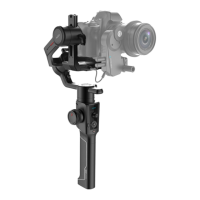
The Air 2 is equipped with BLUETOOTH 4.0 and can be connected with smartphones.
Users can set parameters, shot time-lapse video, upgrade firmware and make other
operations via the MOZA Master App. With a Type-C USB interface, the Air 2 is able
to be connected to a computer. Users can set parameter, upgrade firmware and
make other operations via the MOZA Master software.
Download Link: https://www.gudsen.com/moza-Air 2
Note:
1. The MOZA Master supports iOS, Android, Windows and MacOS
2. Before using the MOZA Master on computer, please install the driver first,
otherwise the computer cannot recognize the Air 2
3. Smart phones cannot directly pair with the Air 2 via Bluetooth, MOZA Master
App must be used to connect your phone with the Air 2
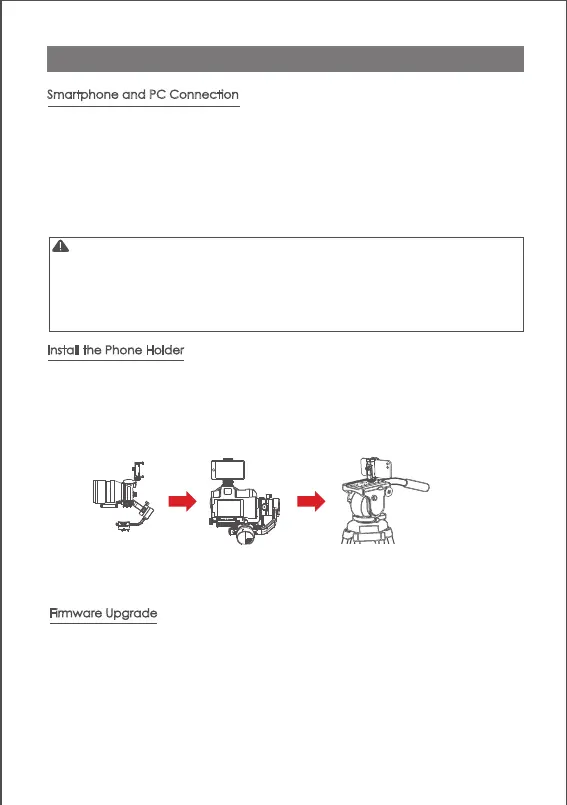
Install the phone on top of the camera.Operate object tracking through App.
a. Fix the phone holder to the hot shoe connector on the top of the camera
b. Place the phone horizontally in the phone holder
c. Open the App.Enter the object tracking feature. Adjust the phone angle. Make
the phone framing as consistent as possible with the camera framing.
In addition to being mounted on the top of the camera for object tracking, the
phone holder can also be used to fasten the phone to tripod head for mimic
motion control.
Smartphone and PC Connection
Install the Phone Holder
Upgrade via computer:
a.Turn off the gimbal.
b.Long press the joystick, then press the power button with the other hand until
the prompt ‘Boot Mode’ appears on the screen.
c.Connect the gimbal to the computer with a USB Type-C cable.
d.The software will automatically identify the device and load the firmware. Press
the ‘Upgrade’ button and wait for about 30s.
Firmware Upgrade
Management


 To Next Page