Operation
FS-B35XX Series Start-up Guide 12
4.4 Assign Network Settings for the FieldServer
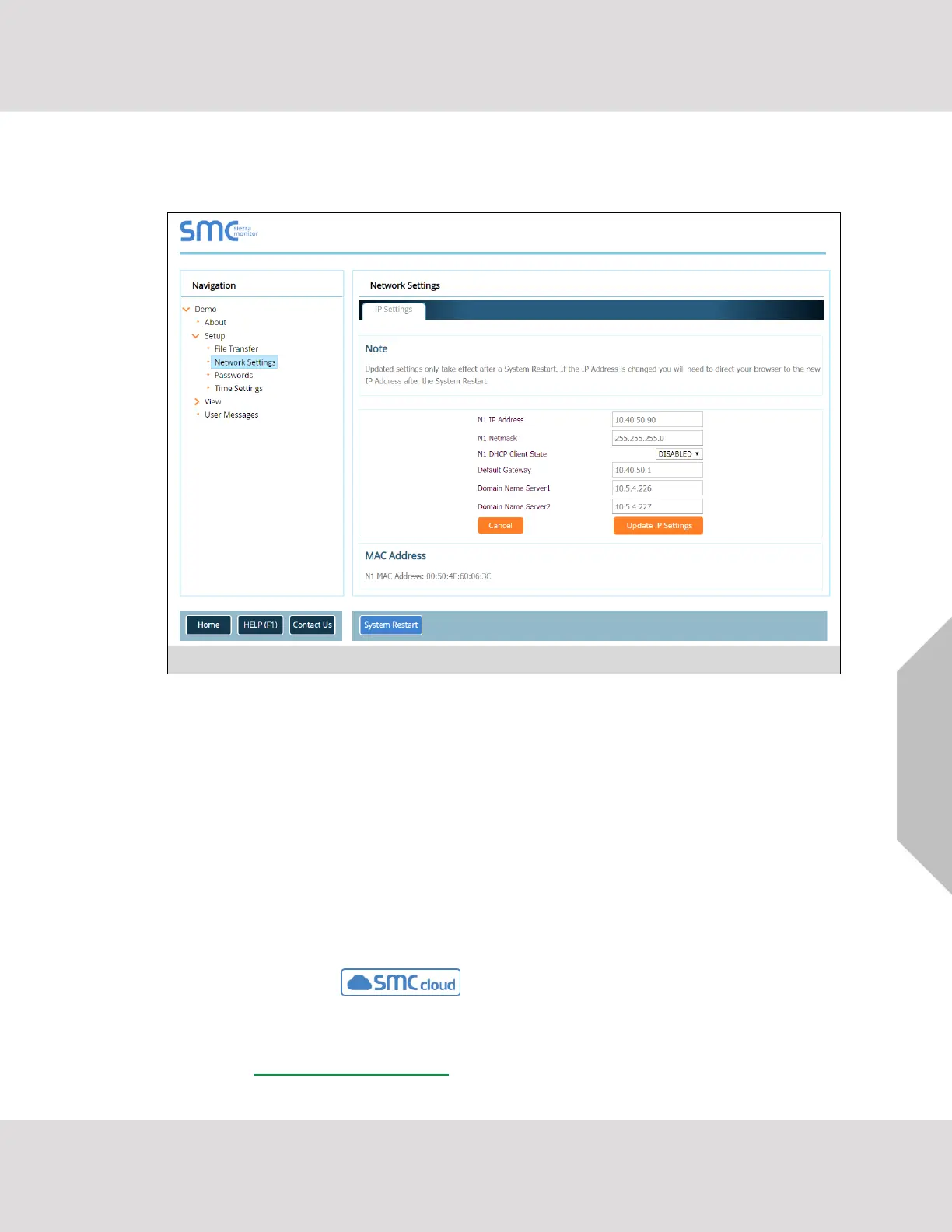
• From the FS-GUI landing page, click on “Setup” to expand the navigation tree and then select
“Network Settings” to access the IP Settings menu. (Figure 7)
• Modify the IP Address (N1 IP Address field) of the FieldServer Ethernet port.
• If necessary, change the Netmask (N1 Netmask field).
• If necessary, change the IP Gateway (Default Gateway field).
NOTE: Do not change the DHCP Server State (N1 DHCP Server State field).
NOTE: If the FieldServer is connected to a managed switch/router, the IP Gateway of the
FieldServer should be set to the IP Address of that managed switch/router.
• Click the “System Restart” button at the bottom of the page to apply changes and restart the
FieldServer.
• Unplug Ethernet cable from PC and connect it to the network switch or router.
• Record the IP Address assigned to the FieldServer for future reference.
NOTE: The SMC Cloud button (see Figure 7) allows users to connect to the SMC
Cloud, MSA Safety’s device cloud solution for IIoT. The SMC Cloud enables secure remote
connection to field devices through a FieldServer and its local applications for
configuration, management, maintenance. For more information about the SMC Cloud,
refer to the SMC Cloud Start-up Guide.


 To Next Page