USER MANUAL V1.0 | Updated January 19, 2019 27
Barcode 1D
Insert barcodes into message.
From the input section, use the arrow keys to move the cursor to the end of the final line
of your message. Press Insert, then use or arrow keys to move the cursor to Barcode
and press Enter. Select Static or dynamic and press Enter.
Static barcode
Insert static 1D barcodes into your messages. We support 8 types of barcodes
Type: select your desired barcode type (Code 39, Code 2/5, Code 128, Code 93,
UPC-A, EAN13, Codabar and Code 11).
Width: Input width for barcode (value varies from 1 to 4).
Height: Input height for barcode (value varies from 1 to 3).
Text: Select Enable to display barcode value, otherwise select Disable.
Value: Input value for your barcode.
Use or arrow keys to move to the cursor to your desired object and change the value.
Press Enter after each value change to save and apply settings.
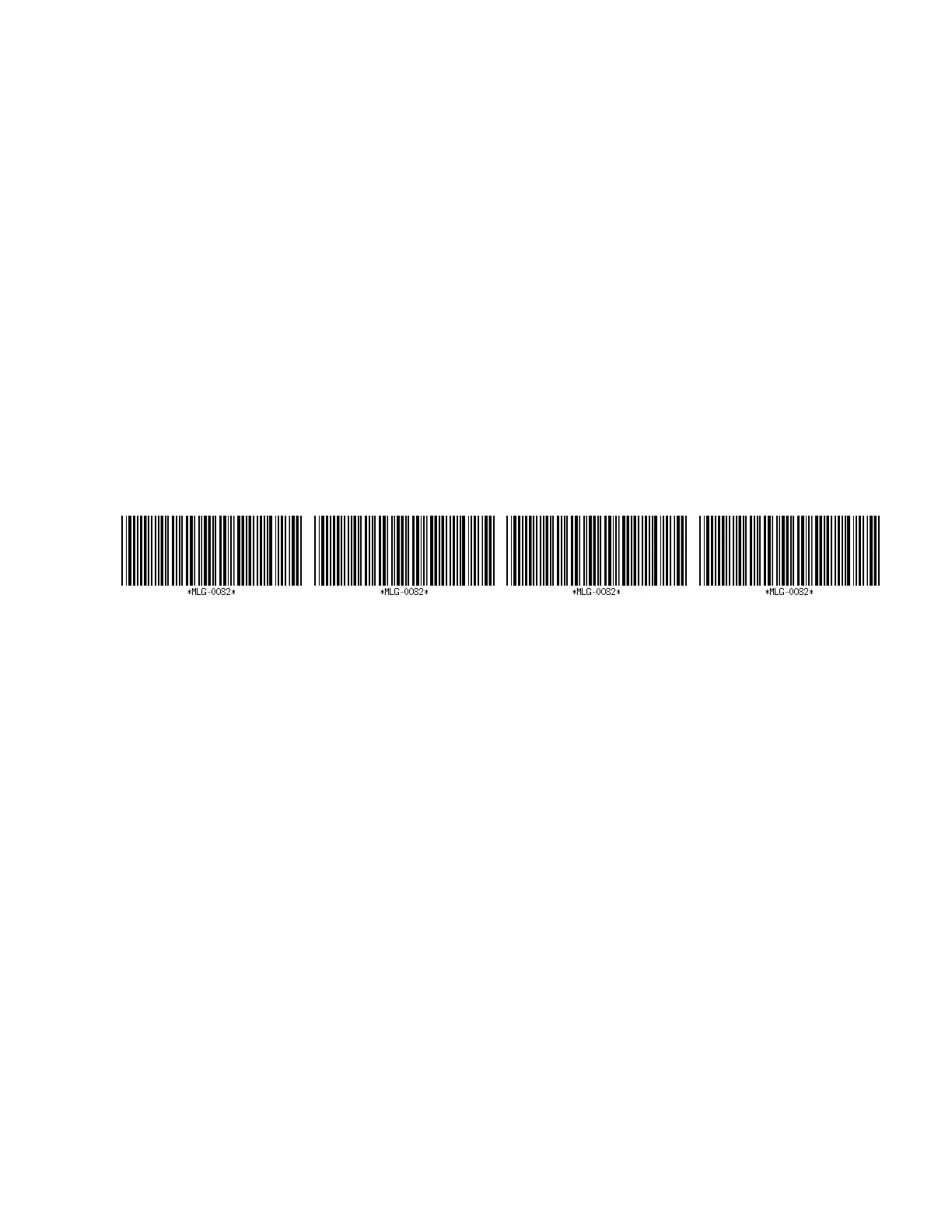
Example after printed will be like this:
NOTES:
If you would like to print static 2D barcode. Please use with update logo support. Create 2D
barcode as image, use smartphone or application on PC to load it to machine.
Use smartphone: see Update Logo.
Use PC: see Use Convert Logo.
Create 2D static barcode with smartphone
The application on smartphone will support 2D barcode generation then you can send it
directly to the machine, USB flash or PC application is not required.
These step below will show you how to created a 2D barcode:



 To Next Page