USER MANUAL V1.0 | Updated January 19, 2019 22
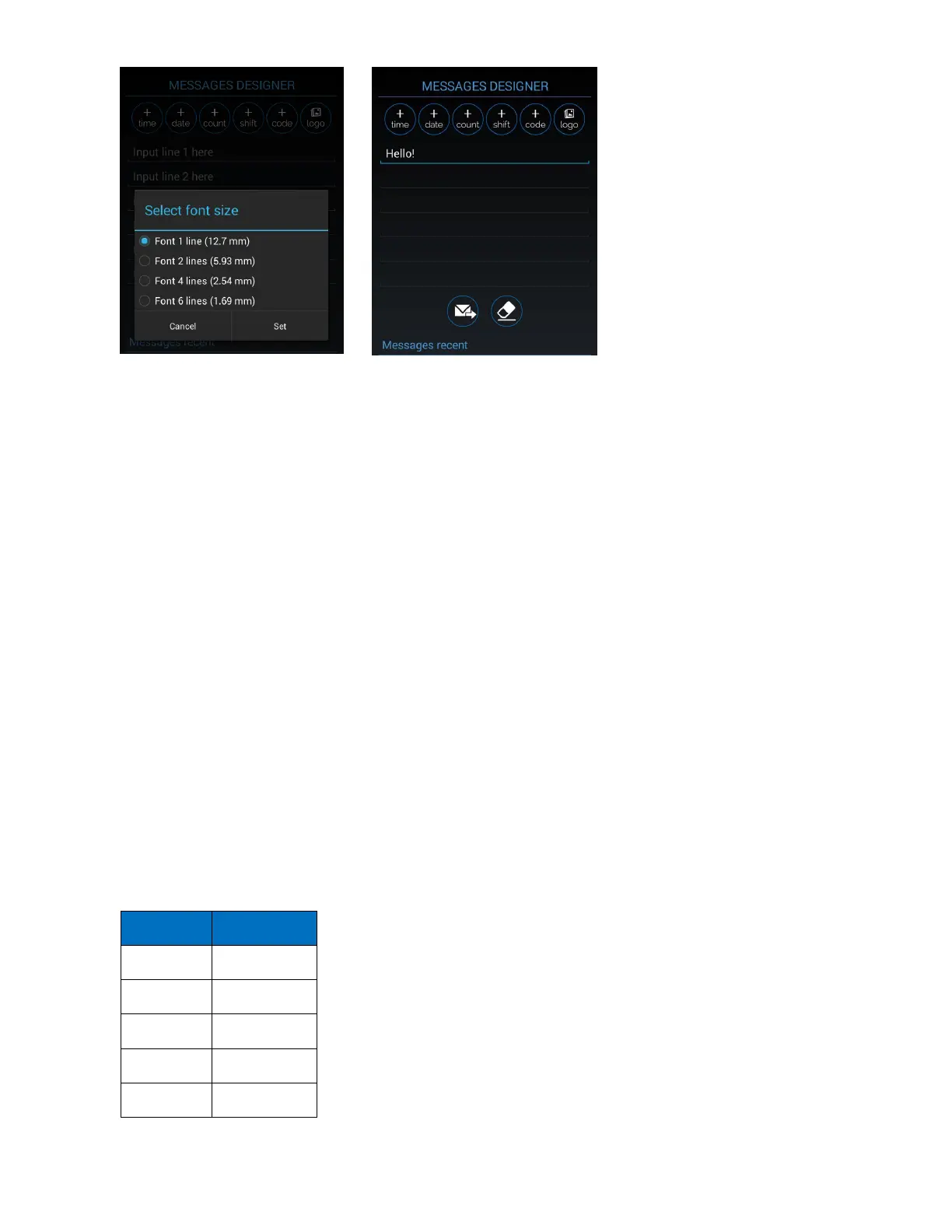
Input “Hello!”
send button
On PC with application (PC mode)
See PC application introduction.
FIRMWARE INTRODUCTION
From the main screen, use and arrow keys to select the desired menu: Message,
Operation or Settings. Press Enter to select. Press ESC to go back to the main screen.
Message
Create new or open existing messages on the machine memory.
NOTES:
While doing this, please be sure you stop printing.
Create new messages
Go to Create new to select your desired font, Normal or Uppercase.
Select Normal font to create your message with lower and uppercase fonts. Then
select your desired font size, number of line and insert fields into message. Otherwise, go
to Uppercase font to create your message with uppercase fonts only.
Available fonts and sizes include:
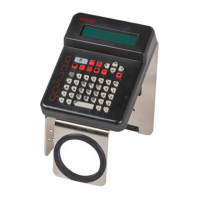
Input message by using the following keys:
Arrow keys : move the cursor.



 To Next Page