USER MANUAL V1.0 | Updated January 19, 2019 29
Dynamic barcode
Insert dynamic barcode into your messages.
Type: select your desired barcode (Code 39, Code 2/5, Code 128, Code 93, UPC-A,
EAN13, Codabar and Code 11).
Width: Input width for Barcode (value varies from 1 to 4).
Height: Input height for Barcode (value varies from 1 to 3).
Text: Select Enable to display barcode value, otherwise select Disable.
Prefix: Input repeat value before barcode.
Counter: setup values for your counter or dynamic data (like the Single counter).
Suffix: Input repeat data after barcode.
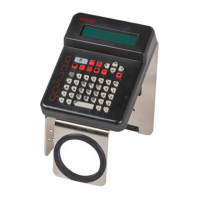
Use or arrow keys to move to the cursor to your desired object and change the
value. Press Enter after each value change to save and apply settings.
NOTES:
Counter can be placed in the following positions of the barcode
At the beginning : Prefix = 0 (not enter here).
In the middle : Input both Prefix and Suffix.
At the end : Suffix = 0 (not enter here).
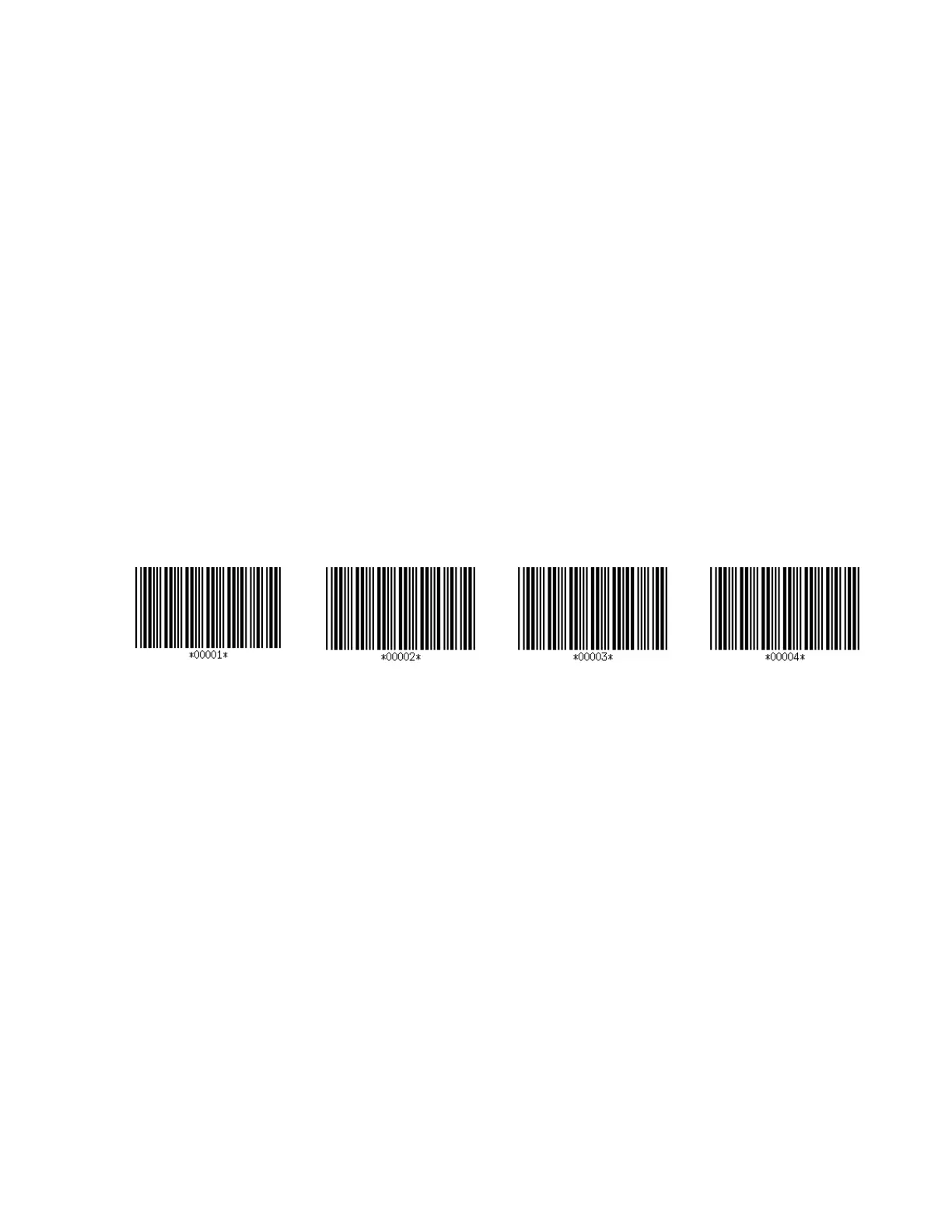
Example after printed will be like this:
Shiftcode
Insert Shiftcode into the message
From the designing section, use the arrow keys to move the cursor to your desired position in
the message and press Insert. Then use or arrow keys to move to Shiftcode and press
Enter.
Code: input name of Shiftcode. Maximum 2 characters (letter or number or both).
Time: input start time of each shift in hour: minute.
Code of each specific shift will be displayed according to each period of time of the shift.
Press Enter to save settings and press ESC to go back to the main menu.
Open storage messages
Open existing messages to Use / Edit / Delete.
From the main screen of machine, select Message, go to Open and press Enter to go to
message storage. Select your desired message and press Enter. Use or arrow keys to Use
/ Edit / Delete.
Use: select existing message to print.
Edit: select existing message to edit (see Create New).
Delete: select message to delete.



 To Next Page