Appendix A: Installing Client Software
FaxFinder Client User Guide 29
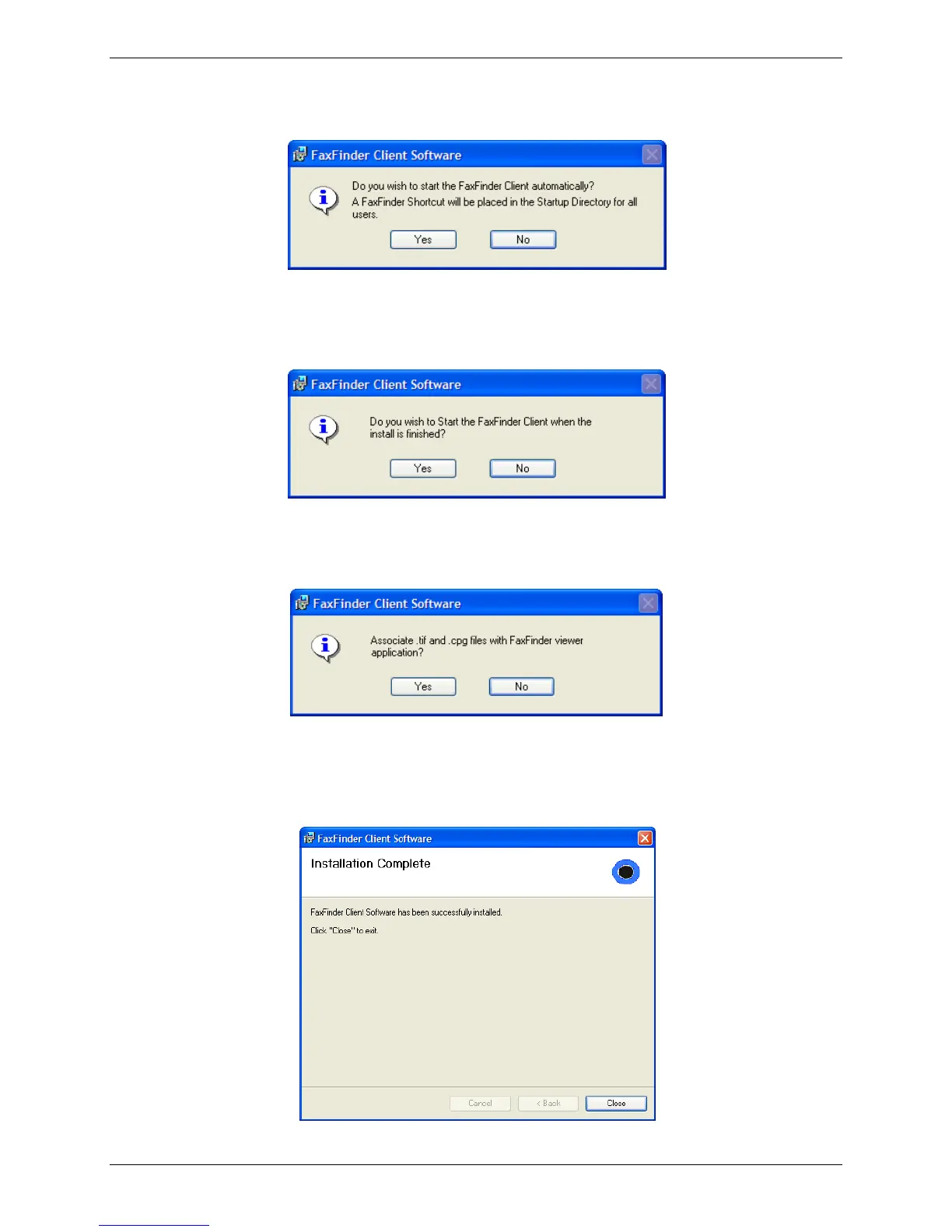
The Installing FaxFinder Client Software screen appears while files are copied. Then, the installer
asks if you want FaxFinder to start automatically when you start your PC.
9. Click Yes, if you want a shortcut in the Startup directory.
The installer asks if you want to start the FaxFinder client when the installation is complete.
Note: This window does not pop-up during a Terminal Services installation.
10. Select Yes to launch FaxFinder.
The installer asks if you want to associate .TIF and .CPG files with the Multi-Tech Tiff Viewer. If you
select Yes, these file types open in the Multi-Tech Tiff Viewer by default.
11. Click Yes to use the Multi-Tech Tiff Viewer as the default for all .TIF and .CPG files.
Note: If TIF files are associated with another application, you will be prompted to Overwrite the
existing settings. Click Yes to view all TIF files with the Multi-Tech Tiff Viewer or No to
continue using your current program.



 To Next Page