Appendix A: Installing Client Software
32 FaxFinder Client User Guide
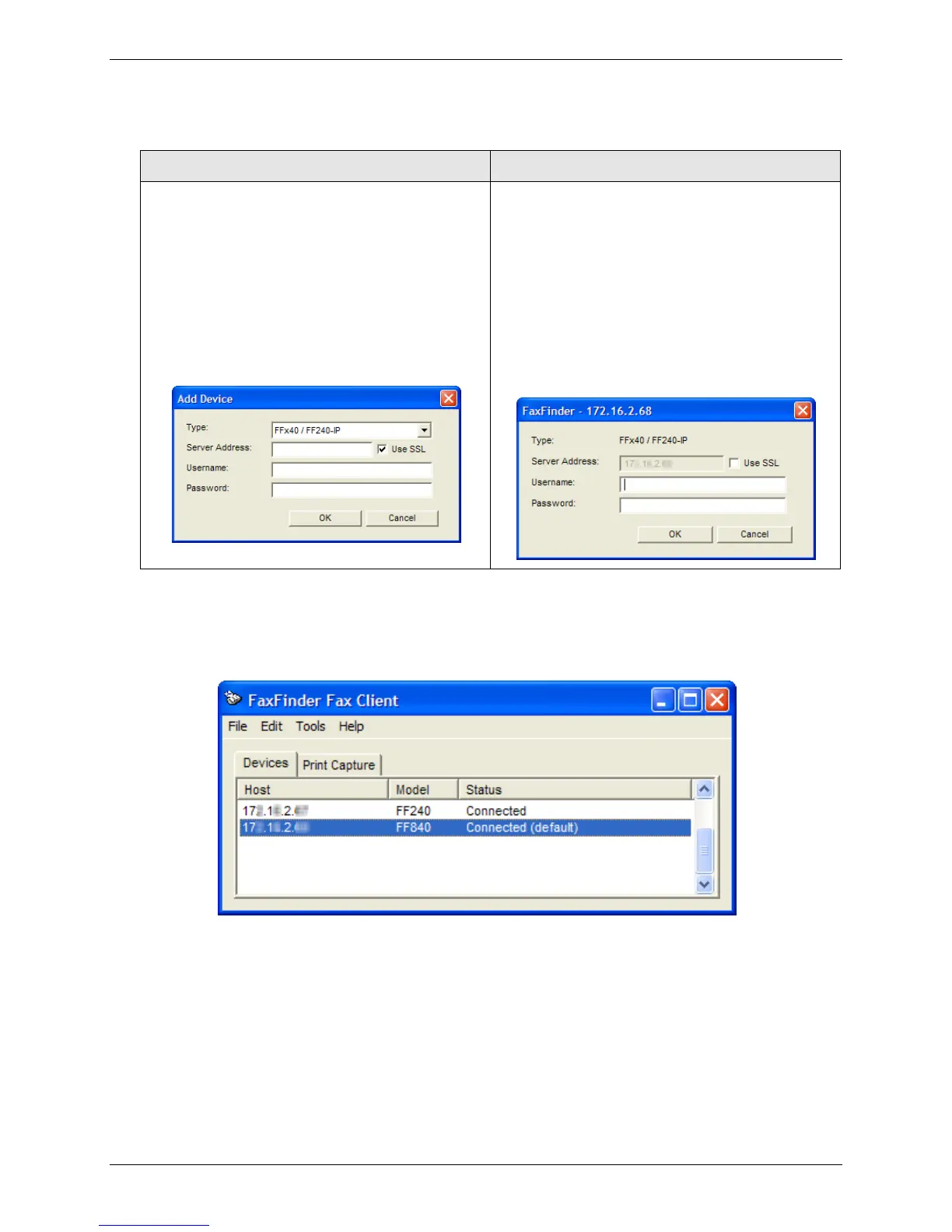
4. Enter Device information.
a. Select the FaxFinder model family from
the Type drop-down list.
b. Enter the IP address in the Server
Address field.
c. If a secure login is required, check Use
SSL.
d. Enter the Username and Password
required by the device.
Auto Discover Device automatically adds the
Type.
a. If a secure login is required, check Use
SSL.
b. Enter the Username and Password
required by the device.
c. Close the Auto Discover window when
you have finished adding FaxFinders to
the Fax Client.
Note: The username and password entered here must match the username and password entries
on the FaxFinder Server User Configuration list. Username and password are case-sensitive.
5. Click OK. A new FaxFinder entry appears on the Devices tab.
The device status should go to Connected. If it shows Login Failure, either:
● The IP address or domain name is wrong. If so, delete the entry (right-click DELETE), and enter a new
one;
or
● The username and password combination is wrong. Verify that the username and password you
entered matches the username and password assigned to the client-user. To check, right-click on
the FaxFinder listing on the Device tab and select Properties.
Note: Username and password are case-sensitive.



 To Next Page